
Schedule Examples
Common use cases for more complex schedules
Example 1: Complex Irregular Schedules
This schedule is for teams that rotate 12-hour shifts, on call for one week and then off call for a few.
Ex. 1 Schedule Requirements
This schedule has 6 users that alternate shifts every other week. One week, they work Sunday-Tuesday-Thursday-Saturday (STTS). The next week, they work Monday-Wednesday-Friday (MWF). There are a total of two six-week rotations, as everyone rotates through the MWF schedule, and one staggered by three weeks, where they work through STTS.
Ex. 1 Schedule Configuration
Layer 1 rotates weekly with a handoff time at the beginning of the first time restriction, Sunday at 00:00. It will cover the STTS days by restricting on-call duty to times-of-the-week.
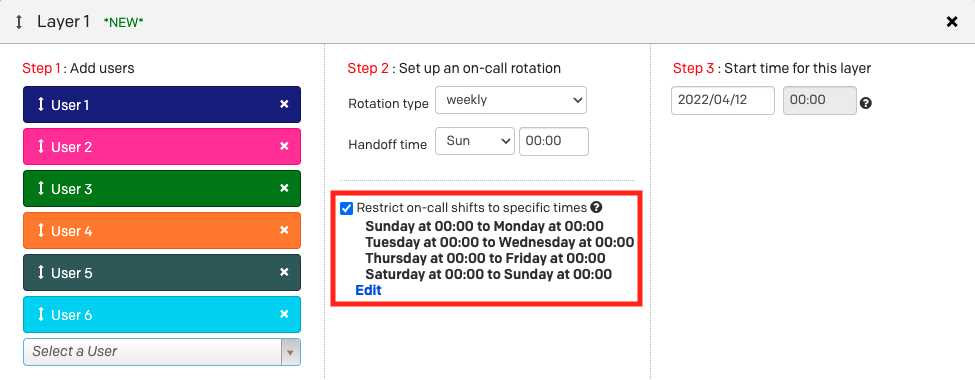
Example 1, layer 1
Layer 2 rotates weekly with a handoff time at the beginning of its first time restriction, Monday at 00:00. It will cover MWF by restricting on-call duty to times-of-the-week.
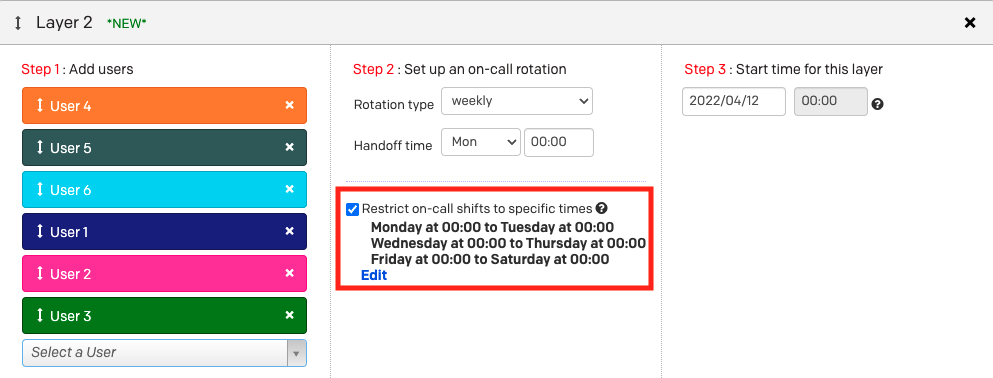
Example 1, layer 2
Ex. 1 Final Schedule
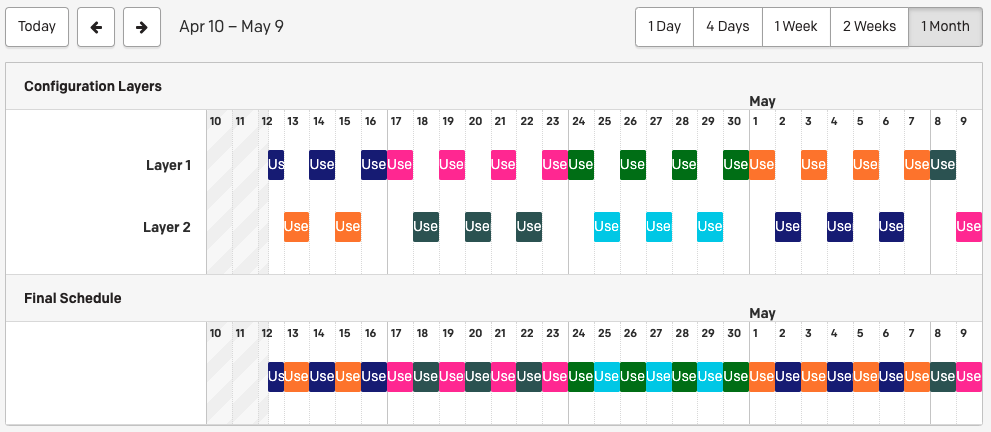
Example 1 final schedule
Example 2: Complex Schedule for 2 Users on a 2-Day Rotation with Separate Weekends
The example below shows a complex schedule for two users that are on a two-day rotation. They are on call in the evenings from 17:00 to 8:00 in the morning. On Saturday and Sunday, responders are on-call for 24 hours from 08:00 to 08:00 the next day.
Ex. 2 Schedule Requirements
During the weekdays, User 1 and User 2 are only on call from 17:00 to 08:00. Then they take turns covering the weekends from Friday at 17:00 to Monday at 08:00. Shifts are:
- User 1 is on-call Tuesday and Wednesday from 17:00 to 08:00.
- User 2 is on-call Thursday and Friday from 17:00 to 08:00.
- User 1 is on-call Friday at 5pm to Saturday at 08:00 and Saturday at 08:00 to Sunday at 08:00.
- User 2 then is on-call Sunday at 8am to Monday 8am, and Monday 17:00 to Tuesday 08:00.
Ex. 2 Configuration
Create four layers, each with its own weekly rotation that fulfills one of the requirements listed above.
The handoff time should be the day and time that the first restriction begins. The effective date of change should be the first date that a layer's restriction begins on. This means that the date in Step 3 for each layer will be different.
- User 1 is on call Tuesday and Wednesday from 17:00 to 08:00.
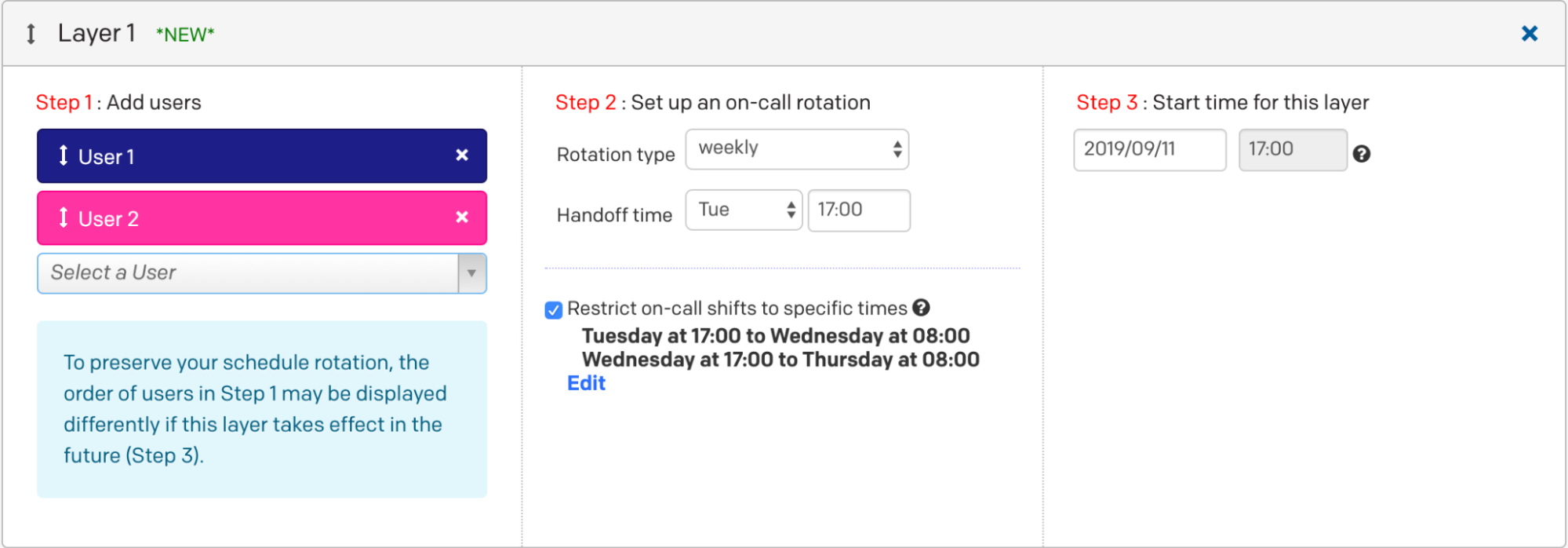
Example 2, layer 1
- User 2 is on call Thursday and Friday from 17:00 to 08:00.
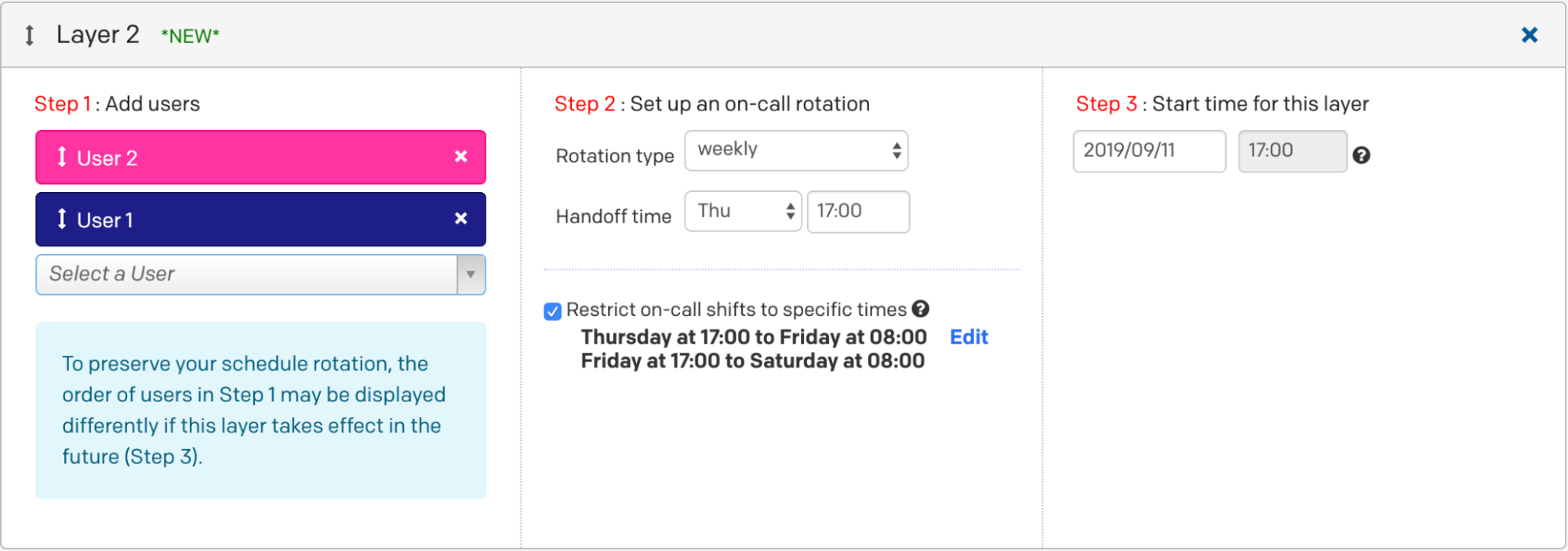
Example 2, layer 2
- User 1 is on call Saturday at 8:00 to Sunday at 09:00.
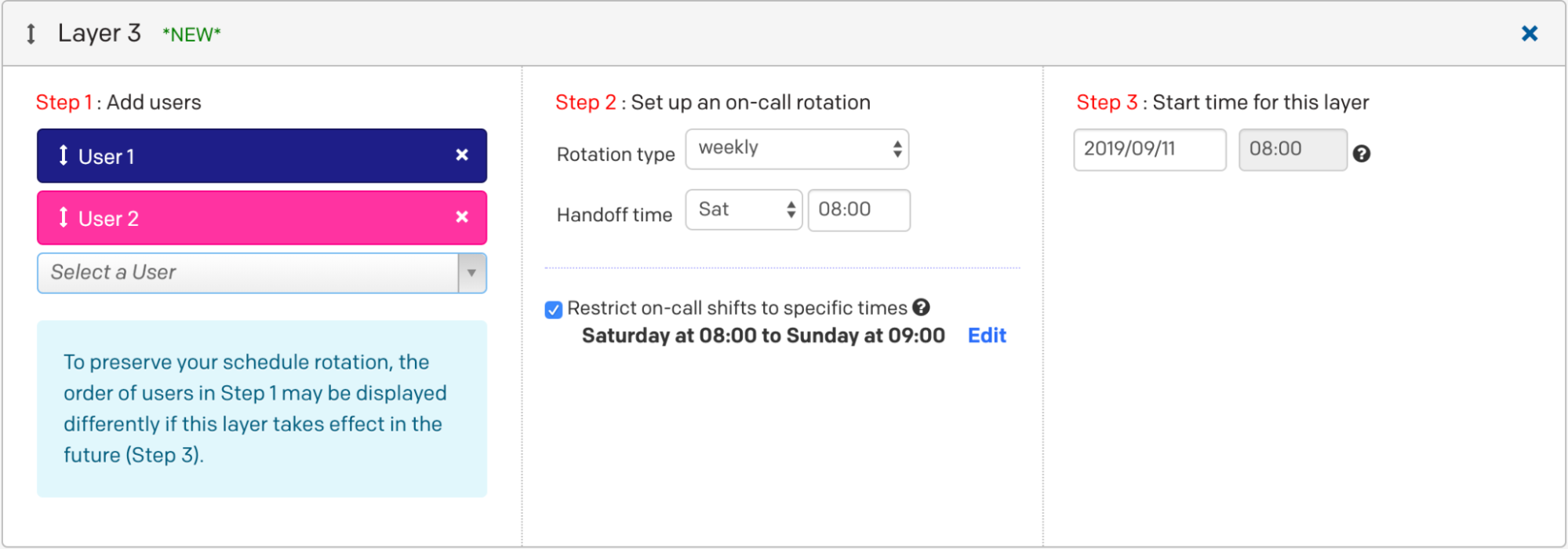
Example 2, layer 3
- User 2 then is on call Sunday at 8am to Monday 08:00, and Monday 17:00 to Tuesday 08:00.
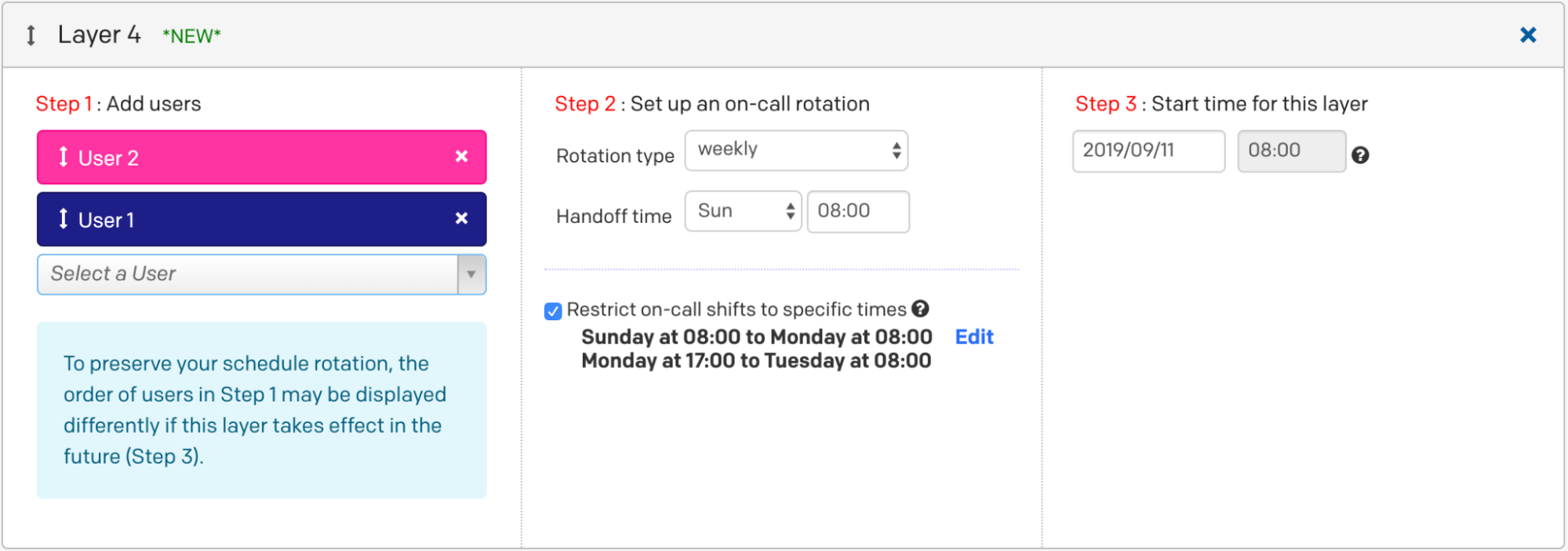
Example 2, layer 4
Ex. 2 Final Schedule
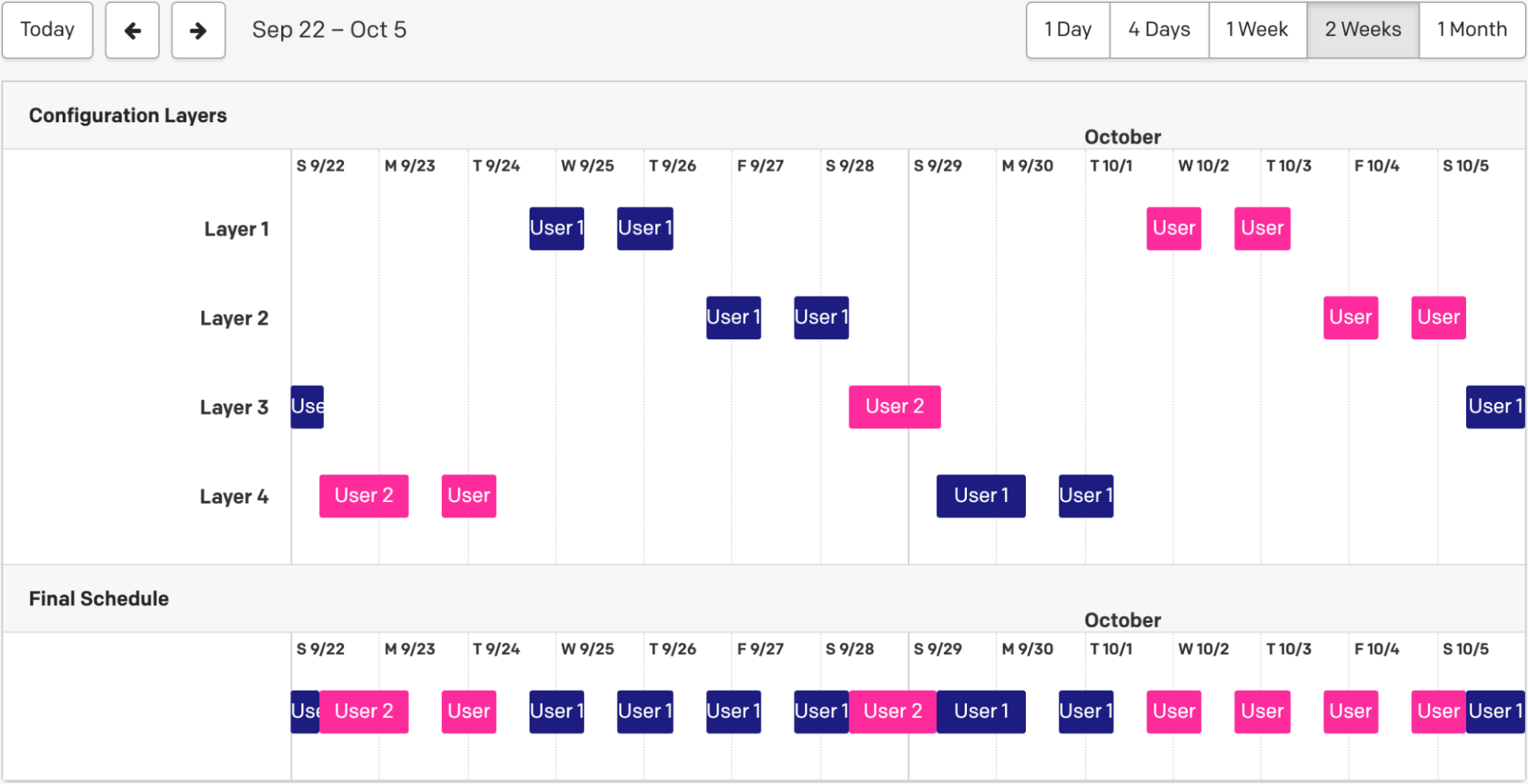
Example 2 final schedule
Example 3: Complex Split Shift Rotation
This example shows how to create a time-restricted 4-person rotation. Two users split each shift.
Ex. 3 Schedule Requirements
These users are on-call between 00:00 to 10:00 with a shift length of 5 hours. After 5 hours, the next user comes on-call to cover the schedule until 10:00.
Ex. 3 Configuration
- Add four users to the schedule in Step 1.
- Click the Restrict on-call shifts to specific times option. Restrict the schedule from 00:00 to 10:00.
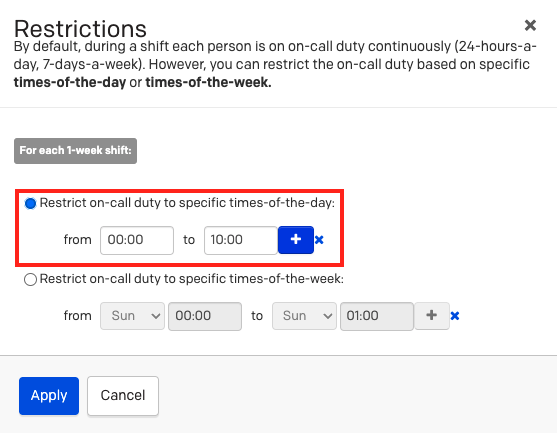
Example 3 restrictions
- Create a custom rotation type with a shift length of 12 hours. Set the handoff time to be halfway between the shift, 05:00.
- A 12-hour shift is required to make sure that shifts consistently begin at 0:00 and 05:00.
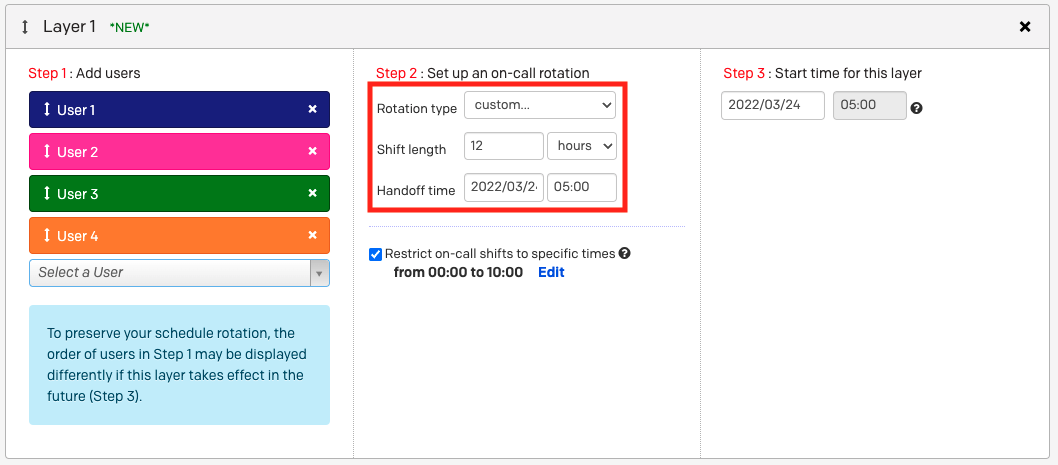
Example 3 rotation configuration
Ex. 3 Final Schedule
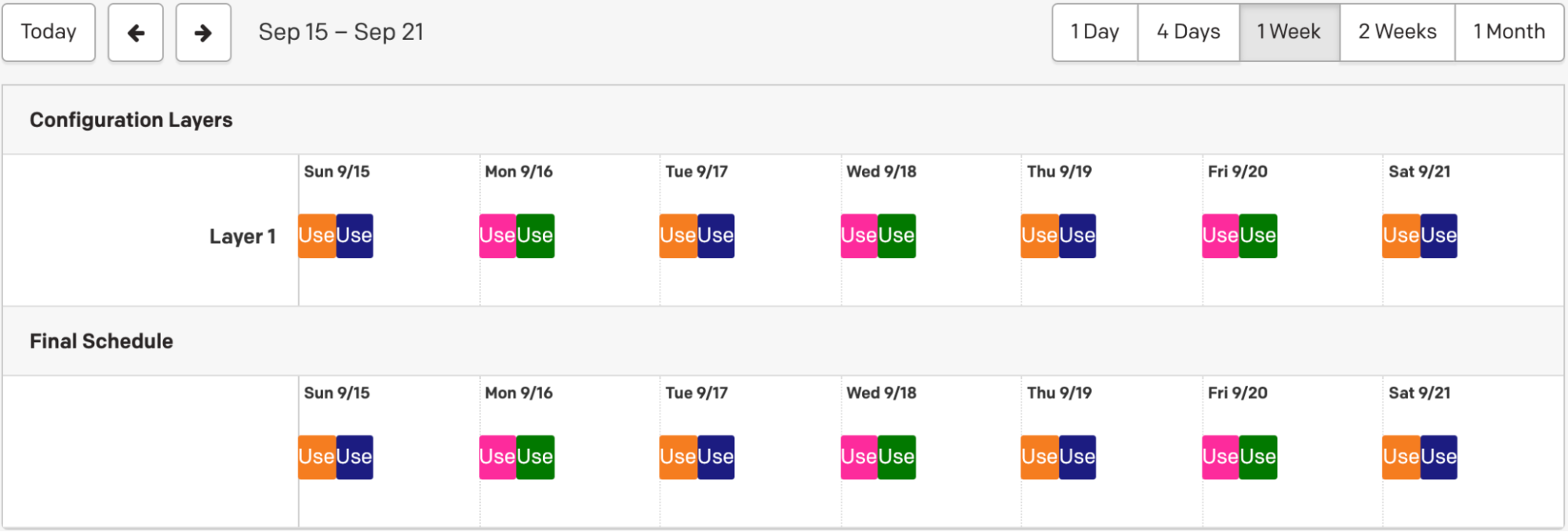
Example 3 final schedule
Example 4: Complex Schedule with Restrictions
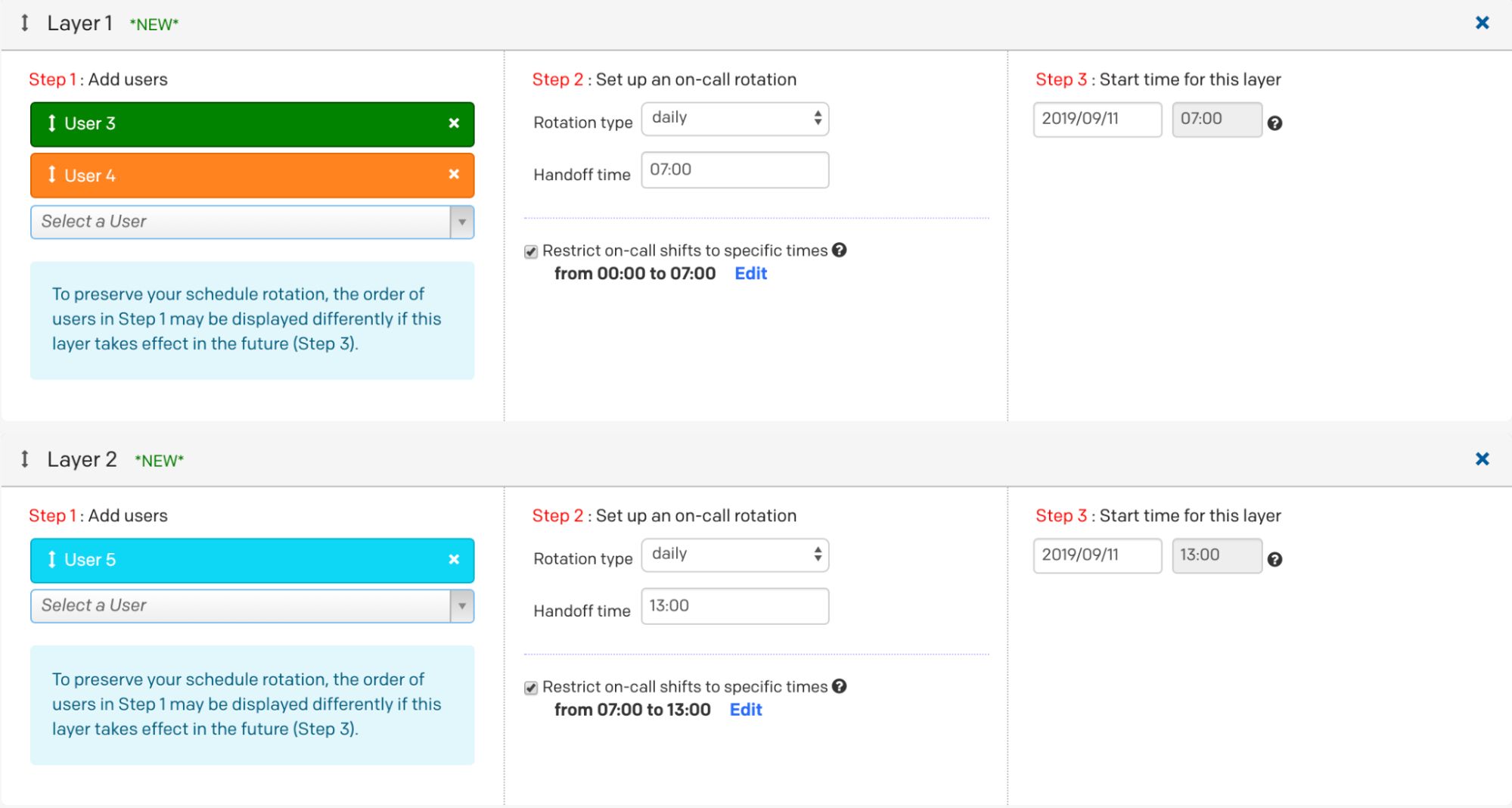
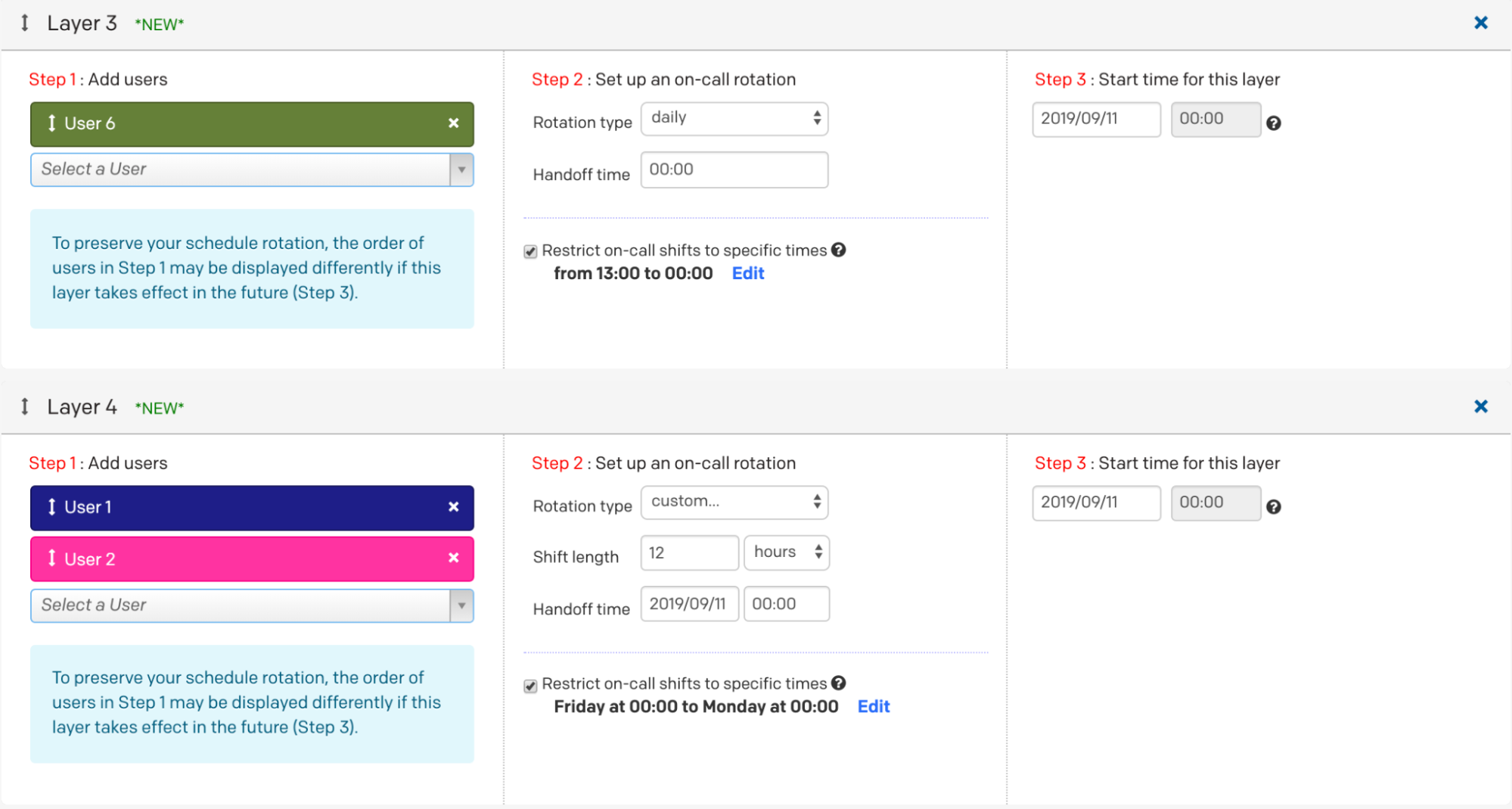
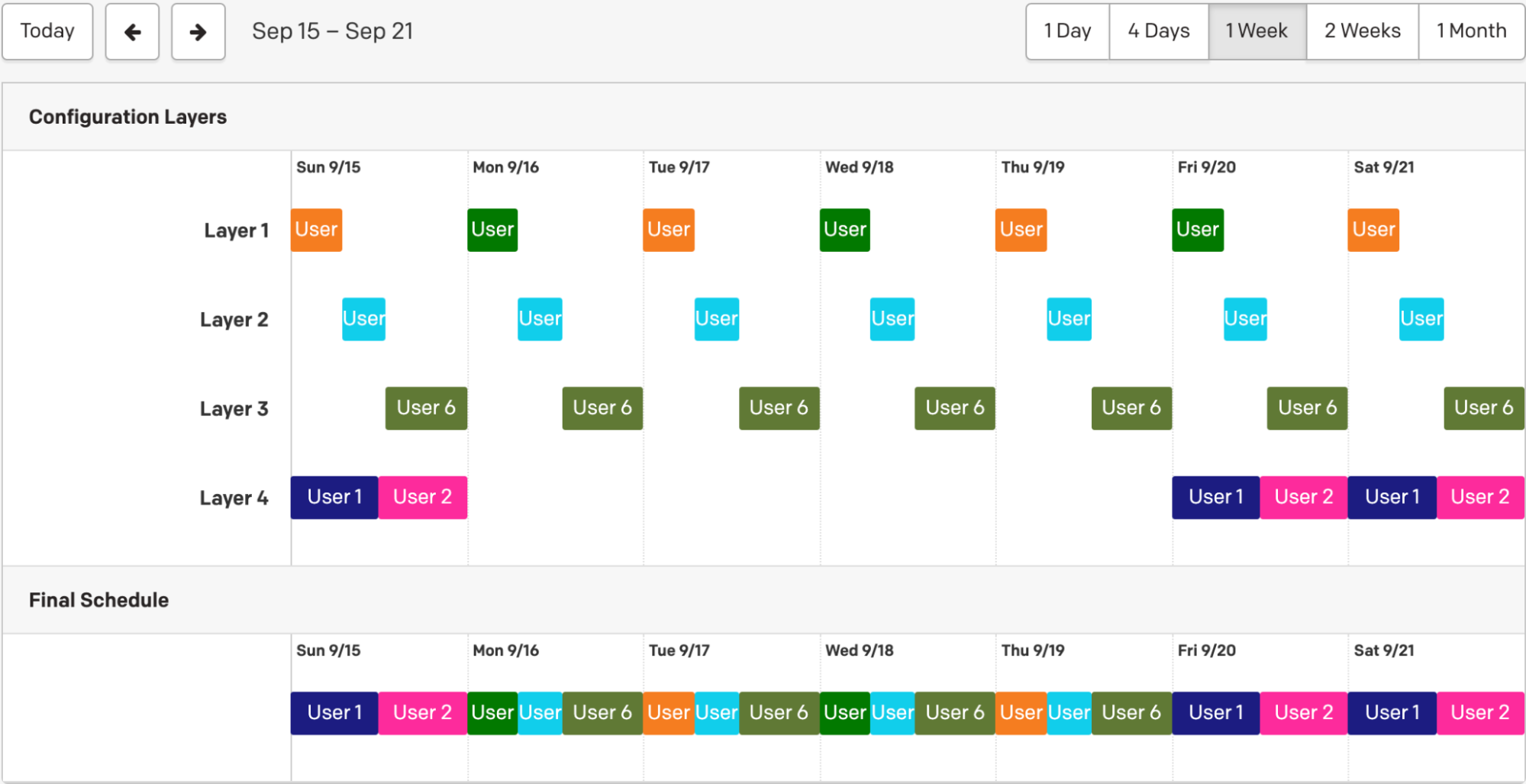
In this example, User 5 and User 6 trade off the early morning shift, User 3 takes the morning, and User 4 takes the evening shift during a four day week. User 1 and User 2 take shifts on the elongated weekend:
- Monday: User 5 for 7 hours, then User 3 for 6 hours, then User 4 for 11 hours.
- Tuesday: User 6 (7 hrs), User 3 (6hrs), User 4 (11hrs).
- Wednesday: User 5 (7hrs), User 3 (6hrs), User 4 (11 hrs).
- Thursday: User 6 (7 hrs), User 3 (6hrs), User 4(11 hrs).
- Friday: User 1 (12 hrs), User 2 (12 hrs).
- Saturday: User 1 (12 hrs), User 2 (12 hrs).
- Sunday: User 1 (12 hrs), User 2 (12 hrs).
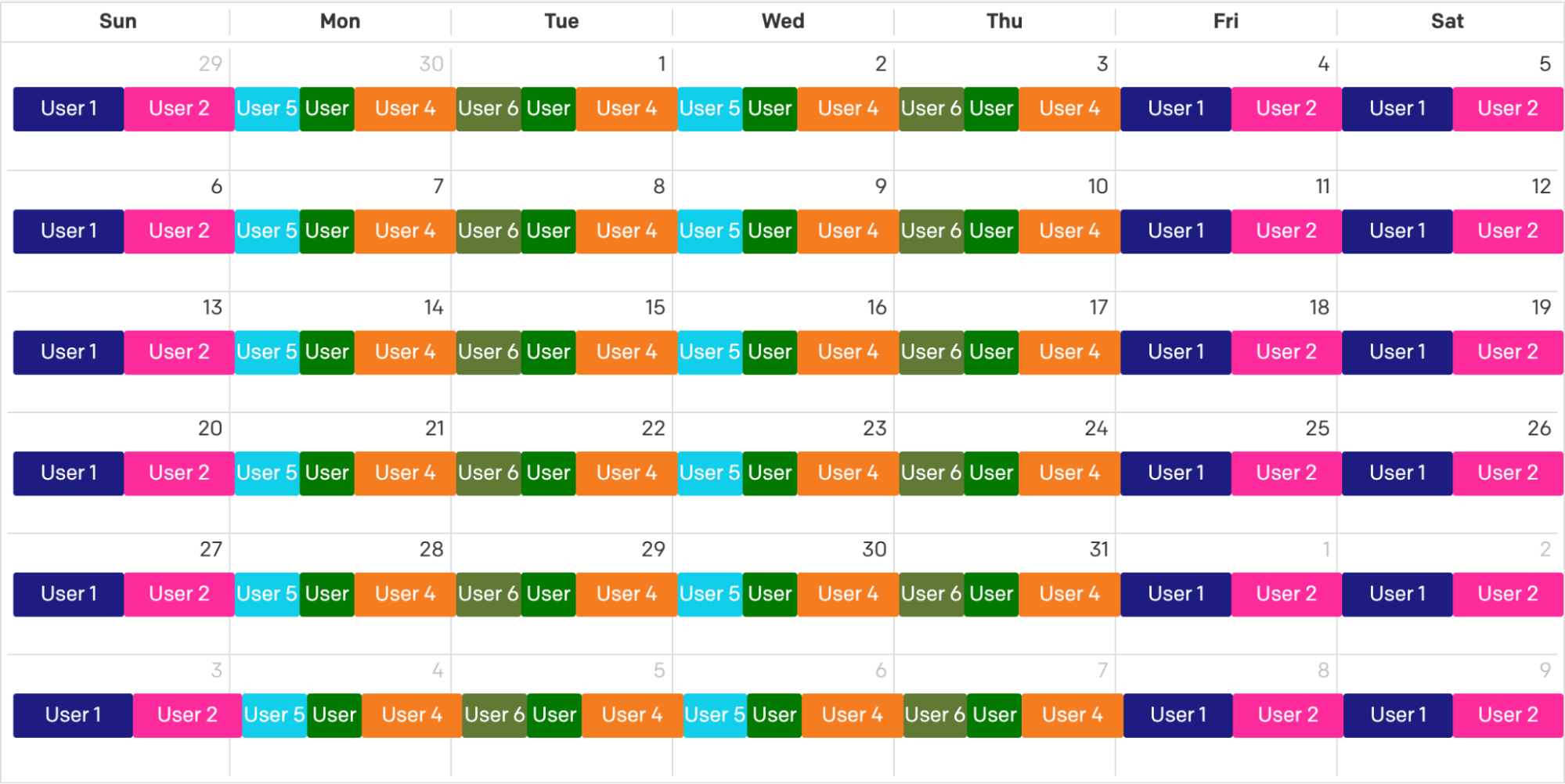
Example 4
User 1 and User 2 are easy to schedule because they have consistent shifts. Create a layer for each remaining user and restrict on-call duty to specific times of the week, based on their scheduled shifts.
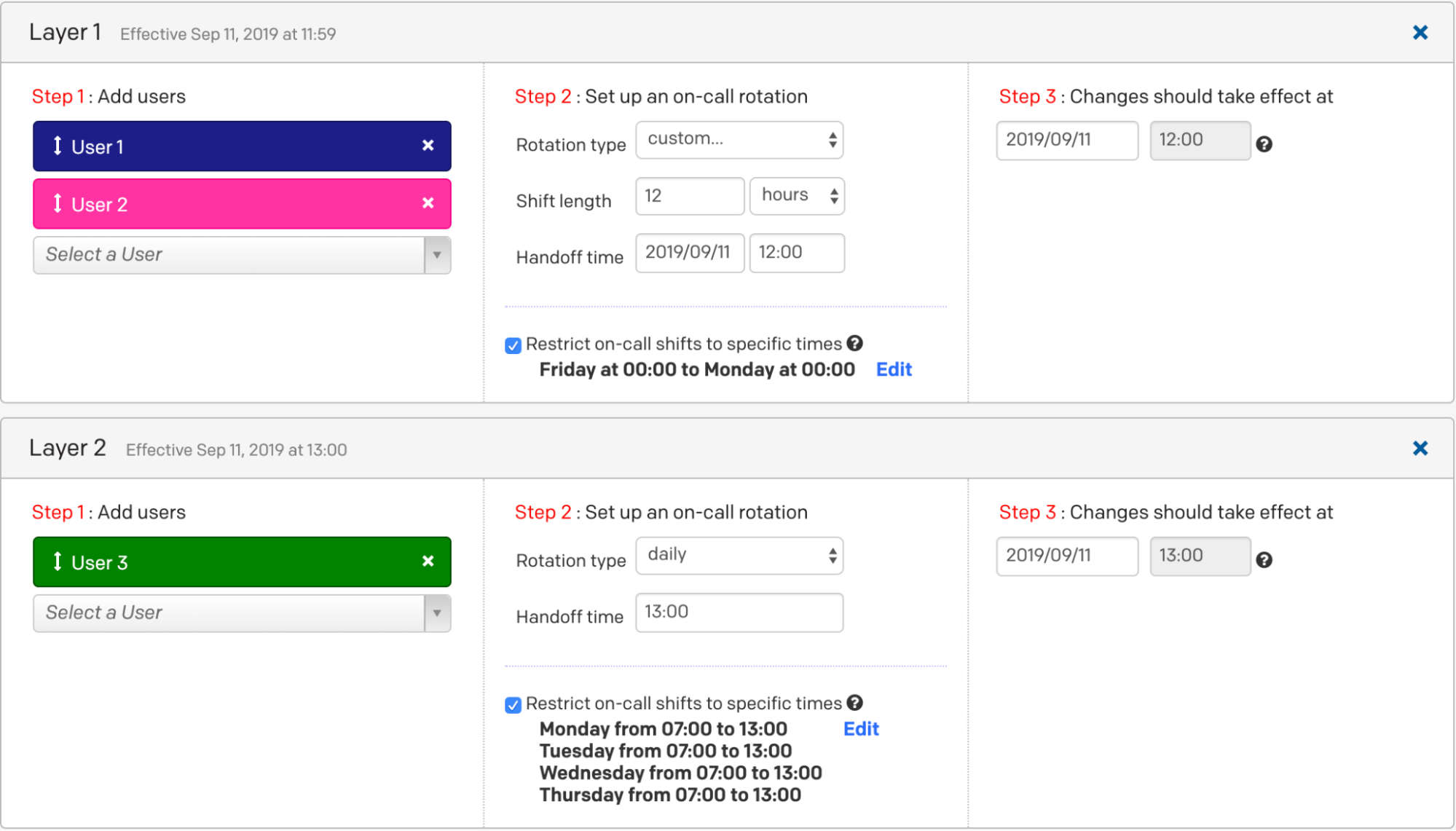
Example 4, layers 1 and 2
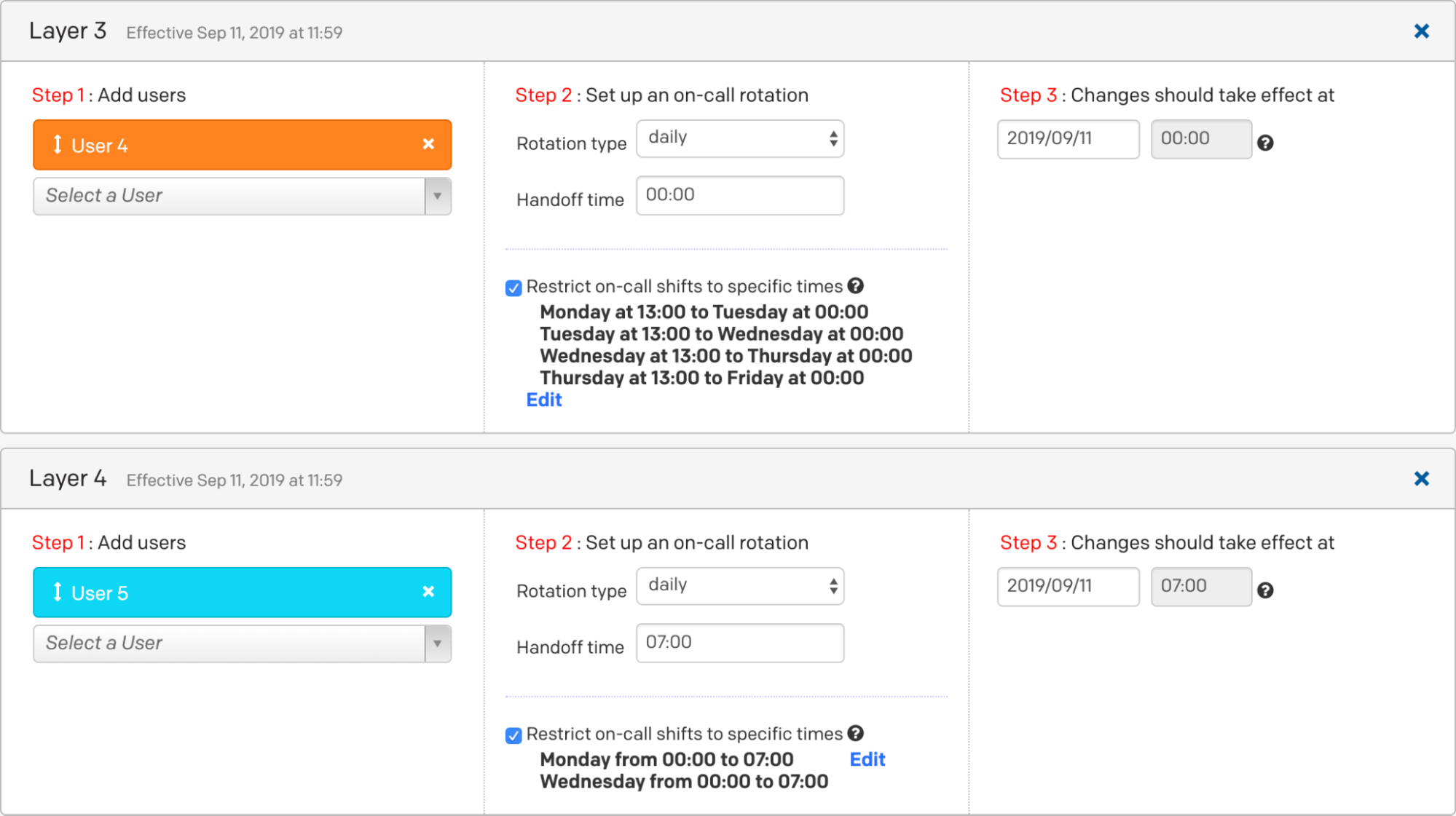
Example 4, layers 3 and 4
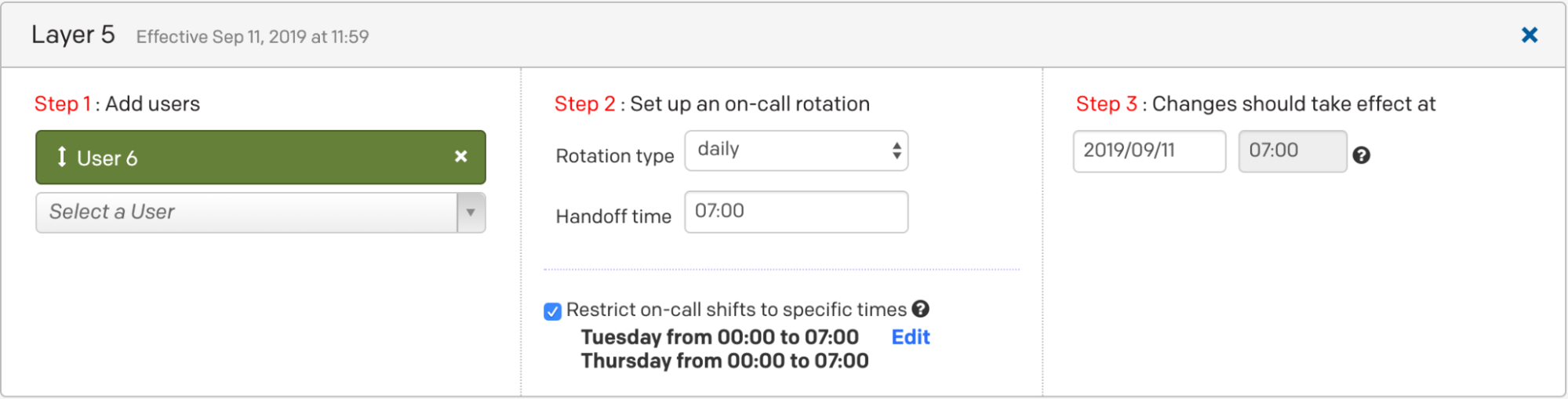
Example 4, layer 5
The result looks like this:
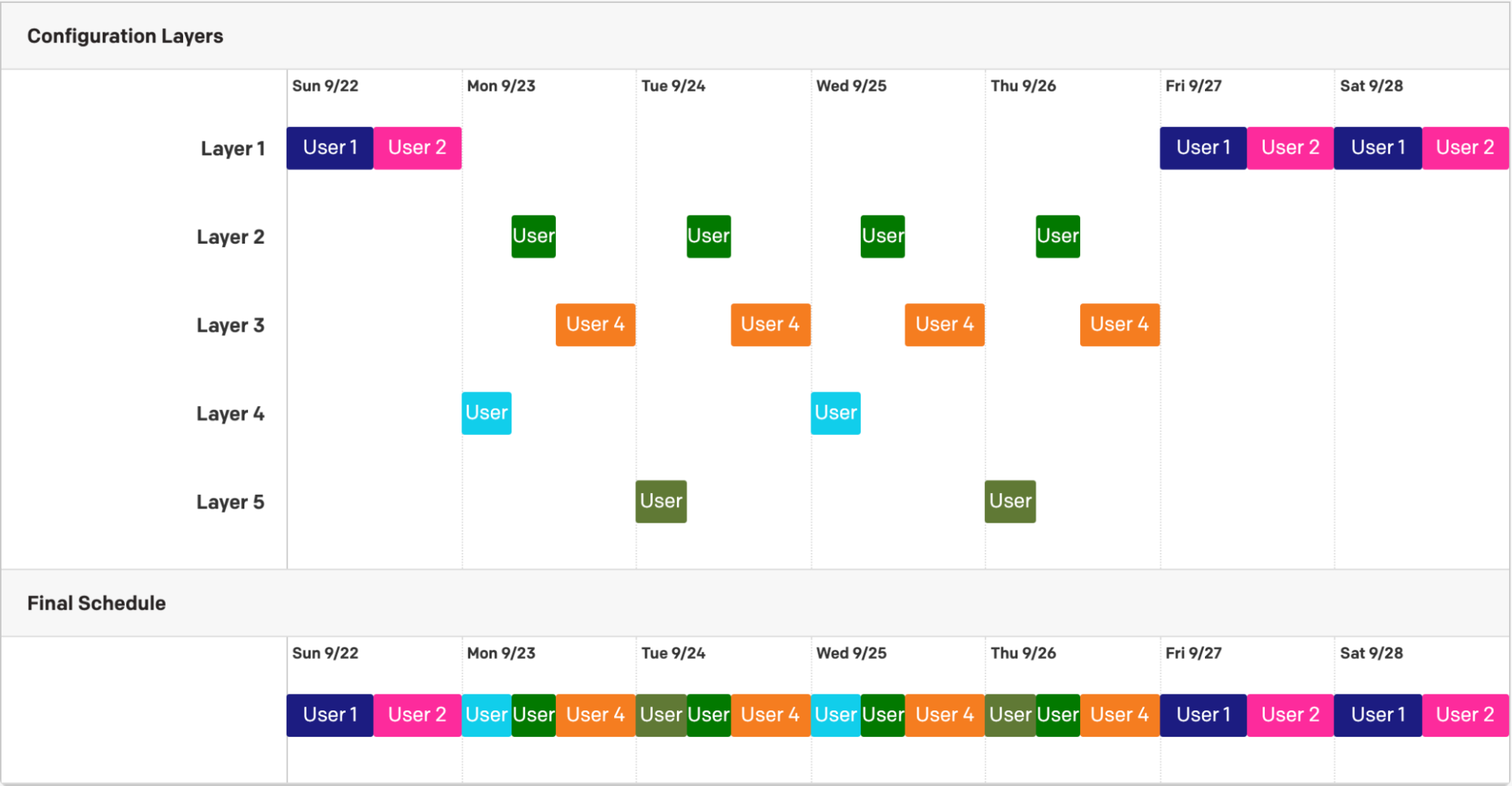
Example 4 with all layers
You can overlap layers to make the schedule simpler. If you put the layer with User 1 and User 2 on the bottom (since lower schedule layers take precedence over higher layers), you can simplify some of the restrictions. User 3 and User 4 now only need to be restricted by time of the day, for example.
Example 4, layers 1 and 2 alternative
Example 4, layers 3 and 4 alternative
Ex. 4 Final Schedule
Example 4 final schedule
Example 5: Create Primary and Secondary On-Call Schedules
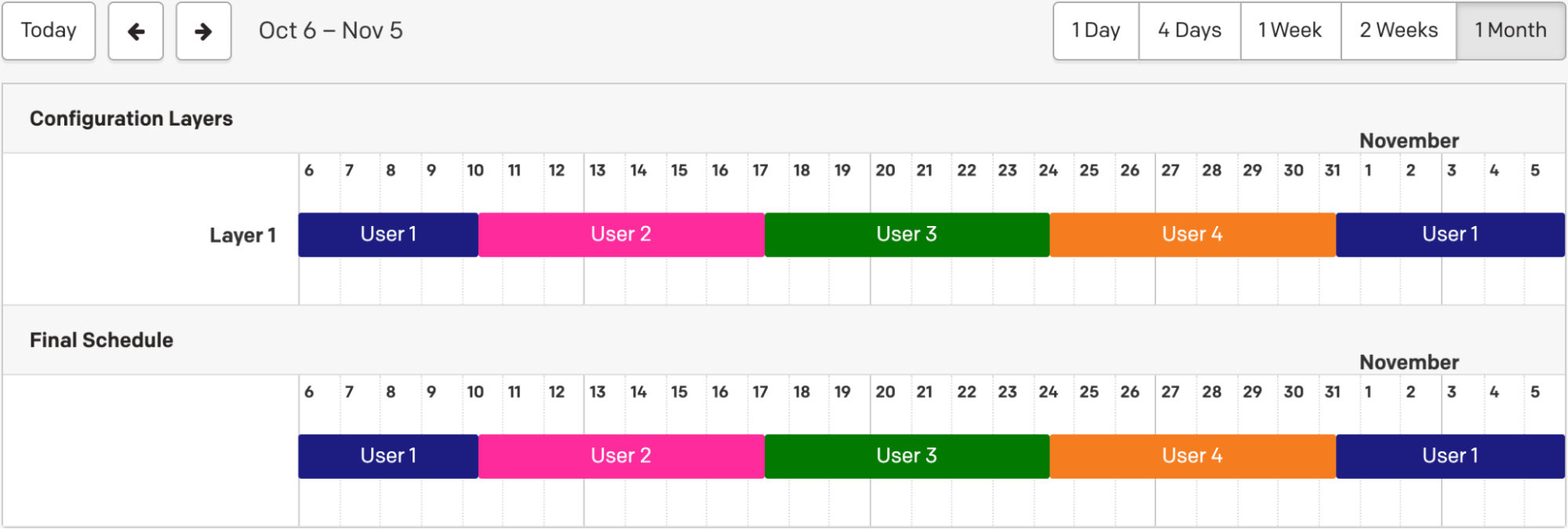
Creating primary and secondary schedules is helpful if the primary responder misses a notification. In this example we are using a primary and secondary schedule. You may add more backup schedules to an escalation policy as needed.
Create a Primary On-Call Schedule
- Go to People On-Call Schedules and click New On-Call Schedule.
- Enter an On-call schedule name, and optionally enter a description and adjust the Time zone.
- Configure the schedule to meet your primary on-call needs.
- Add Users from the drop-down list.
- Select the Rotation type from the drop-down menu.
- Set the schedule Start time.
- Review the schedule and click Create Schedule.
Example 5, primary schedule
Create a Secondary On-Call Schedule
- Repeat the configuration steps from the primary on-call schedule set up.
- Adjust the user order so that it is staggered from the primary schedule.
- Review the schedule and click Create Schedule.
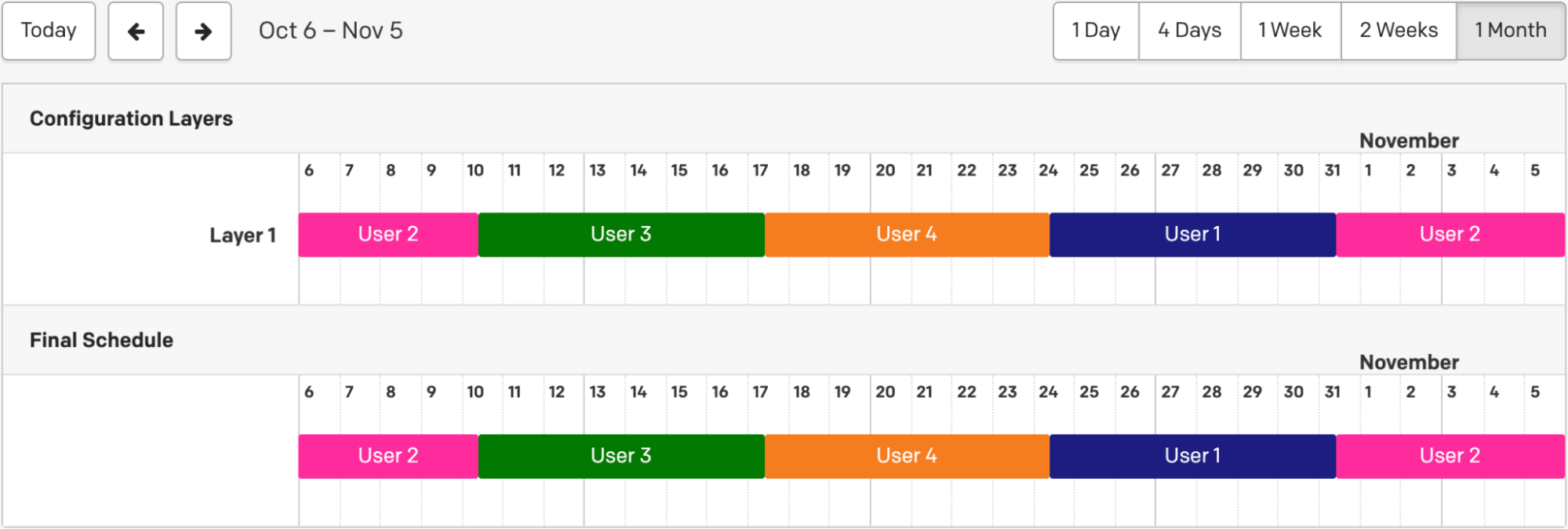
Example 5, secondary schedule
Create an Escalation Policy
Create an escalation policy with the primary schedule at level one, and the secondary schedule at level two. For more information about creating and configuring escalation policies, please see Create an Escalation Policy.
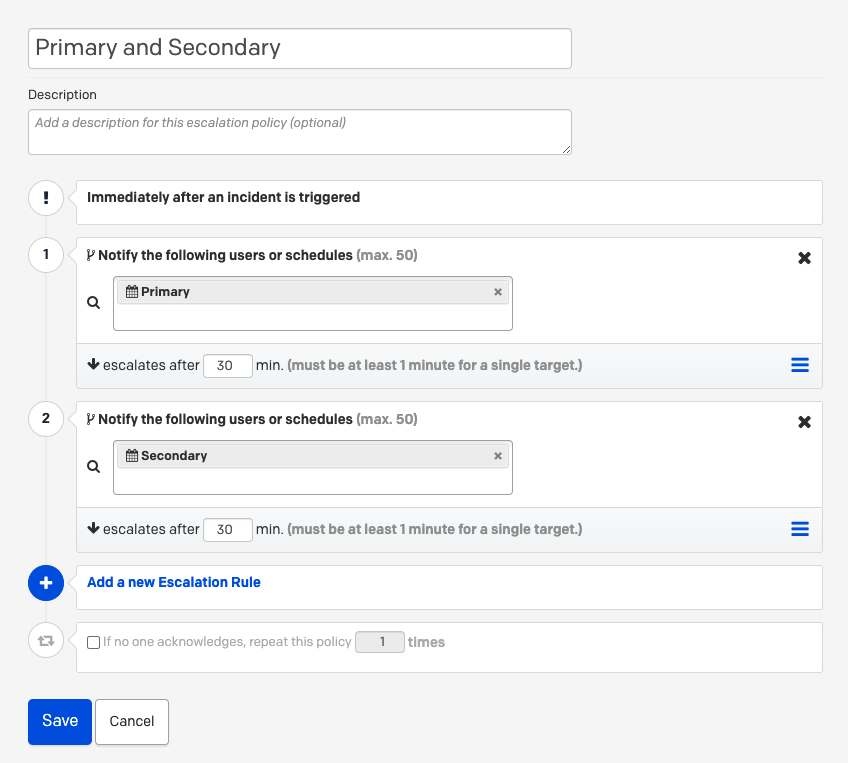
Example 5, escalation policy
Example 6: Inverse Schedules
This setup is similar to the previous example, but with just two users and the following conditions:
- When User 1 is the primary on-call, User 2 is the secondary on-call.
- When User 2 is the primary on-call, User 1 is the secondary on-call.
You will want to create two on-call schedules and add each schedule to a separate level of an escalation policy.
Schedule example articles:
Ex. 6 Schedule Requirements
This schedule has 2 users on-call. When User 1 is the first point of escalation, User 2 is the backup, receiving all incidents that User 1 does not respond to. When User 2 is the first point of escalation, User 1 is the backup, receiving all incidents that User 2 does not respond to.
Ex. 6 Configuration
You will need to create 2 schedules, one for the escalation level one and the another for level two.
Schedule 1
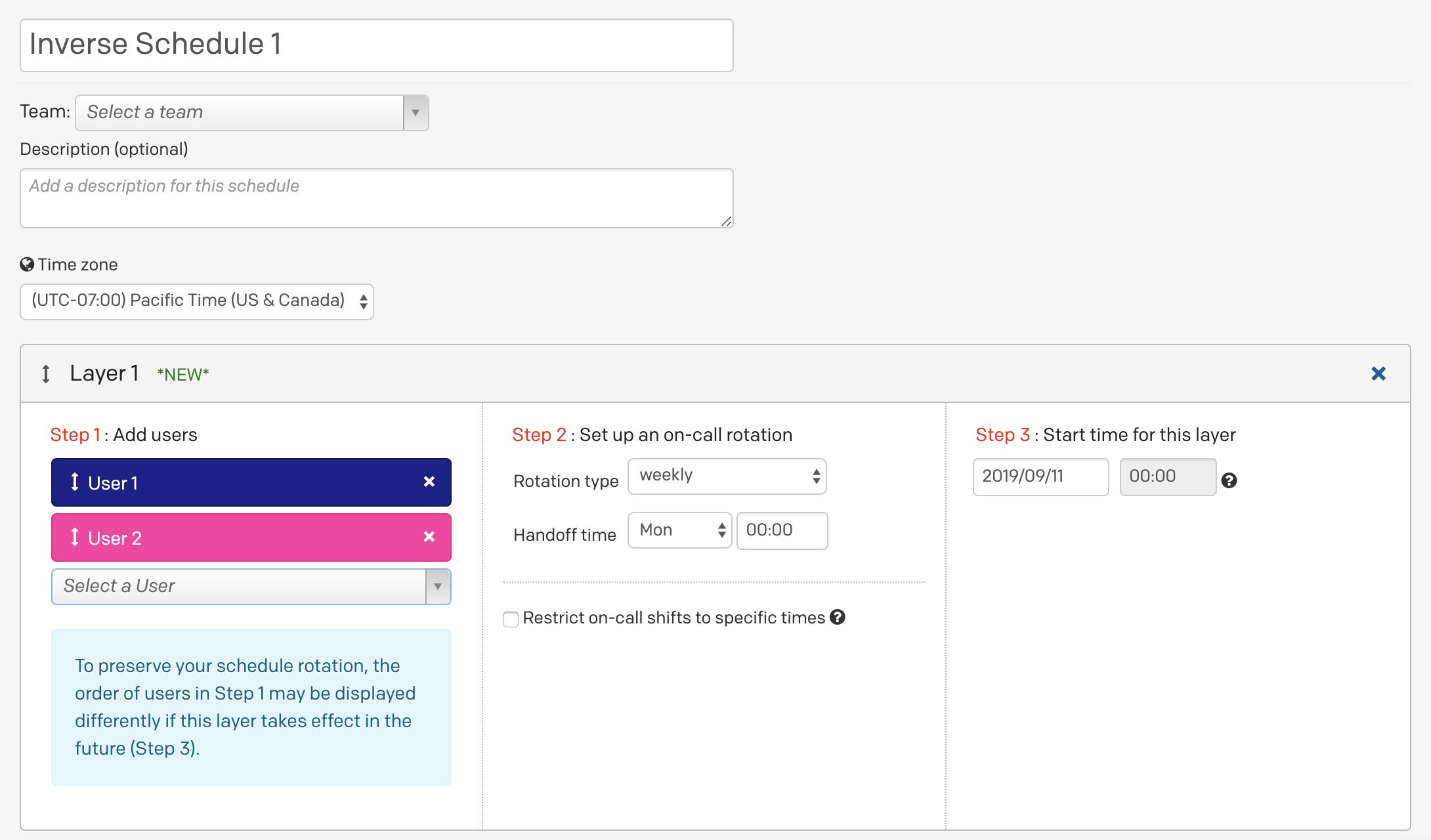
Example 6, schedule 1
Schedule 2
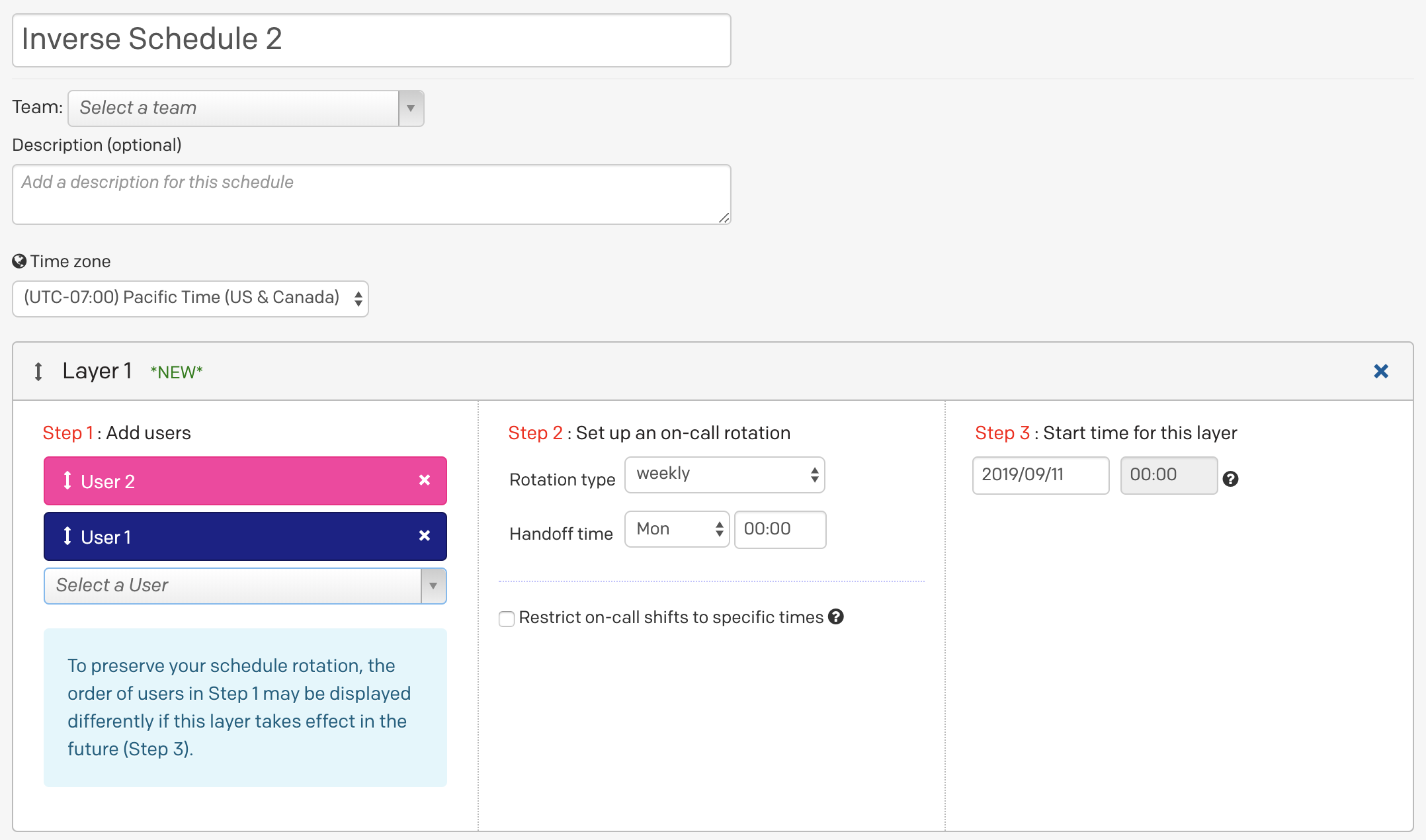
Example 6, schedule 2
Tip
You can select Copy this Schedule to clone a schedule, and then re-order the users. This option is under on the right side of the page.
Ex. 6 Escalation Policy
- Go to People Escalation Policies and either create a New Escalation Policy, or edit an existing one.
- Add Schedule 1 to Level 1 of the escalation policy.
- Click Add a new Escalation Rule and add Schedule 2 to Level 2 of the escalation policy.
- Click Save.
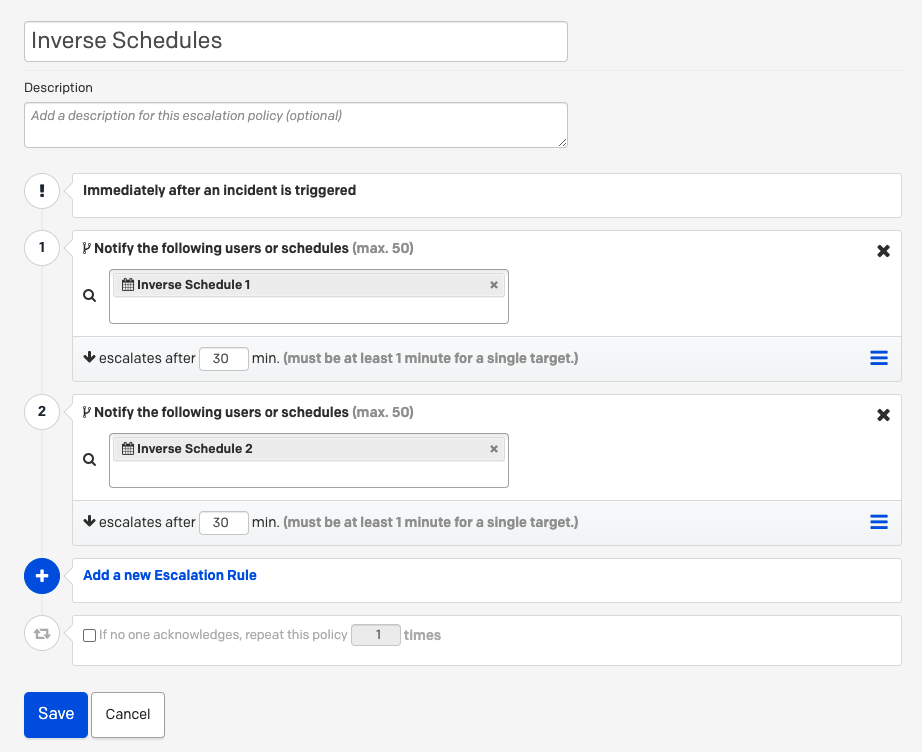
Example 6, escalation policy
Example 7: Follow-the-Sun Schedule
The "follow-the-sun" schedule is commonly used for international teams in different time zones and ensures 24/7 coverage. This schedule has three sets of users on call at different times of the day and week. In this example we have a US team and an India team.
Ex. 7 Schedule Requirements
In this schedule, we'll have three rotating shifts (or layers). The first layer, for users in the US, will consist of User 1 and User 2. They will be on call weekdays from 08:00 to 20:00 US Pacific Time (PT) and they will rotate on a weekly basis.
The India layer will be User 3 and User 4. They will be on call weekdays starting at 20:00 PT until 08:00 PT the following day.
The third layer will cover the weekends, and all 4 users will be on it. The person on call during the weekend will cover the whole weekend and will rotate weekly. For clarity's sake, let's define “weekend” to start at Friday 20:00 PT and end Sunday 20:00 PT.
Ex. 7 Configuration
- Go to People Schedules, then click New On-Call Schedule.
- Enter an On-call schedule name and optionally adjust the time zone. All times that you select will be local to this time zone.
Team 1 (US)
- Add the US users (User 1 and User 2) by selecting Select a User in Layer 1.
- Select weekly as the rotation type, set the Handoff time to the beginning of your shift, and select Restrict on-call shifts to specific times.
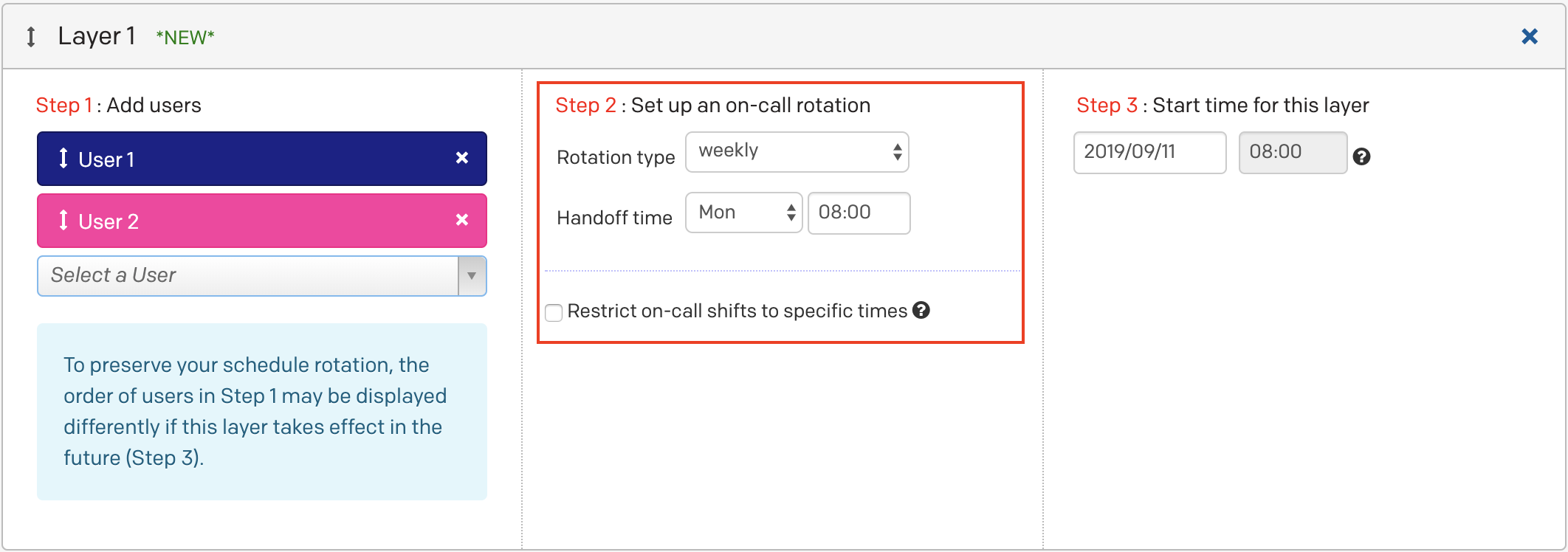
Example 7, layer 1 (US)
- With Restrict on-call duty to specific times-of-the-day selected, enter 08:00 to 20:00.
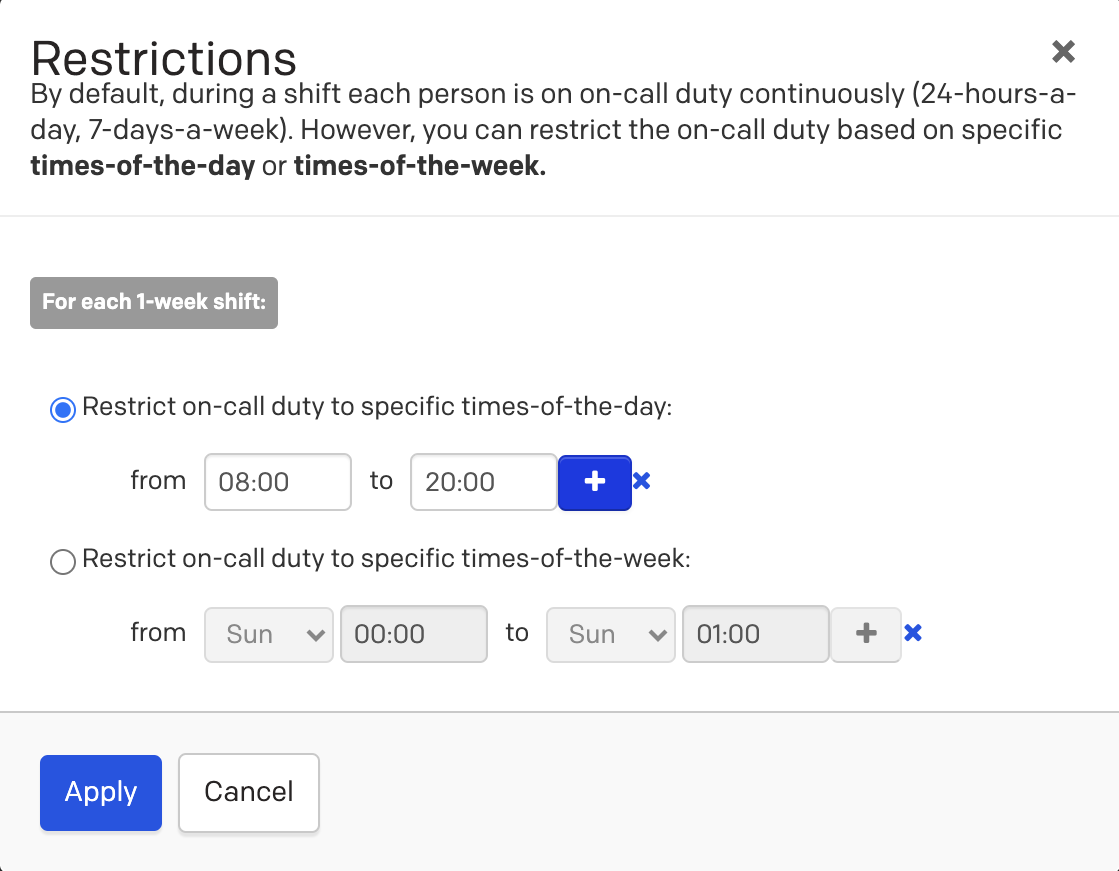
Example 7, layer 1 restrictions
- Click Apply.
Layer Precedence
You will not need to restrict this layer to weekdays, since the weekend rotation in Layer 3 will replace weekend days on the final schedule. This follows the rule that the lowest layer has precedence over any higher layers.
Team 2 (India)
- Click Add Another Layer and add the India users (User 3 and User 4) to Layer 2.
- Select weekly as the rotation type, set the Handoff time to the beginning of this team’s shift, and select Restrict on-call shifts to specific times.
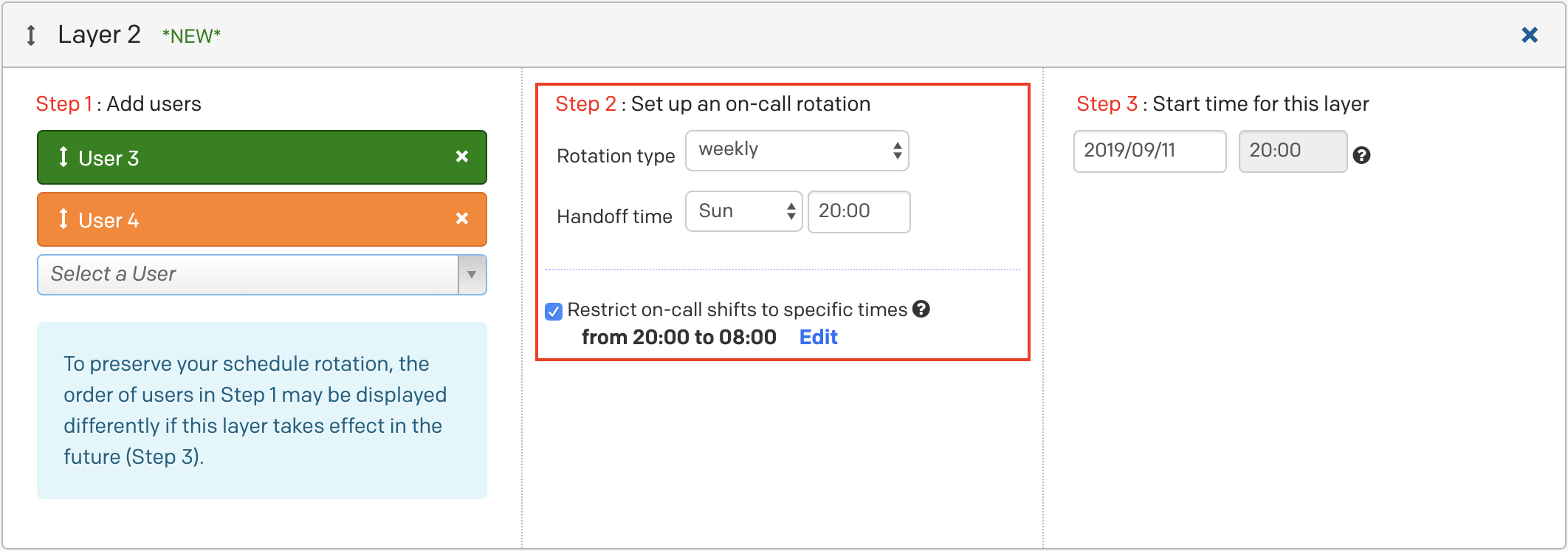
Example 7, layer 2 (India)
- With Restrict on-call duty to specific times-of-the-day selected, enter 20:00 to 08:00 (8pm to 8am the following day).
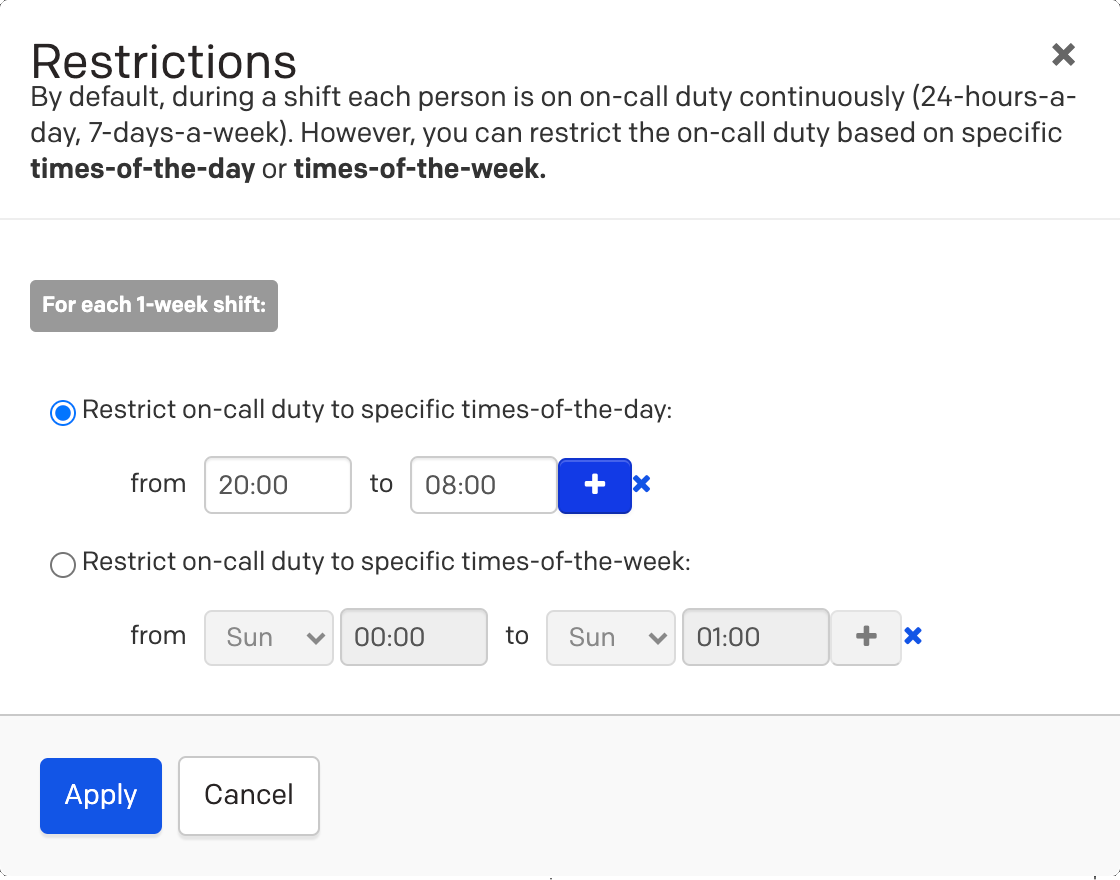
Example 7, layer 2 restrictions
- Click Apply.
Team 3 (Weekend)
- Click Add Another Layer and add all 4 users to Layer 3.
- Select weekly as the rotation type, set the Handoff time to the beginning of this team’s shift, and select Restrict on-call shifts to specific times.
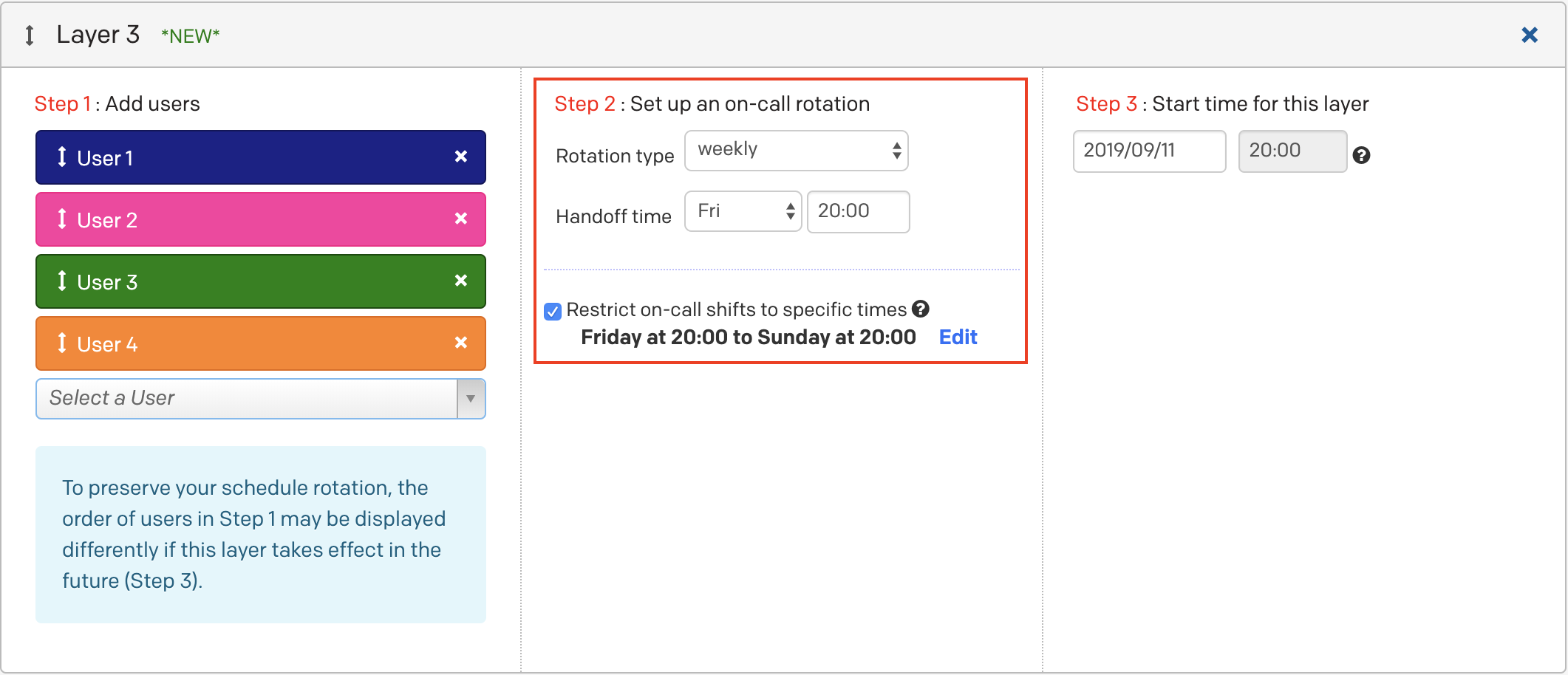
Example 7, layer 3 (Weekend)
- With Restrict on-call duty to specific times-of-the-week selected, enter Friday 20:00 to Sunday 08:00 (8pm to 8am the following day).
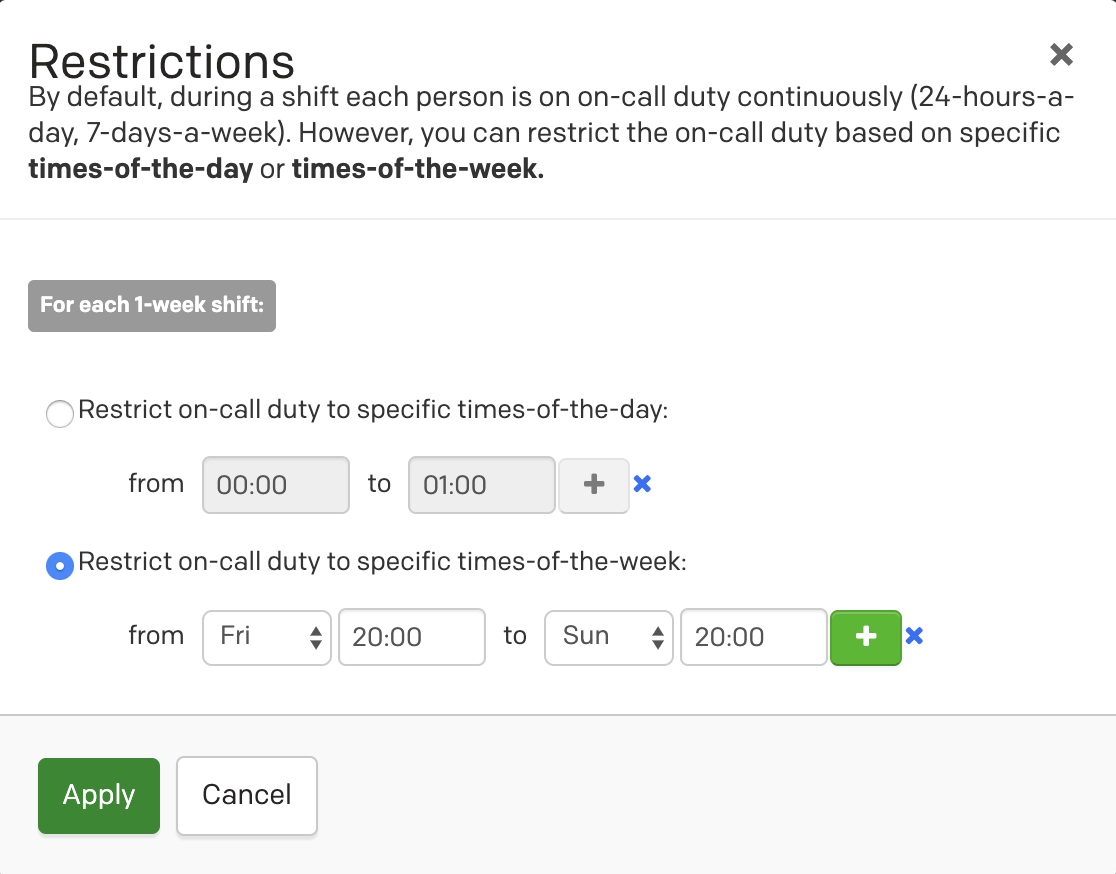
Example 7, layer 3 restrictions
- Click Apply.
Ex. 7 Final Schedule
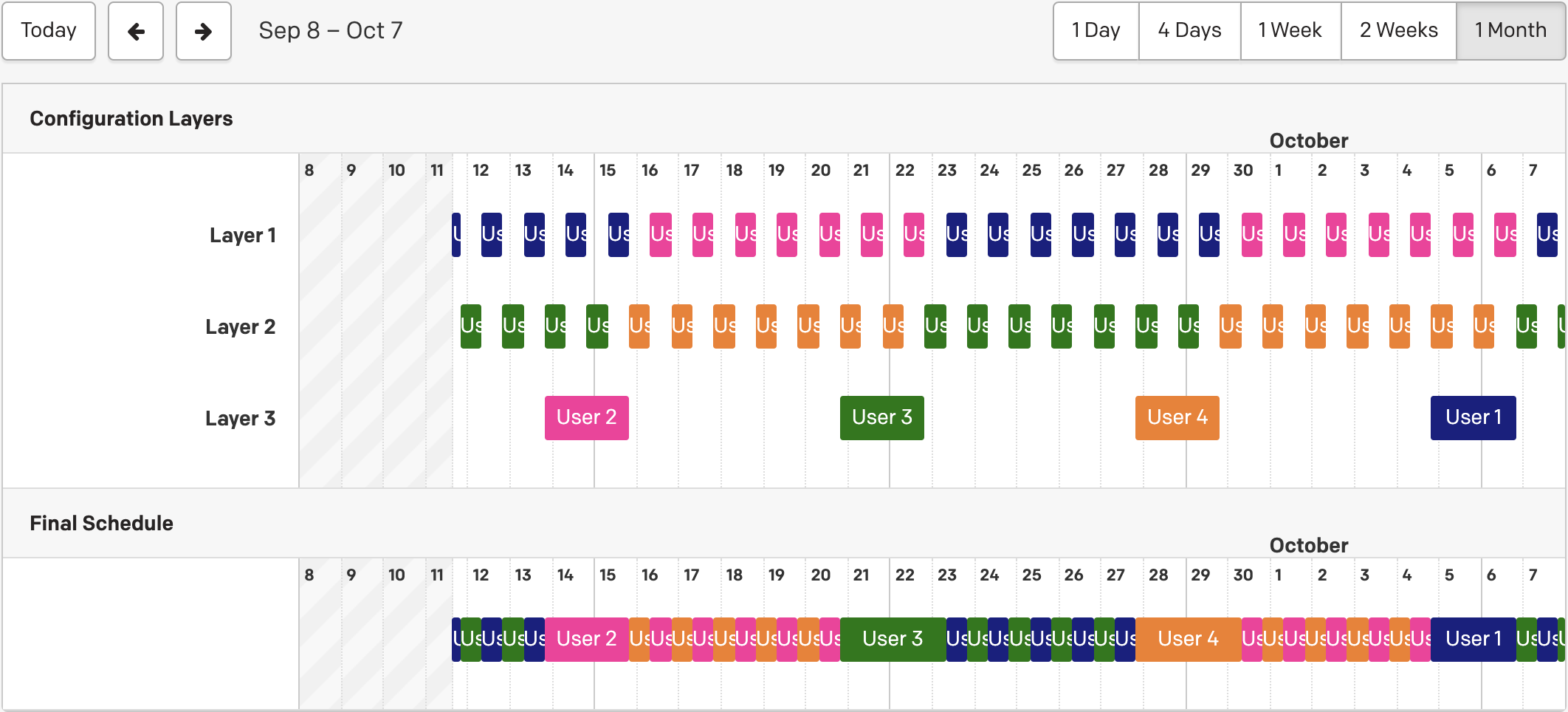
Example 7, final schedule
Example 8: Schedule Users Every Other Week
Ex. 8 Schedule Requirements
This schedule has 4 users. 2 users are on call during the weekdays. The other 2 are on call during the weekend. They rotate every week.
Ex. 8 Configuration
Layer 1 will have weekday rotations. User 1 and 2 will rotate on a weekly basis with a handoff time Monday 00:00.
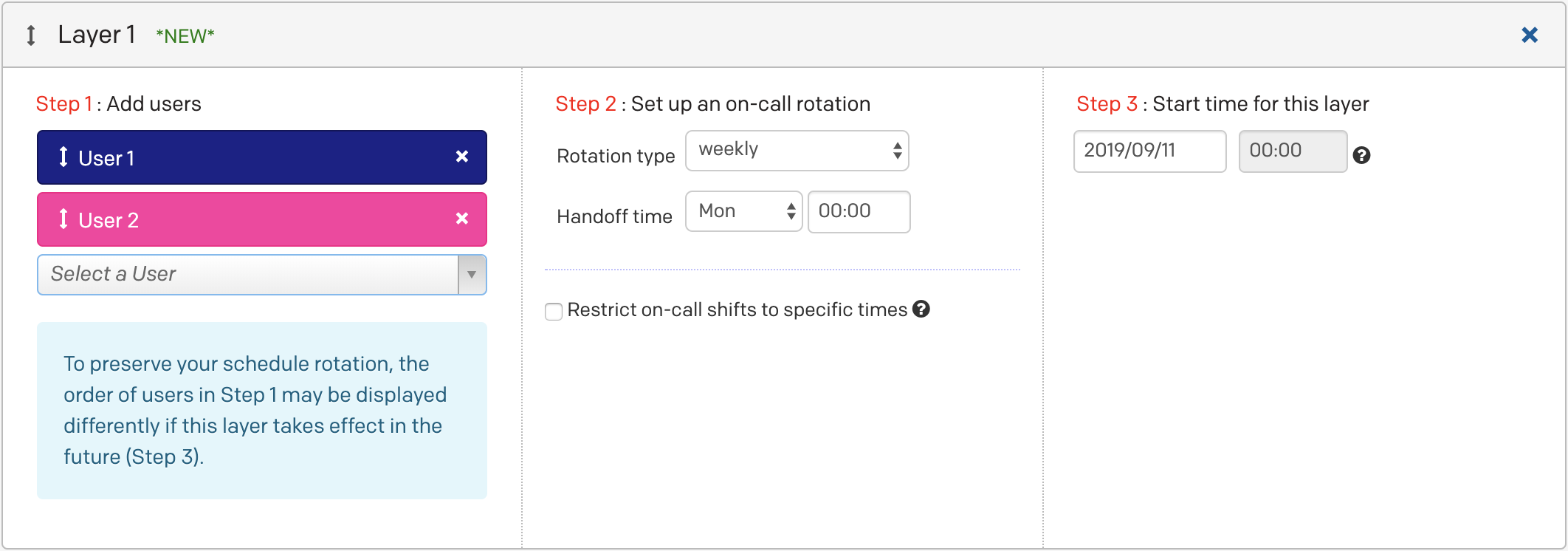
Example 8, layer 1
Click Add Another Layer to create a second layer for the weekend. Layer 2 has Users 3 and 4 on a weekly rotation. Their handoff time is Saturday 00:00. Restrict this layer to the weekend.
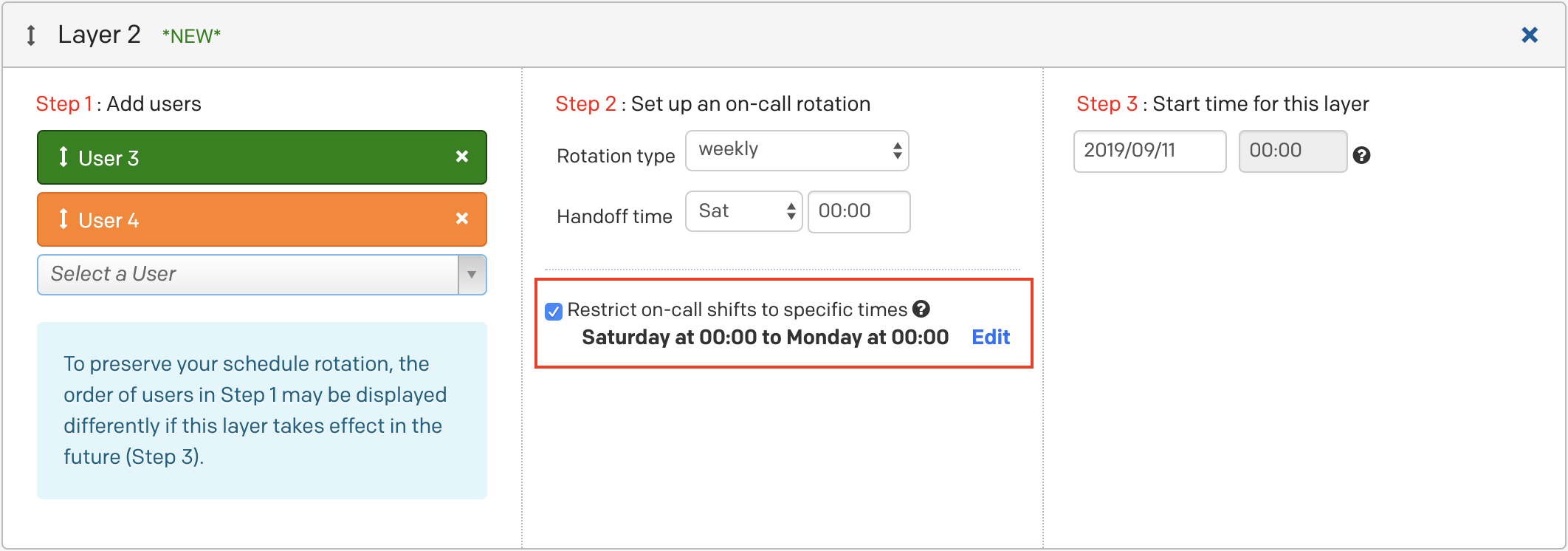
Example 8, layer 2
Ex. 8 Final Schedule
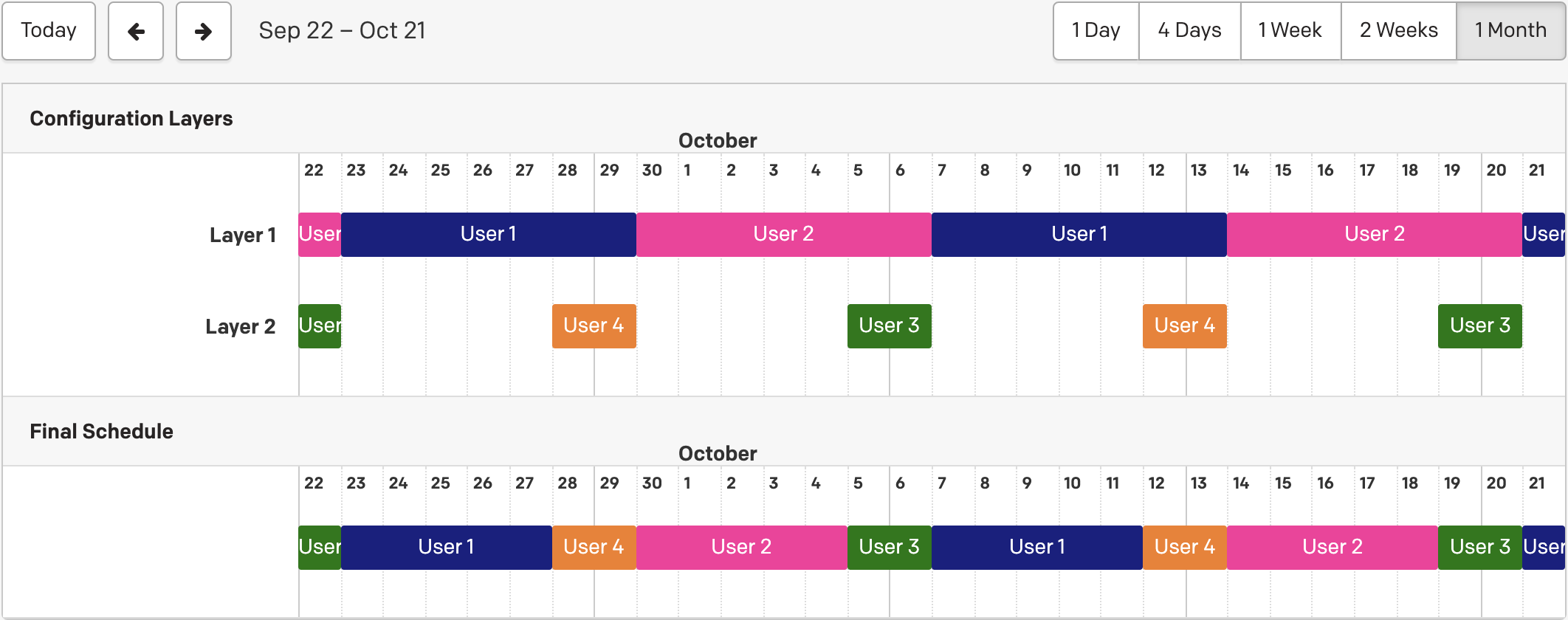
Example 8, final schedule
Example 9: Weekend/Weekday Schedule
A weekend/weekday schedule is any schedule which requires one rotation for the working week and another for the weekend. In this case, we use one layer for each group.
To get started, navigate to People Schedules and click New On-Call Schedule. Give your schedule a name.
Layer 1: Weekday
The first layer is the weekday layer. Each member of this layer is on call from 00:00 Monday to 00:00 Saturday in a weekly rotation. Start by creating a schedule with a weekly rotation and a handoff time at 00:00.
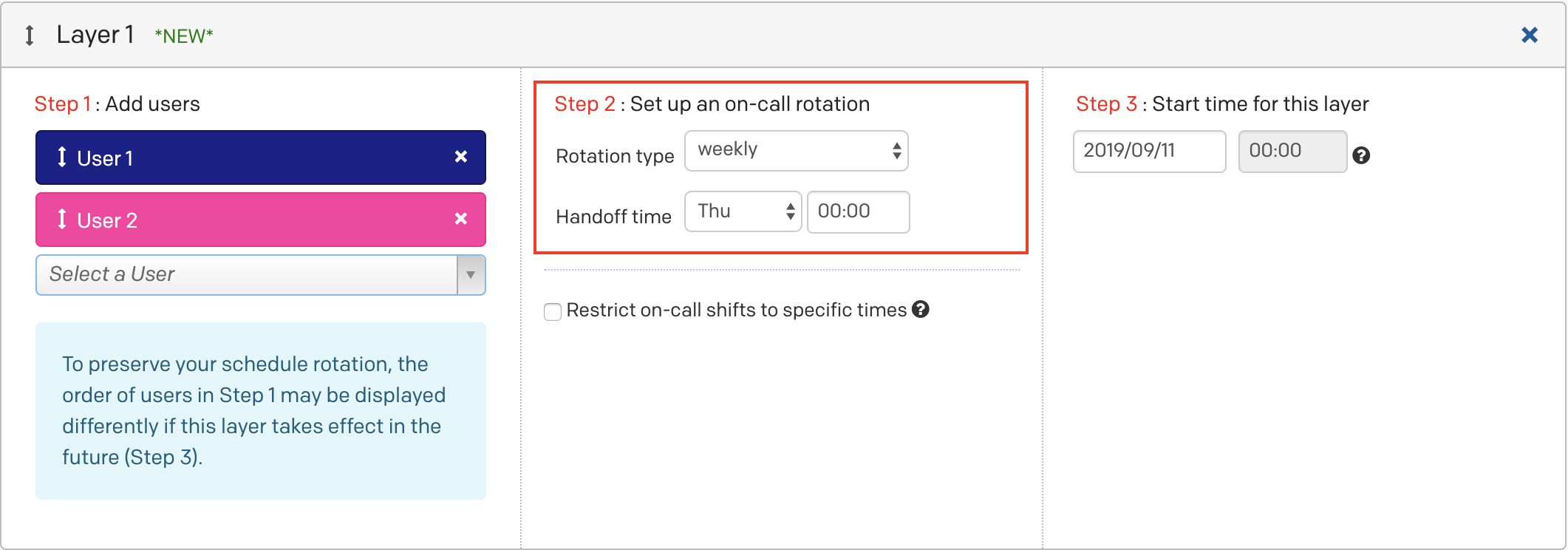
Example 9, layer 1
Layer 2: Weekend
This schedule layer represents the weekend rotation.
- Click Add Another Layer.
- Add users to the layer and set the rotation type as daily with a handoff time of 00:00.
- Select the checkbox to Restrict on-call shifts to specific times.
- With Restrict on-call shift to times-of-the-week selected, enter Saturday 00:00 to Monday 00:00 to represent the weekend rotation.
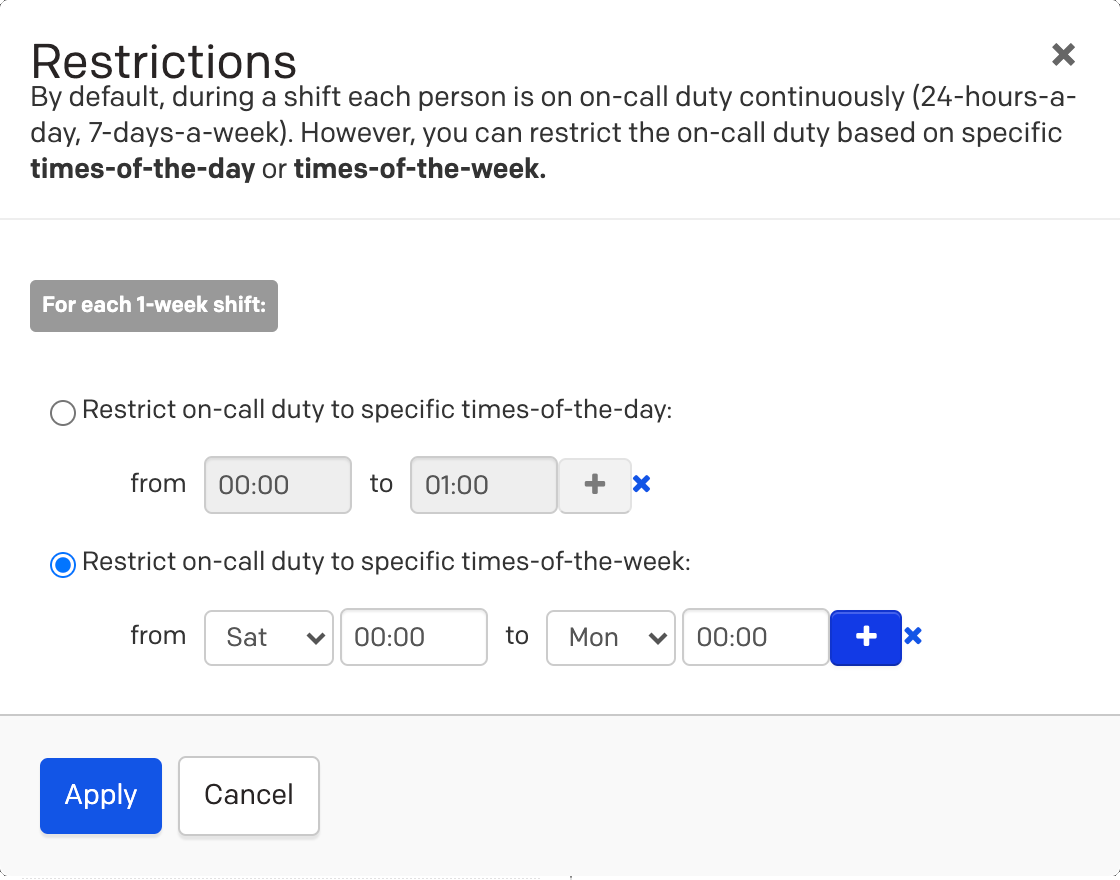
Example 9, layer 2 restrictions
Since the bottom layer takes precedence over other layers, the Final Schedule shows that User 1 and User 2 take turns being on call Monday to Friday on a weekly basis. User 3 goes on call Saturday at 00:00. User 4 goes on call Sunday at 00:00.
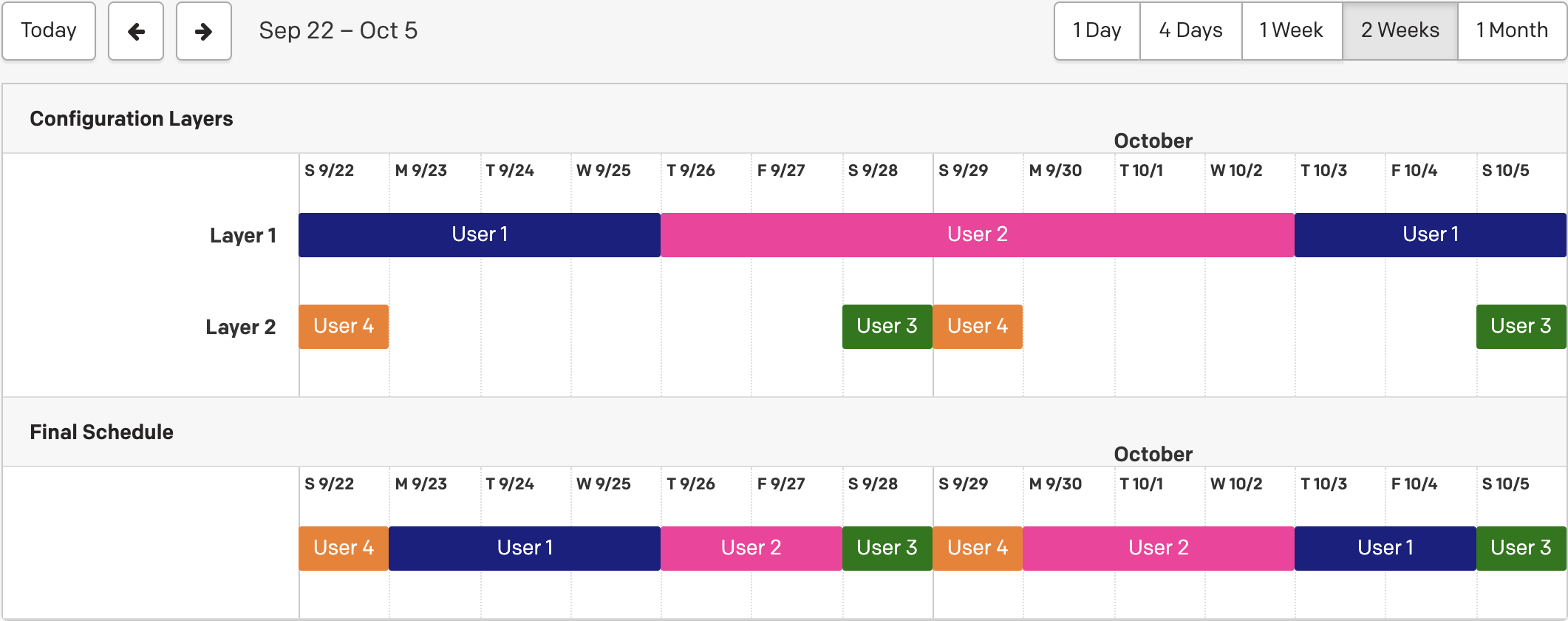
Example 9, final schedule
Updated 6 months ago