
Notification Content and Behavior
PagerDuty notifications sent via push, email, phone call, and SMS
PagerDuty sends notifications to on-call users when an incident is assigned to them. These notifications are most commonly sent when an incident triggers or escalates. Depending on the features in your account's pricing plan, users may also receive notifications when they are added as a responder or subscriber, or when a conference bridge is added to an incident.
Notification Content
Select from the articles below for more information about a specific notification channel:
Notification Behavior
PagerDuty bundles multiple notifications together to reduce noise. In certain circumstances, PagerDuty may send a generic message for incident notifications. You can also test and respond to notifications.
Notification Bundling
When a user is assigned to multiple incidents, PagerDuty bundles notifications into a single summary message to reduce alert fatigue and distractions. All notification methods (push, email, phone, and SMS) support notification bundling. Bundled notifications include information about all triggered incidents (that is, incidents that are not acknowledged or resolved).
The following examples assume a service named "Nagios-Shopping-Cart" has triggered five incidents within the previous minute.
Email
You are assigned 5 triggered incidents in PagerDuty:
Please visit the following URL to manage these incidents.
https://your-subdomain.pagerduty.com/incidents

1) Incident #100
   Opened on: Jan 1 at 12:00pm PST
   Service: Nagios-Shopping-Cart
   Description: Emergency in the server room
   Link: https://service-name.pagerduty.com/i/100
Phone
You have 5 triggered incidents on Nagios-Shopping-Cart. Press 4 to acknowledge all incidents. Press 6 to resolve all incidents. Press 0 for help or press * to repeat this message.
Minimize NotificationsYou can reduce the overall number of notifications you receive by adding a delay to your notification rules. Adding a few-minutes delay allows more time for incidents to aggregate, resulting in fewer notifications during periods of high incident volume.
SMS
ALRT: #100,#101,#102,#103,#104 on Nagios-Shopping-Cart. Reply 14:Ack all, 16:Resolv allGeneric Message Delivery
When PagerDuty encounters issues generating the full contents of an incident notification, it sends a generic message instead. This ensures on-call users are still alerted and can respond to incidents even if the expected details are not available in the notification. This generic message only applies to incident notifications and does not apply to other notification types.
The generic message states: You have a new incident update in PagerDuty. Open the mobile app or log in to view the full details.
Send Test Notifications
Refer to Test a Contact Method for more information.
Respond to Incident Notifications
Respond to incident notifications in the mobile app, through email, by phone, or SMS.
Respond from the Mobile App
Refer to Respond to Incidents in the Mobile App for more information about taking action on incidents in the mobile app.
Respond to an Email Notification
Responding to an email notification to acknowledge or resolve an incident is not supported. Use one of the following methods to take action on an incident instead:
Respond to a Phone Notification
Similar to SMS notifications, you can respond to phone notifications to acknowledge, resolve, or escalate an incident.
An example phone notification states: PagerDuty Alert: You have one triggered incident on Signal Sciences. The failure is "Check outside normal range - Warning". Press 4 to acknowledge. Press 6 to resolve. Press 8 to escalate to the level 2 on call, User 2.
Enter the appropriate number on your phone's keypad to take one of the following actions:
- Acknowledge
- Resolve
- Escalate — available if there is another level in the service's escalation policy.
Respond to an SMS Notification
When you receive an SMS incident notification, you are prompted to Ack, Resolv, or Escal8 it. The specific code you receive for each action may vary, but Ack always ends in 4, Resolv always ends in 6, and Escal8 always ends in 8.
The following example shows an incident on a service named "Signal Sciences":
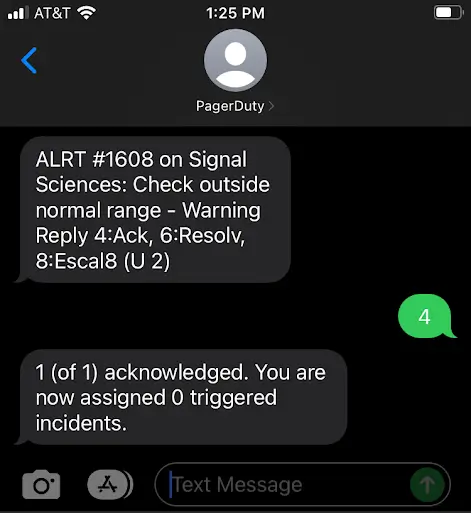
Acknowledge an incident via SMS notification
Updated 4 months ago