
Search
Search globally for attributes of incidents, alerts, services and schedules.
Search allows you to find attributes corresponding to incidents, alerts, services, and schedules. In a central location, quickly retrieve incident details and context in wartime and peacetime workflows.
Advanced Search
Navigate to the icon in the top right of the PagerDuty web app. Enter a search term and press Enter to search for matching objects in your PagerDuty account. Search does not support partial strings.
You can search for general attributes corresponding to incidents, alerts, services, and schedules. For incidents, you see results that match an incident's title, incident number, or notes.

Search Bar
Search UsersYou can search users on the users page by navigating to People Users. Read Manage Users for more information.
Search Capabilities
Contains Search
Find results that contain a specific substring. For example, searching for serv returns results containing service and server. A contains search works across multiple words in a search phrase and is not limited to alphanumeric characters.
Prefix Search
Find results that start with a specific string by appending an asterisk (*) to the end of your search term. This allows for more targeted searches beyond simple contains searches.
Example: Searching for inc* returns results that start with "inc", such as "incident" and "INC67890", but not "since" or "distinct".
Exact Match Search
Search for exact phrases by enclosing your search terms in quotation marks to ensure precise results.
Example: Searching for Manually escalated SEV-2 returns only results that exactly match this phrase. Regular searches without quotes return results that contain any combination of the words in the phrase in any order.
Minor Typo Tolerance
The search feature handles minor typos in search queries, which allows you to find relevant results even if there are small spelling errors in your search terms.
Search Alerts by Alert Key
To search for an alert by its alert key, filter the search results to show only alerts, then enter the alert key in the search bar.
Filter and Sort
After you enter a search term, you can refine your results. In the left panel, you can filter the displayed objects.
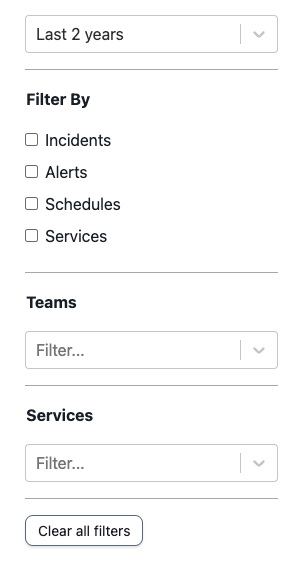
Filter and Sort
Filter By
Make a selection from any of the following objects to only display corresponding results. You can select more than one option:
- Incidents
- Alerts
- Schedules
- Services
Teams
To filter for results corresponding to a specific team, search for and select the team. You can select more than one team.
Services
To filter for results corresponding to a specific service, search for and select the service. You can select more than one service.
Date Range
Filter search results using precise time ranges with the following options:
- Last Next Seven Days
- Last One Year
- Last Two Years
- Equals: Select a specific date.
- Is Between: Select a start date and end date.
Supported Date RangeSearch supports incident data from the last two years and alert data from the last 12 months. Search includes all services and schedules.
Sort Parameters
The web app sorts search results by relevance by default. However, in the top right of the screen, you can choose to sort results by Relevance or Recency.
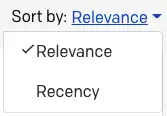
Sort by Relevance or Recency
The search feature ranks results based on multiple factors, including:
- Recency
- Match type (the search feature prioritizes exact words and phrases)
- Frequency of occurrence
- Object type priority (the search feature generally prioritizes incidents over alerts, services, and schedules)
Updated 4 months ago