
Email Notifications
Email Notification Content
PagerDuty can notify you via email when various incident lifecycle events occur. This article details what those notifications may look like, though exact content may vary. PagerDuty sends email notifications from [email protected].
Contact Information and Notification RulesFor more information about adding contact methods and configuring notification rules, please see the following sections in the User Profile article:
Email Notification Content
| PagerDuty Action | Subject Line | Body |
|---|---|---|
| An incident triggers and notifies the on-call user | One incident assigned: "[PagerDuty Alert] You have 1 TRIGGERED Incidents ([4cb96])" If you are assigned multiple incidents, PagerDuty will bundle incident notifications into one email: "[PagerDuty Alert] You have [3] TRIGGERED Incidents ([db97d])" | HTML Email: "Hello [User Name], you have [#] open incident(s) assigned to you: [Incident Number], [Incident Title], [View Incident Link], [Details], [Meeting URL], [Dial-In Number], [Status], [Urgency], [Assigned To], [Opened On], [Service], [Escalation Policy]" Plain Text Email: "Hello [User Name], You are assigned [#] triggered incident in PagerDuty. Please visit the following URL to manage this incident: https://[subdomain].pagerduty.com/incidents. [Incident Number], [Opened On], [Service], [Description], [Incident Link], [Escalation Policy], [Meeting URL], [Dial-In Number], [Details]. You can disable these messages by adjusting your notification methods: https://[subdomain].pagerduty.com/users/PXXXXXX" * If applicable |
| A user is added as a responder upon incident trigger | "PagerDuty response requested" | "Your response is requested: Please help with "[#[Incident Number]] [Incident Title]" https://[subdomain].pagerduty.com/incidents/XXXXXXXXXX" |
| A user is added as a responder to an existing incident | "PagerDuty response requested" | "Your response is requested: Please help with "[Incident Title]" https://[subdomain].pagerduty.com/incidents/XXXXXXXXXX [Meeting URL]* [Dial-In Number]" If applicable |
| A user receives a Status Update to an incident they are assigned or subscribed to | "[PagerDuty Status] [incident status]: [incident name]" | "[user] updated: [incident number], [incident title], [trigger date and time], [service name], [user(s) assigned to the incident], [View Incident link], [incident status], [status update], [View Status Page link]" |
| A user is about to go on call (On-Call Handoff Notification) | "[PagerDuty] [user name] is going on call for [escalation policy] (Level [X] - [schedule name])" | "[user name] is going on call for the following escalation policy in 1 hour: Escalation Policy: [escalation policy] (used by X services) Level 1 ([schedule name]) [date and time] Override here: https://subdomain.pagerduty.com/schedules/PXXXXXX" |
HTML Email Notifications
You can choose whether to receive HTML notifications in your web app user profile:
- Go to User Icon My Profile Contact Information tab.
- In the Email section, click to edit your desired email address, or click Add Email Address to add a new one.
- Check the Send HTML Emails checkbox.
Plain Text OptionIf Send HTML Emails is unselected, PagerDuty sends email notifications in plain text.
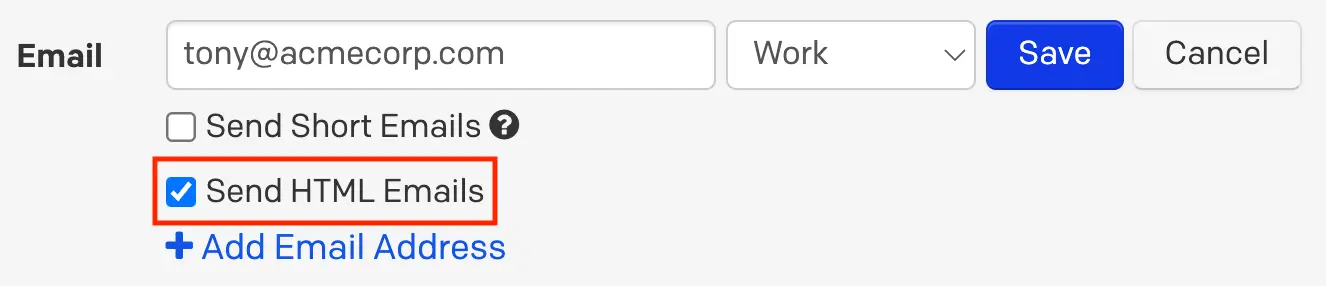
Enable or disable HTML emails
- Click Save.
Here is an example of a PagerDuty HTML email notification:
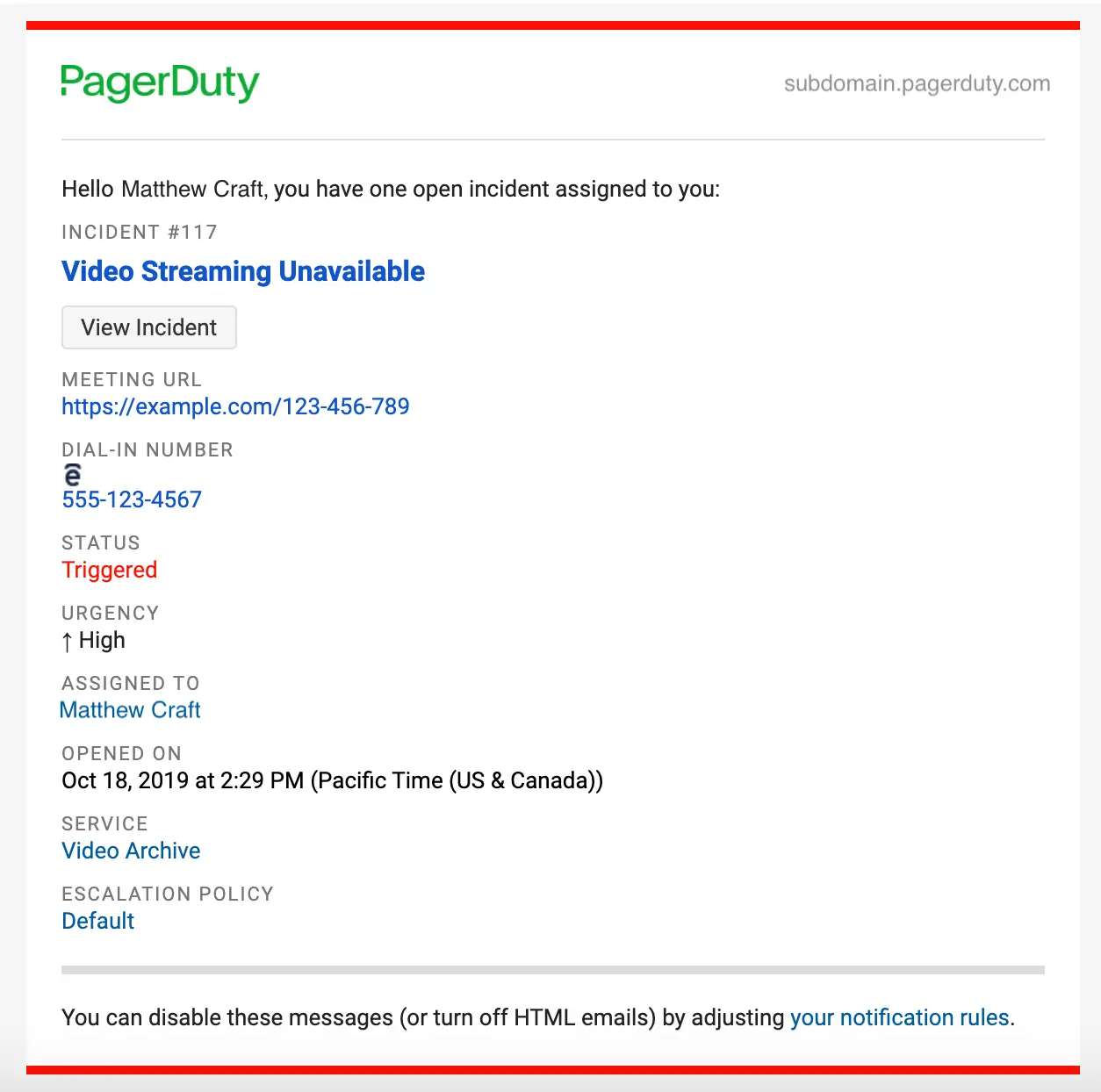
HTML email notification
Here is an example of a PagerDuty plain text email notification:
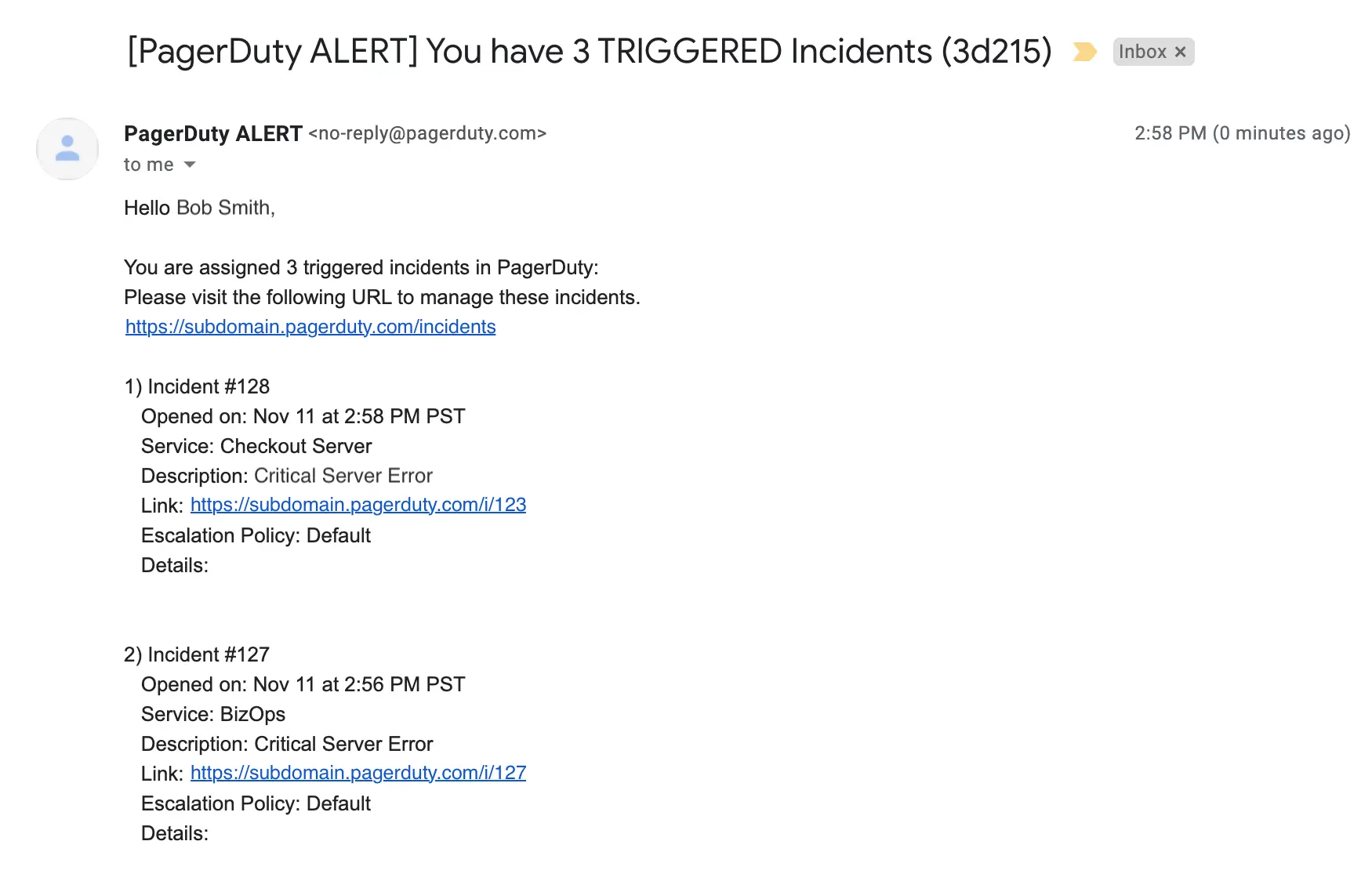
Plain text email notification
Email Truncation and Attachments
When you receive a PagerDuty email notification, the incident's Details section is truncated after 500 characters. You can include clickable links in this truncated message. The rest of the email body is accessible in the web app on the incident's details page, or in the mobile app.
PagerDuty removes attachments from email notifications and incident logs. To view the original attachment, refer to the system that sent the original attachment.
Email Digests
PagerDuty adds a digest to the end of email notification subject lines so that related messages are grouped together in your inbox — for example: [PagerDuty Alert] You have 2 TRIGGERED Incidents (4bc68). This digest is not displayed in the PagerDuty web app, but it helps your email client identify that subsequent messages are related to a specific incident.
Updated 4 months ago