
Incident Roles
Define responder roles and responsibilities for efficient incident management.
Incident roles allow you to customize a set of roles that you can assign during an incident. An established set of incident roles clearly defines incident responsibilities, promotes accountability, and enables efficient response.
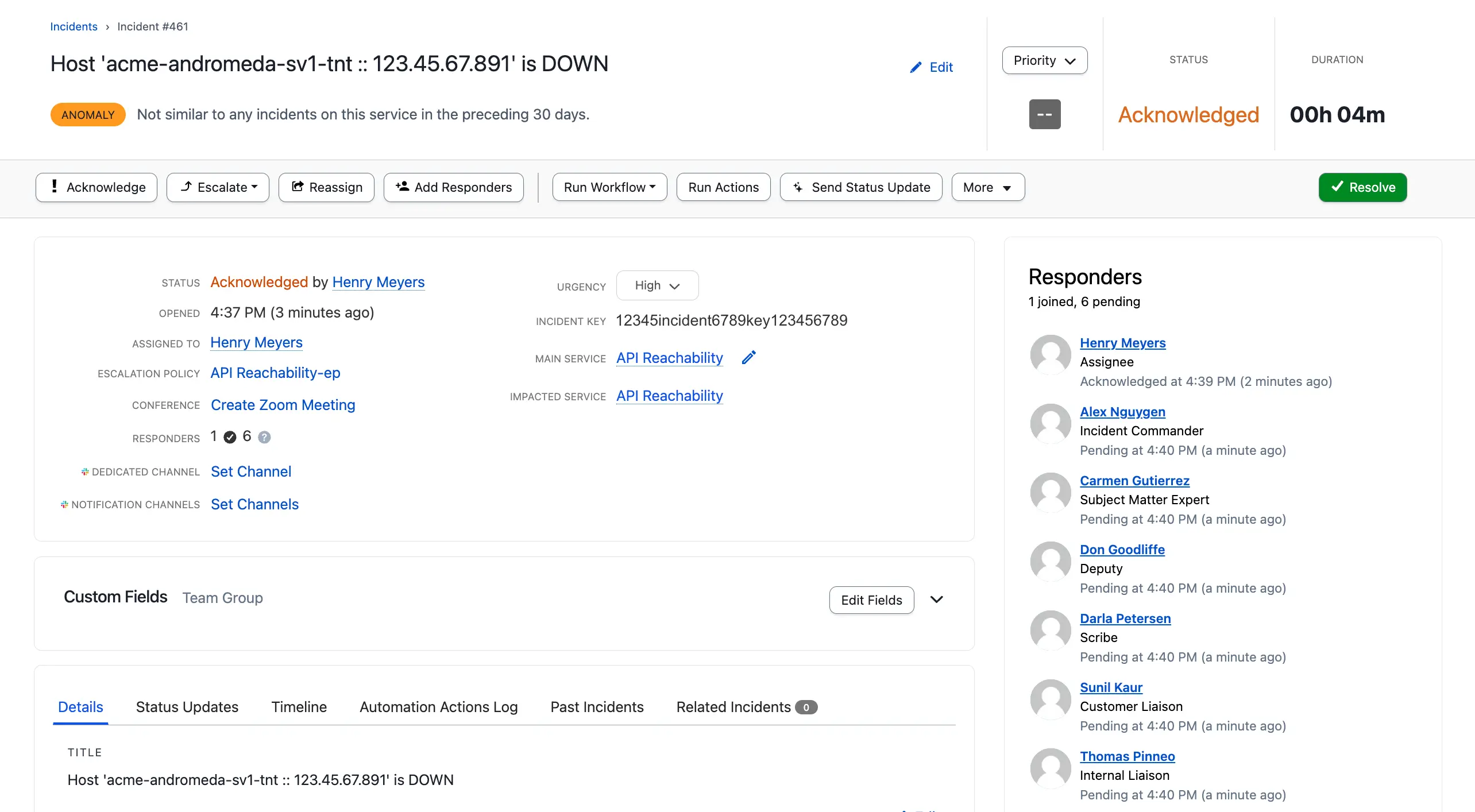
Incident Roles in Responders list
Availability by Plan
Role Type Professional Business Enterprise Predefined Roles (Incident Commander, Customer Liaison) ✓ ✓ ✓ Custom Roles one 10 (for a total of 12 incident roles) Contact the Sales team to upgrade or expand your incident roles feature set.
Incident Response GuideFor more information on how teams use roles in their incident response process, refer to the Incident Response Guide.
Default Incident Roles
There are two default incident roles:
- Incident Commander
- Customer Liaison
Your account plan determines whether these roles are available. You can enable them to use on incidents. For detailed configuration steps, see Enable or Disable Incident Roles.

Incident roles
Create Incident Roles
Required User PermissionsGlobal administrators and the account owner can create, edit, and delete account-wide incident roles.
NoteYour pricing plan determines whether you can create roles. See the Availability by Plan table.
- Navigate to Incidents Incident Roles.
- Click New Role.
- On the New Role screen, complete the following fields and click Create Role:
| Field | Description |
|---|---|
| Display Name | A role name to display on incidents. |
| Role Name | A unique name for API use. This name can contain only lowercase letters, numbers, and underscores. You cannot change the Role Name after role creation. |
| Description | Help responders understand the scope of the role and how they should use it. |
| Disable Incident Role | Select Enable or Disable. Disabling a role removes it from future incidents. Existing incident roles and assignees remain unaffected. |
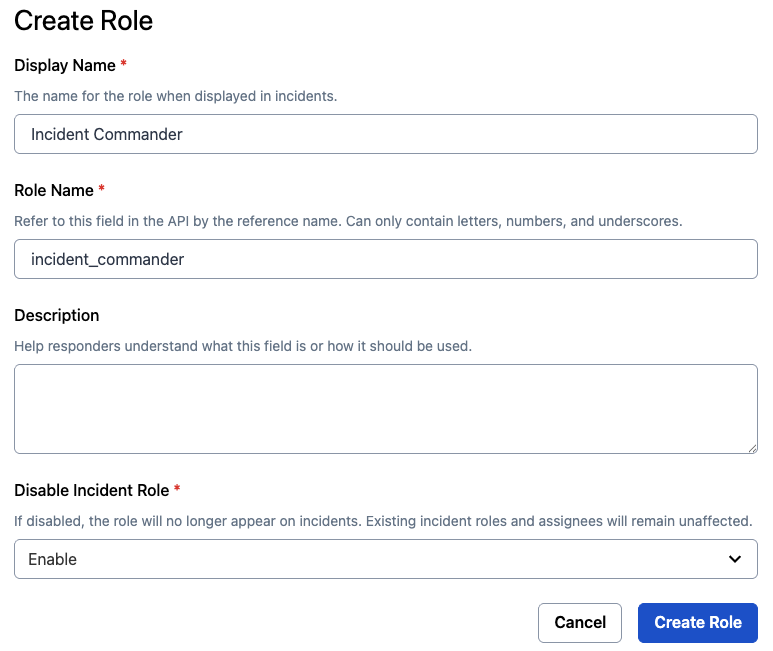
Create role modal
Edit Incident Roles
- Navigate to Incidents Incident Roles.
- Click the role you want to edit.
- On the edit screen, modify the details using the following fields and click Save Changes:
| Field | Description |
|---|---|
| Display Name | Edit the role name. |
| Description | Edit the description to help responders understand the scope of the role and how they should use it. |
| Disable Incident Role | Select Enable or Disable. If disabled, the role no longer appears on incidents. Existing incident roles and assignees remain unaffected. |
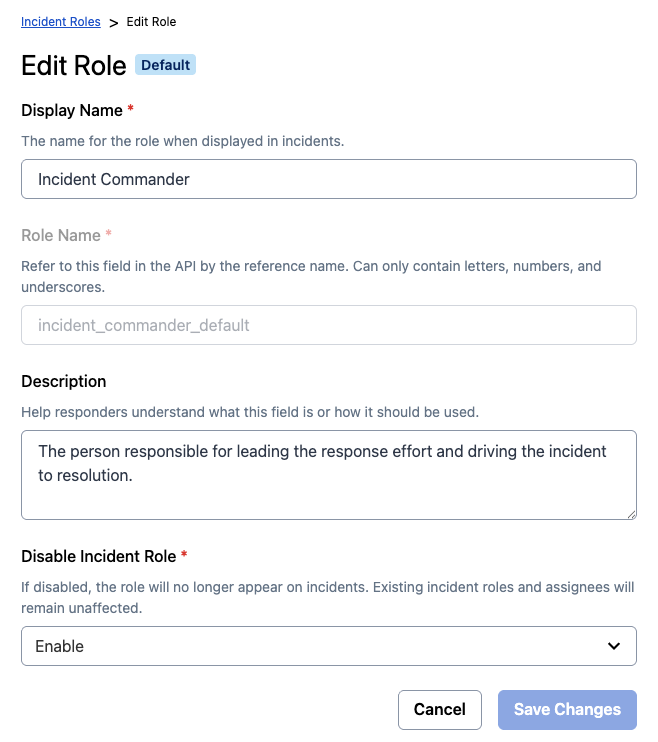
Edit incident roles
Enable or Disable Incident Roles
- Navigate to Incidents Incident Roles.
- Click next to the role you want to enable or disable and select Enable or Disable.
Delete Incident Roles
Deletion WarningYou cannot recover an incident role after deleting it.
- Navigate to Incidents Incident Roles.
- Click next to the role you want to delete and select Delete.
- In the confirmation modal, type Delete in the text box and click Delete.
Assign an Incident Role
Once you create an incident role, you can assign it to an incident responder.
Behavior When You Assign Roles to Non-RespondersIf you assign a role to a user who is not already a responder on the incident, they are added as a responder. The responder request includes the role assigned to the user. For more information, see Add Responders to an Incident.
Assign an Incident Role in the Web App
You can assign incident roles to individual users or to escalation policies. When you assign a role to an escalation policy, it sends a responder invite to the on-call responder. Once accepted, PagerDuty assigns them to the role. If they do not accept the responder request before the escalation timeout, PagerDuty escalates and notifies the next level of the escalation policy.
Requirements
- A user with Responder permissions or higher can assign incident roles in the web app.
- You cannot assign roles to stakeholders.
- When viewing an incident, click Assign Roles in the Responders list on the right.
- In the Assign Roles modal, click the dropdown for your preferred role, select the Escalation Policies or Users tab, select the desired responder, and click Save.
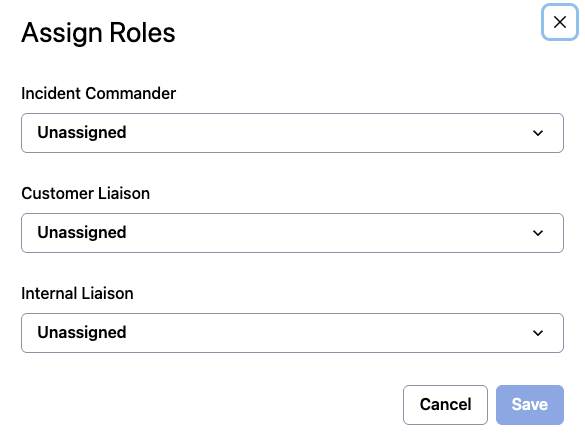
Assign roles modal
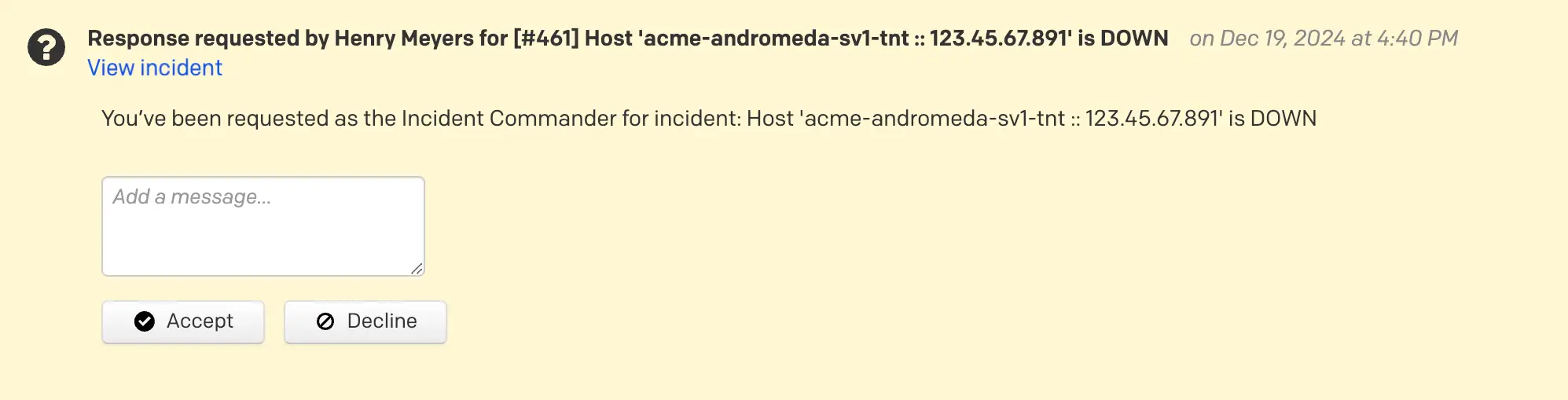
Responder request with Incident Role
Assign an Incident Role in Slack
> ⚠️ Requirements
- You must configure the integration via the Slack Integration Guide to assign incident roles in Slack.
- You must have Responder permissions or higher to assign incident roles in Slack.
- In a Slack workspace integrated via the Slack Integration Guide, navigate to a PagerDuty incident notification.
- Click More Actions Assign Roles.
- In the Assign Roles dialog, click the Select dropdown, select a user, and click Save.
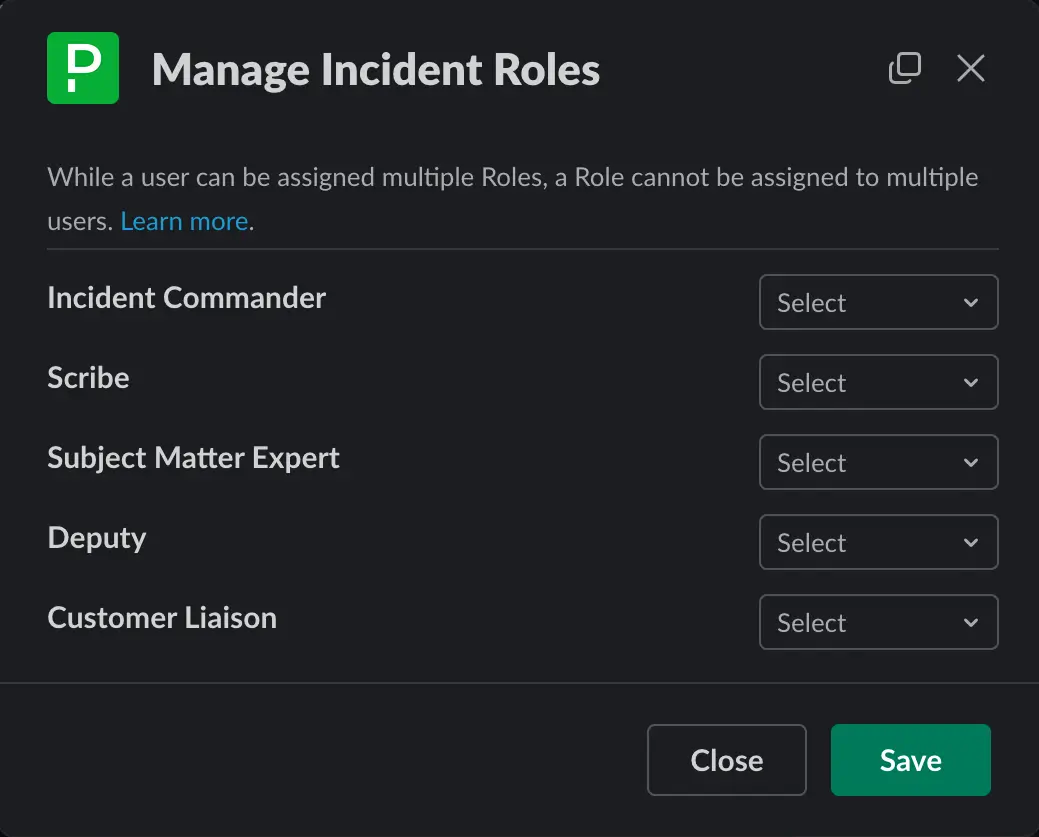
Manage incident roles modal in Slack
Assign an Incident Role in Microsoft Teams
> ⚠️ Requirements
- You must configure the integration via the Microsoft Teams Integration Guide to assign incident roles in Teams.
- You must have Responder permissions or higher to assign incident roles in Teams.
- In a Microsoft Teams chat integrated via the Microsoft Teams Integration Guide, navigate to a PagerDuty incident notification.
- Click and select Assign Roles.
- In the Assign Roles dialog, click the Type to search for a user dropdown, select a user, and click Save.

Select team roles in MS Teams
Assign an Incident Role With Incident Workflows
After configuring your roles, you can assign or unassign them using incident workflows. This allows you to automate role assignments based on predefined workflow conditions. For more details, see Incident Workflows and Incident Workflows Roles.
To learn more about automated actions, see Assign a Role via Incident Workflows.
FAQ
Can I assign the same incident role to multiple responders?
No. You can only assign an incident role to a single responder at any given time. This promotes accountability during response by eliminating shared ownership.
Where are incident roles available in PagerDuty?
Incident roles are available in the web app, Slack, Microsoft Teams, and incident workflows.
Updated 4 months ago