
Team Hierarchy
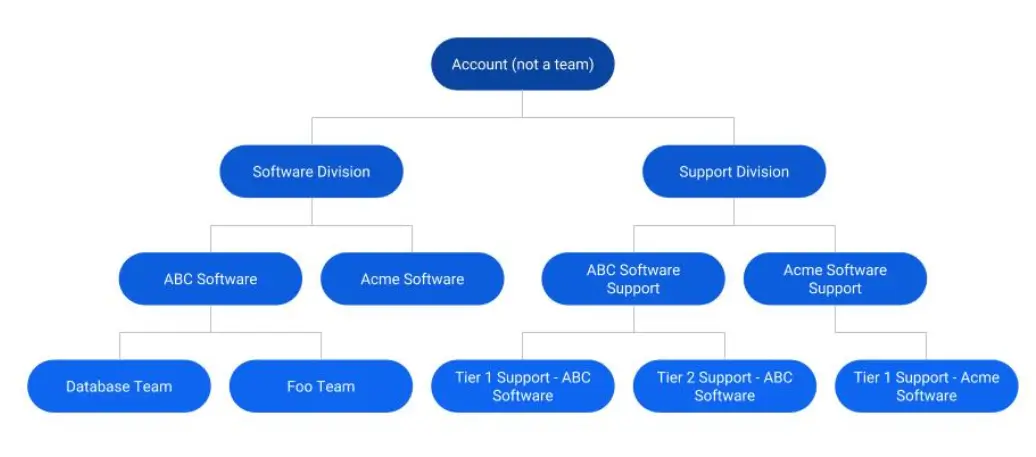
Team Hierarchy allows users to organize existing Teams to match their organizational structure. Create parent teams and subteams, and manage user permissions and access across the hierarchy.
Early AccessTeam Hierarchy is currently in Early Access, please work with your Customer Success Manager or your Account Manager to have it enabled.
Create and Manage a Team Hierarchy
Team hierarchies are built using existing teams. To prepare for configuring a hierarchy, make sure you have created the teams that will be involved, and have decided upon a structure for your team hierarchy.
The following considerations should be made:
- Which teams will act as parent teams (more inclusive), and which will be subteams (more granular)?
- How close will your hierarchy map to the directory system or your existing organizational structure?
- How do you want to configure permissions? (For more information, see Access and Permissions Management).
Once you have decided on a structure, you can assign a team as a parent to other subteams to start building the structure. Depending on how openly you distribute and how open lines of communication are between teams and your organization, you may want to consider utilizing public or private teams.
Create a Parent Team
This action will create a top-level team that does not have a parent and will have subteams.
- Navigate to People Teams New team.
- Enter a Name, associated Escalation Policies (if any), and leave the Parent Team field blank.
- Click Save.
Creating a Subteam
This action will create a subteam of a parent team.
Required User PermissionsYou must have a Manager, Global Admin or Account Owner base role, or a Manager team role on the desired team to create a subteam.
- Navigate to People Teams New team.
- Enter a Name, associated Escalation Policies (if any), and select the appropriate Parent Team that this subteam should belong to.
- Click Save.
Edit a Subteam’s Parent Team
Required User PermissionsYou must have a Manager, Global Admin or Account Owner base role, or a Manager team role on the desired team to edit a subteam’s parent team.
- Navigate to People Teams click the to the right of your desired team and select Edit.
- Select a new Parent Team.
- Click Save.
Delete a Parent Team
To delete a parent team, you must disassociate all of its subteams first by reassigning the subteams to a different parent, or have no parent team set for them.
Access and Permissions Management in Hierarchies
User roles in a hierarchical parent team will also have hierarchical access to all of its subteams, with the role in their parent team applying to objects and actions in the subteams. This rule also applies to users with a Restricted Access base role. For example, if a user with a Restricted Access base role is directly added to a parent team, then they will be able to view and access all subteams below the parent based on their role at the parent team level. However, if a user is added to a team indirectly via an Escalation Policy, they will inherit their base role.
Any role explicitly granted to a user in a subteam will take precedence over the role they have in a parent team, and any role inherited by a user in a subteam will be derived from the nearest parent in the hierarchy in which a role is explicitly granted to them.
To give a few examples, let us consider the diagram at the beginning of this page, and assume all teams' visibility are set to Public:
- A user with a team-specific Manager role in the Software Division team will have manager access to all objects within the Software Division team as well as manager access to all the subteams: ABC Software, Acme Software and the two subteams of the former.
- If the user has an account-level Responder role, they will have responder access to all the same teams in the hierarchy.
- Let us assume a user has the Observer role in the Support Division team, and has been granted the Responder role in the ABC Software Support team. They will then have the Responder role in the subteams of that team, and Observer role in the Acme Support Software team and its one subteam.
- If a user with base role Observer is added to a subteam through an escalation policy, they will be added as an Observer to the subteam even if they have a different role on the parent team.
- Put another way, if you are a team Manager and you create a subteam, and you have base role Observer permissions, you must add yourself to the team first to ensure that you have Manager permissions going forward. If you are on an Escalation Policy and add that Escalation Policy to the team before adding yourself to the team as a Manager, you will be auto-added to the team with Observer permissions and will not be able to edit the team going forward.
Team Visibility
Teams can be set to public or private. Making a team private will make it invisible to anyone who is not on that team. However, when a team is part of a hierarchy, making it private will essentially override all inherited access, and access will need to be granted to the team explicitly. Furthermore, setting a parent team's visibility as private (to those not on the team) sets the subteams to private as well, but does not affect the team's members access to its tree of subteams.
Using the same example as before (see diagram), let's say we set the ABC Software team to private, and leave its subteams as public. This affects visibility and permissions in the following ways:
- Setting a team to private will override and prevent hierarchical access to it from the parent team(s). So, no one in the Software Division team will have access to the ABC Software team.
- Users not assigned to the private team will not be able to see that team or any of its subteams. This also applies to further descendant subteams. So, members of the Software Division team will not be able to view or access the Database team, nor see that it is a subteam of ABC Software.
- Users will always be able to see teams they are assigned to, and all their subteams, provided the subteams are not individually set to private. So, a user assigned to ABC Software in the Manager role will have Manager access to that team, as well as Manager access to the Database team and Foo team, even if ABC Software is set to private.
Navigate to Teams and Sub-Teams
To navigate through a team hierarchy:
- Navigate to People Teams.
- On the Teams screen, you will be able to view all the teams that you currently have access to.
- You can click into each team to view all associated subteams and objects, and make edits, if permitted.
Team VisibilityAccess to view each team will depend on your base role, your team role, and whether a team is public or private
Updated 13 days ago