
Service Dependencies
Use Service Dependencies to define relationships between technical and business services.
Service dependency data provides a broader understanding of the environment surrounding your incident, allowing you to identify the root cause more efficiently. When a service is experiencing an incident and has defined dependencies, relevant service dependency data is available on the incident details page. If the service does not yet have dependencies defined or is missing possible dependencies, you can view suggested dependencies and easily add them.
View Technical Service Dependencies in an Incident
To view the impacted service's Technical Service Dependencies, click an incident's Title to view the incident details page. You see the Technical Service Dependencies section on the right, below the Notes section.
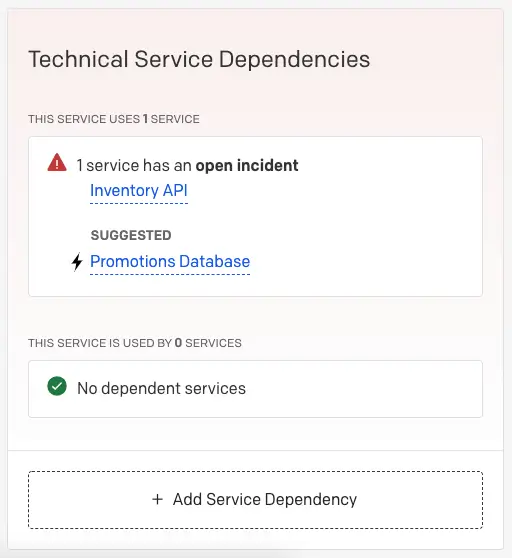
Technical service dependencies
Each dependency includes the following details:
- Service Name
- Status: Open Incidents or Operational (no open incidents).
If you click the dependency's Service Name, you can view more granular details:
- On Call Now: Responders currently on call for the service.
- Open Incidents: A list of current open incidents on the service.
Suggested Technical Service Dependencies in an Incident
If incidents on your service tend to be followed by incidents on another service, or vice versa, suggested technical service dependencies are also provided. If available, they appear under a Suggested header with next to the service's name:
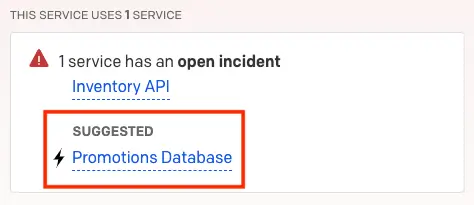
Suggested service
To add a Suggested Service Dependency, click the service name Add, next to Add this service as a dependency?.
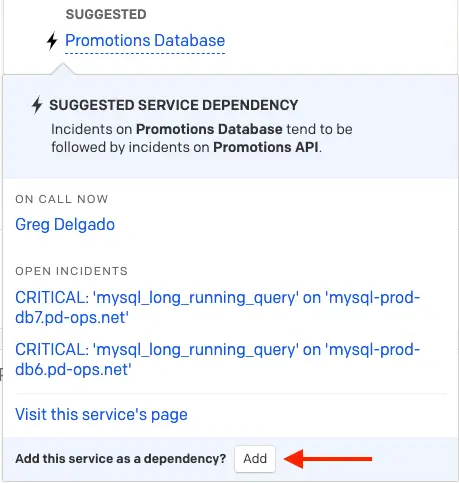
Add service as a dependency
Add Technical Service Dependencies From an Incident
- Click an incident's Title to view the incident details page.
- View the Technical Service Dependencies section on the right, below Notes.
- Click Add Service Dependency. You will be directed to the service's Service Dependencies page. There are two sections to this page: other services that this service uses or is used by.
- Click Edit Services to add the appropriate dependency.
- On the Edit Services screen, search by service name, or select one of the Business Services or Technical Services tabs.
- Click to add the desired services. You may add multiple business and technical services.
- (Optional) Create a new business or technical service on this screen by clicking Create a new business service or Create a new technical service from the corresponding tabs. This launches the Business Service or Technical Service configuration screen in a new tab.
- Click Save Changes.
Updated 4 months ago