
Team Insights
The Team report provides insights into the incident impact on Teams. It also includes a Teams List with metrics such as interruptions count, MTTA, MTTR, and response effort (incident duration).
To view the Team report, navigate to Analytics Insights and select the Team tab.
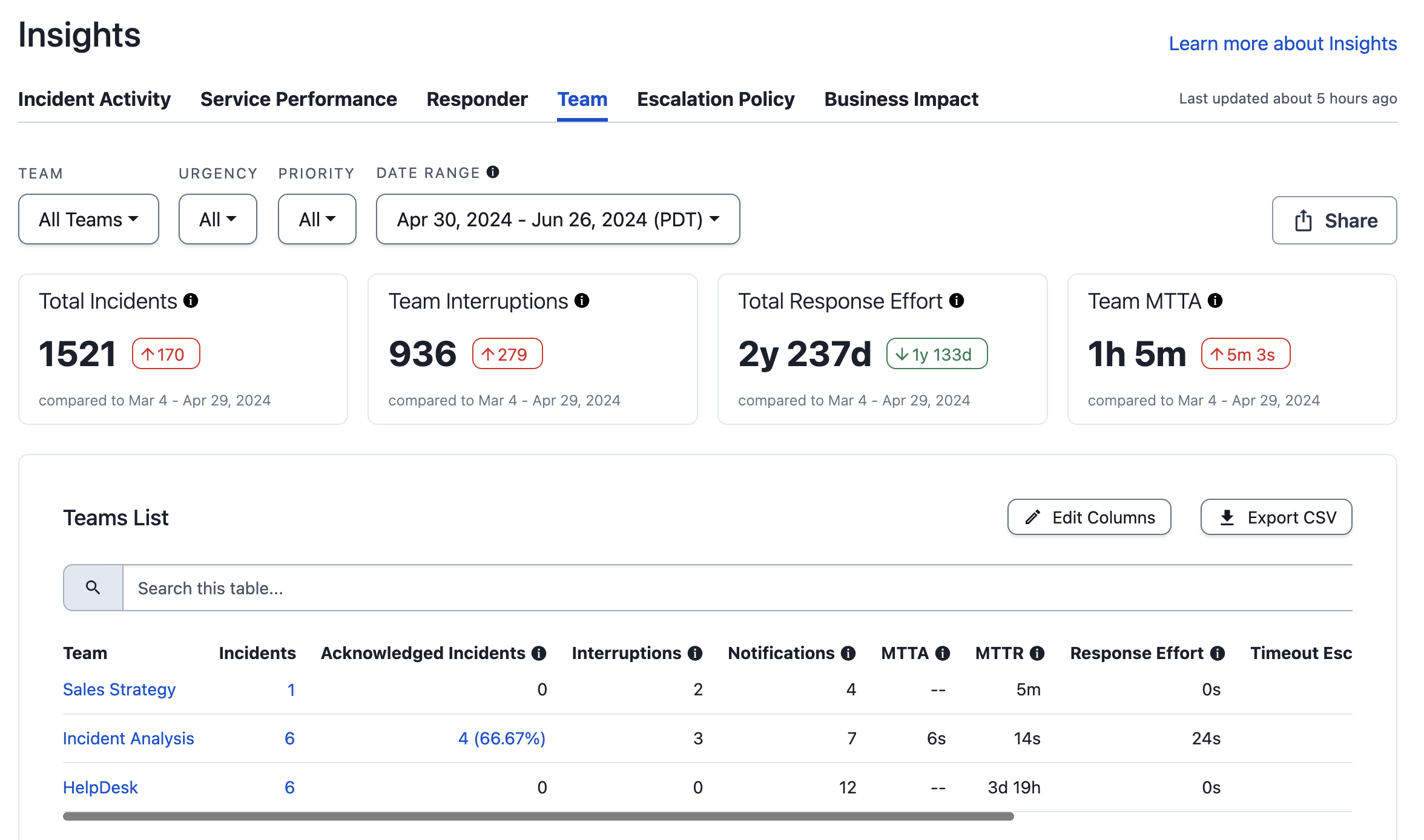
Team report
Filter and Search Team
Filter Options and LimitsPlease see our Filter Reports section for more information on filtering options.
Each report has the following filter limits:
- Service, Responder, and Escalation Policy Filters: 1000
- Team Filter: 200
Please see our Filter Limits section for more information.
Summary Metric Cards
Each card includes a comparison time period. For example, if you select the time period Last 7 Days, the cards show you the change in each metric compared to the week prior.
| Metric | Description |
|---|---|
| Total Incidents | The total count of incidents that all selected teams were engaged in across the specified date range. |
| Team Interruptions | The total count of interruptions for all selected teams that occurred across the specified date range. Interruptions are when an on-call responder receives a mobile push, phone call, or SMS (i.e., text message) notification. Notifications sent from various channels (push, phone, SMS) to the same destination are counted as one interruption. Notifications that arrive within 60 seconds of each other are counted as a single interruption. Email notifications are excluded from this metric. |
| Total Response Effort | Total time responders spent engaged in resolving incidents. Measured from the time a responder acknowledges or accepts a responder request until the incident is resolved. The user-defined incident duration, if it exists, is used for this calculation. Read Edit Incident Duration for more information. |
| Team MTTA | The Mean Time to Acknowledge is the average amount of time from when an incident is created until the time the first responder acknowledges an incident. Excludes incidents that were not acknowledged. |
Data Visualizations
You can change the dropdown at the top left to select one of following visualizations:
| Visualization | Description |
|---|---|
| Incident Volume | Number of incidents per team. |
| Interruption Volume | Number of interruptions per team. |
| Response Effort | Number of hours per team. The user-defined incident duration, if it exists, is used for this calculation. Read Edit Incident Duration for more information. |
| MTTA | Mean time to acknowledge in seconds per team. |
Teams List
Below the data visualization you see the Teams List data specific to the filters you have selected. You may perform the following actions with this table:
- Search: Use the search field to search for specific data.
- Sort: Click on a column header to sort results. You can also sort with multiple columns by holding down the shift key while clicking on both of the columns. The graph above does not change if you sort the data.
- Drill Down: Click a Team, incident count, or acknowledged count in the Team, Incidents, or Acknowledged columns to view more information about each.
To customize the columns you would like to view, click the Columns icon and select your preferred data. The available Teams List columns are:
| Column Name | Description |
|---|---|
| Team | The Team name. |
| Incidents | The total count of incidents that the Team experienced within the specified time period. |
| Acknowledged Incidents | The total count of assigned incidents the Team acknowledged. Only explicit incident acknowledgment counts; reassign, resolve, and escalation actions do not imply acknowledgement. Acknowledgements by added responders are excluded from this metric. |
| Interruptions | Interruptions are when an on-call responder receives a mobile push, phone call, or SMS (text) notification. Notifications sent from various channels (push, phone, SMS) to the same destination are counted as one interruption. Notifications that arrive within 60 seconds of each other are counted as a single interruption. Email notifications are excluded from this metric. |
| Notifications | The total count of incident notifications sent via push, phone call, email, and SMS. |
| MTTA | The average time for the first assigned user to acknowledge an incident. Reassign, resolve, and escalation actions do not imply acknowledgement. |
| MTTR | The average time from when an incident was created until it was resolved. |
| Response Effort | The total engaged time across all responders, measured from the time a responder acknowledges or accepts a responder request until the incident is resolved. Response Effort of resolved incidents can be edited on an incident's details page. Edited values are marked with an asterisk (*). |
| Timeout Escalated Incidents | The total count of the user's assigned incidents that were escalated due to timeouts. |
| Manually Escalated Incidents | The total count of the user's assigned incidents that were manually escalated away from a user without acknowledgement. |
| Team ID | The Team ID (e.g., PXXXXXX). |
| MTTE | The average time for assigned second, third, and nth responders to acknowledge an incident. It is similar to MTTA, but used only for subsequent escalations after the first assigned user does not respond. |
| Reassigned Incidents | The total count of a user's assigned incidents that were manually reassigned to a user who is not on the original escalation policy, or to another escalation policy. |
| MTTM | The time between start of an incident, and the last additional responder to acknowledge. |
| Business Hour Interruptions | Interruptions that happened on weekdays between 8 a.m. and 6 p.m.* |
| Off Hour Interruptions | Interruptions that happened on weekdays between 6 p.m. and 10 p.m., or on a weekend between 8 a.m. and 10 p.m.* |
| Sleep Hour Interruptions | Interruptions that happened any day of the week between 9 p.m. and 8 a.m.* |
| Total Snoozed Seconds | Total seconds the incident was snoozed. |
* Times are given in the user's configured timezone. If they have not configured a time zone, the report uses the account's time zone.
By default, the Teams List displays 10 results at a time. Use the dropdown below the table to select from 10, 20, 30, 40, or 50 results per page. If there are more results than the selected dropdown value, you can use the arrows (i.e., , , , ) to navigate through results.
Share the Team Report
Read Share a Report for more information on sharing or exporting the report.
Updated 3 months ago