
Connectors, Tools, and Skills
Paige, PagerDuty's SRE Agent, retrieves log data, metrics, and runbooks from observability platforms and knowledge bases to guide responders through investigation, triage, and resolution. By connecting your observability stack and institutional knowledge, Paige moves beyond simple alert analysis.
- Connectors and Tools give Paige real-time access to your logs and metrics, so every triage analysis is grounded in the actual state of your systems — not just the alert payload.
- Skills give Paige institutional knowledge specific to your environment — your runbooks, your escalation paths, your standards — so it can recommend precise next steps instead of generic ones.
Together, these capabilities help your team triage faster with less human involvement, reducing MTTA and MTTR while building confidence in AI-assisted operations.
Navigate to AI Settings Paige Configuration to get started.
PrerequisitesBefore configuring connectors, ensure the following:
You have Admin or Account Owner permissions in PagerDuty.
You have credentials or API keys for the third-party integrations you plan to connect.
Connectors and Tools
Connectors link Paige to your external data sources. Once a connector is active, the agent can use its associated tools — such as querying logs or pulling metrics — automatically or when you request them.
Supported Connectors
Navigate to AI Settings Paige Configuration Connectors to view and manage your connectors.
| Connector | Tools | Connection Type |
|---|---|---|
| Arize | Metrics | API |
| Traces | API | |
| AWS (CloudWatch) | Logs | API |
| Azure Monitor | Logs | API |
| Confluence | Knowledge Base | API |
| Coralogix | Logs | API |
| Datadog | Logs | API |
| Metrics | MCP | |
| Traces | MCP | |
| Dynatrace | Logs | API |
| Elasticsearch | Logs | API |
| GCP | Logs | API |
| GitHub | Knowledge Base | API |
| Code | MCP | |
| Code (Revert PR) | API | |
| Grafana | Logs | API |
| Metrics | API | |
| Honeycomb.io | Logs | MCP |
| Metrics | MCP | |
| Logz.io | Logs | API |
| New Relic | Logs | API |
| Metrics | MCP | |
| Traces | MCP | |
| Observe Inc. | Logs | MCP |
| Metrics | MCP | |
| Sentry | Logs | API |
| ServiceNow | Knowledge Base | API |
| Splunk | Logs | API |
| Metrics | MCP | |
| Sumo Logic | Logs | API |
Set Up a Connector
- In the PagerDuty web app, navigate to AI Settings Paige Configuration and click the Connectors tab.
- Find the connector you want to add and click Connect. If the connector is already listed but shows Unhealthy, click the menu to edit or reconnect it.
- On the Connect to [Integration] Tools screen, select an existing connection from the dropdown or click Manage Connections to create a new one.
- Under Agent May Use These Tools, check the tools you want to enable.
- Click Save. The connector appears in your list with a status of
Activeonce the connection is established.
Connector Statuses
- Active: The connector is healthy and Paige can use its tools.
- Unhealthy: The connection exists but is failing. Check your credentials or API key and reconnect.
- Not Connected: No connection has been set up. Click Connect to configure it.
Runbook Links
When Paige is provided access to documents, it fetches a document if it determines the document is relevant or if you request it in chat.
Confluence
- Set up the Workflow Integration and set up the connector.
Verify Admin ApprovalIf you have set up your OAuth connection to Confluence but the integration is not working, verify that your admin has approved your user access to the PagerDuty app in Confluence.
- If you have your runbook link configured, Paige should identify it in the event payload.
- If Paige doesn't identify the runbook link, update the event payload in your monitoring tool to include your Confluence runbook link in
custom_detailsusing the following nested key:
- If Paige doesn't identify the runbook link, update the event payload in your monitoring tool to include your Confluence runbook link in
"custom_details": {
    "runbook_url": {
        "confluence": "https://YOUR-RUNBOOK-LINK"
    }
}
GitHub
- Set up the Workflow Integration and set up the connector.
Docs Must Be onMainLinked documents must already be committed to the main branch and cannot be from a feature branch.
- If you have your runbook link configured, Paige should identify it in the event payload.
- If Paige doesn't identify the runbook link, update the event payload in your monitoring tool to include your GitHub runbook link in
custom_detailsusing the following nested key:
- If Paige doesn't identify the runbook link, update the event payload in your monitoring tool to include your GitHub runbook link in
"custom_details": {
    "runbook_url": {
        "github": "https://YOUR-RUNBOOK-LINK"
    }
}
ServiceNow
- Set up the Workflow Integration and set up the connector.
- If you have your runbook link configured, Paige should identify it in the event payload.
- If Paige doesn't identify the runbook link, update the event payload in your monitoring tool to include your ServiceNow runbook link in
custom_detailsusing the following nested key:
- If Paige doesn't identify the runbook link, update the event payload in your monitoring tool to include your ServiceNow runbook link in
"custom_details": {
    "runbook_url": {
        "servicenow": "https://YOUR-RUNBOOK-LINK"
    }
}
Set Custom Details with Orchestration Rules
You can use orchestration rules to update the event payload to include your runbook links in custom_details.
- Navigate to an orchestration.
- Navigate to Edit Event Rule Event Fields Add Event Field.
- Click the Select Field dropdown and add a custom details path to the event field:
-
For GitHub:
runbook_url.github -
For Confluence:
runbook_url.confluence -
For ServiceNow:
runbook_url.servicenow
-
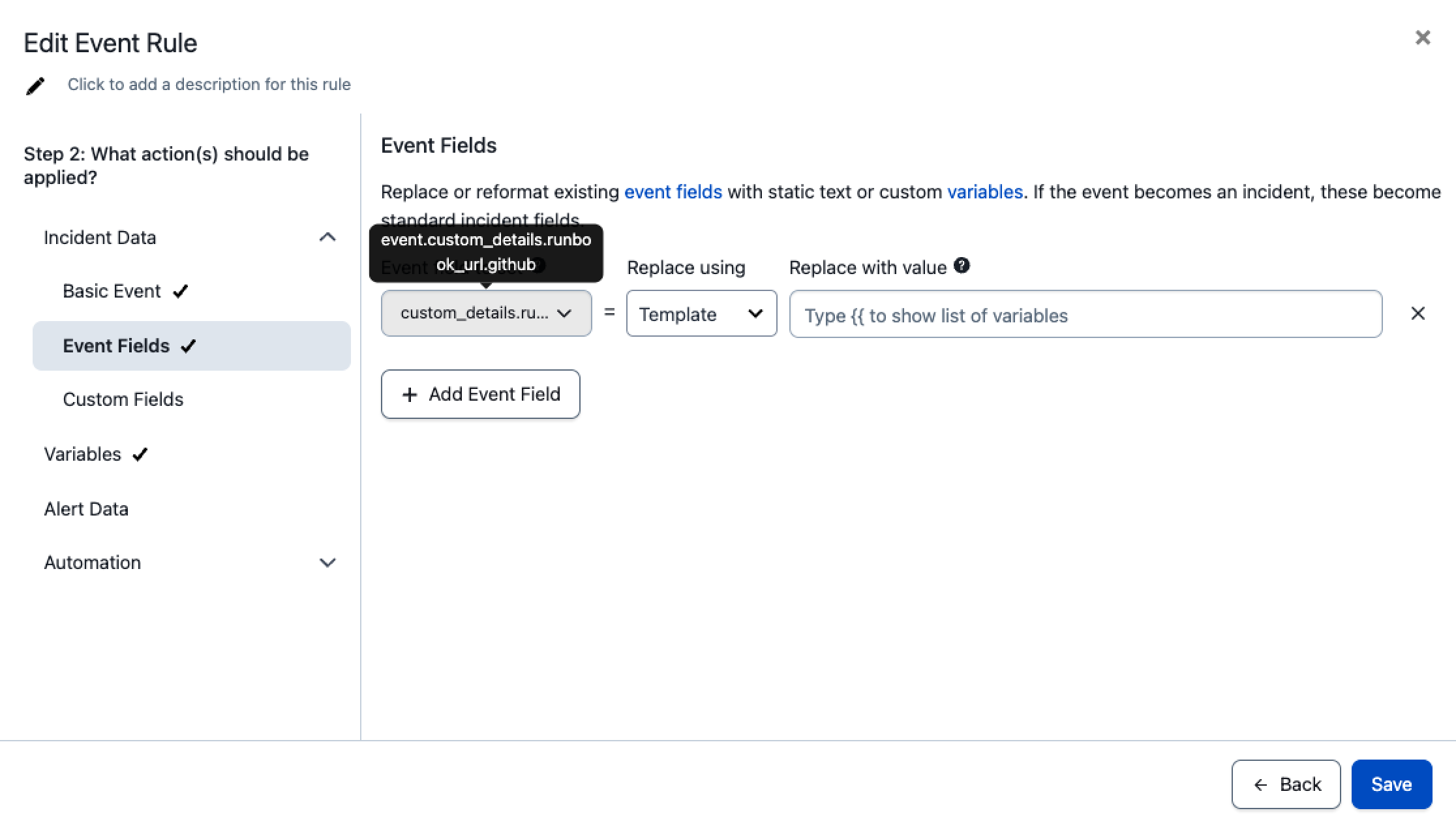
Configuring a runbook link in event fields
- Under Replace using, select Template.
- In Replace with value, paste the URL of the runbook.
- Click Save.
Best Practices
- Log queries work best when there are query examples in the runbook or alert payload. Sample queries in the alert payload can be in any
custom_detailsfield. - You can also provide queries directly to the agent to help ensure accurate log search.
Prompt Examples
- @pagerduty can you fetch the logs for this incident?
- @pagerduty can you search the logs with this criteria [enter criteria]?
Skills
Skills (Available in Early Access)Arm your agent with specialized domain expertise using custom instructions, scripts, and runbooks. Skills are available through AI Settings or the PagerDuty Claude plugin.
Skills let you give Paige custom instructions, runbooks, and scripts for specialized domain expertise. Rather than relying only on retrieved data, a skill tells the agent how to handle specific situations, so it can work out the next steps for troubleshooting an issue.
How Paige Uses Skills
Skills load progressively to keep Paige's context focused. Paige does not read every skill's full instructions up front.
Paige may load a skill automatically if it decides the skill is relevant. After loading it, Paige may choose not to run the skill if the instructions do not fit the problem it is working on.
Skills Do Not Run on ConditionsPaige does not support running a skill when specific conditions are met, such as alert fields, incident title patterns, urgency, or lifecycle events. A skill is not guaranteed to run for every matching incident.
To make Paige more likely to use a skill in a specific scenario:
- Write a clear name, description, and examples. These are the only cues Paige has before it loads the skill.
- Reference the skill in a runbook. For example: "For suspected security issues, use the
detect-security-incident-logsskill."- Reference the skill in a custom triage skill. For example: "If the alert custom details include
type: possible_security_issue, run thedetect-security-incident-logsskill."- Ask for it directly in chat.
What a Skill Contains
Each skill is a structured set of instructions with the following components:
| Component | Details |
|---|---|
| When to Use | Guidance that helps Paige confirm this is the right skill after it loads. This does not make the skill run automatically. |
| Prerequisites | The integrations or data the agent needs to execute the skill. |
| Execution Steps | Step-by-step instructions the agent follows. |
| Error Handling | How the agent should gracefully degrade if a step fails. |
| Success Criteria | How the agent determines whether the skill ran successfully. |
| Examples | Three to five example requests or scenarios where this skill applies, each up to 200 characters. Along with the name and description, Paige uses these to decide whether to load the skill. |
Example Skill: detect-security-incident-logs
The following is an example of a fully structured skill that you can use as a template. This skill searches Datadog and AWS CloudWatch logs for critical security events.
Name: detect-security-incident-logs
Description: Searches Datadog and CloudWatch logs for critical security events. Use when an incident may involve a security issue or a responder asks to check for security incidents.
Example Instructions:
When to use:
- The incident or alert suggests a possible security issue (for example, alert custom details include type: possible_security_issue)
- A responder asks the agent to check for security incidents

Prerequisites:
- Datadog connector configured and active
- AWS CloudWatch connector configured and active

Execution steps:
1. Search Datadog logs for the exact phrase SECURITY_INCIDENT: CRITICAL within the incident time window.
2. Search AWS CloudWatch logs for the exact phrase SECURITY_INCIDENT: CRITICAL within the incident time window.
3. If matches are found in either source, surface the key log details in Paige's response.
4. Recommend triggering the Alert Security Team incident workflow.

Error handling:
- If one connector is unavailable, continue with the other and note which source was skipped.
- If both connectors are unavailable, inform the responder and suggest checking logs manually.

Success criteria:
- The agent has queried both log sources and reported results or confirmed no matches were found.

Examples:
- "Check for any security incidents in the logs"
- "Are there critical security events related to this incident?"
- Triaging an alert where custom_details includes type: possible_security_issue
Create a Skill
You can create skills in the PagerDuty web app or with the PagerDuty Claude plugin.
In the PagerDuty Web App
- In the PagerDuty web app, navigate to AI Settings Paige Configure and click the Skills tab.
- Click Add Skill.
- On the New Skill page, complete the following fields:
| Field | Value |
|---|---|
| Name | Enter a unique, descriptive identifier for the skill (for example, escalation-runbook). Paige uses the name to decide whether to load the skill. |
| Description | Enter a short description of what the skill does and when it should be used (for example, Guides the agent when escalating incidents to a secondary team). Paige uses the description to decide whether to load the skill, so be specific. |
| Instructions | Enter the full instructions to send to the LLM. Use the structure described in What a Skill Contains as a guide. |
| Make skill available to everyone | Check this option to make the skill accessible to everyone in the account. When unchecked, the skill is only available to you. |
- Click Save. Paige can use the skill on future incidents.
Use the Claude Plugin
- Install the PagerDuty Claude plugin.
- Run the
/pagerduty:create-pagerduty-skillcommand and follow the guided prompts to define the skill's name, description, instructions, usage guidance, and examples. - Once created, Paige can use the skill on future incidents.
Test a Skill
After creating a skill, test it by asking Paige to use it in chat on a relevant incident, or by triggering an incident that your runbook or triage skill links to the skill. Then review what the agent reports in:
- The Paige tab on the incident details page.
- Your ChatOps channel (Slack or Microsoft Teams).
Updated 4 days ago