
Recombining Rules
Modify connections between Orchestration rules
Create Orchestrations that reduce redundant rules and improve user experience by enabling multiple rules to recombine back into a single rule.
Connect Mode
You can manage connections between rules by using Connect Mode. While in Connect Mode, the ability to add or modify rule conditions and actions is disabled.
RequirementConnect Mode requires at least two rulesets. A ruleset is defined as the vertical group of connected "Else" rules.
In other words, you must have at least one nested rule to use Connect Mode.
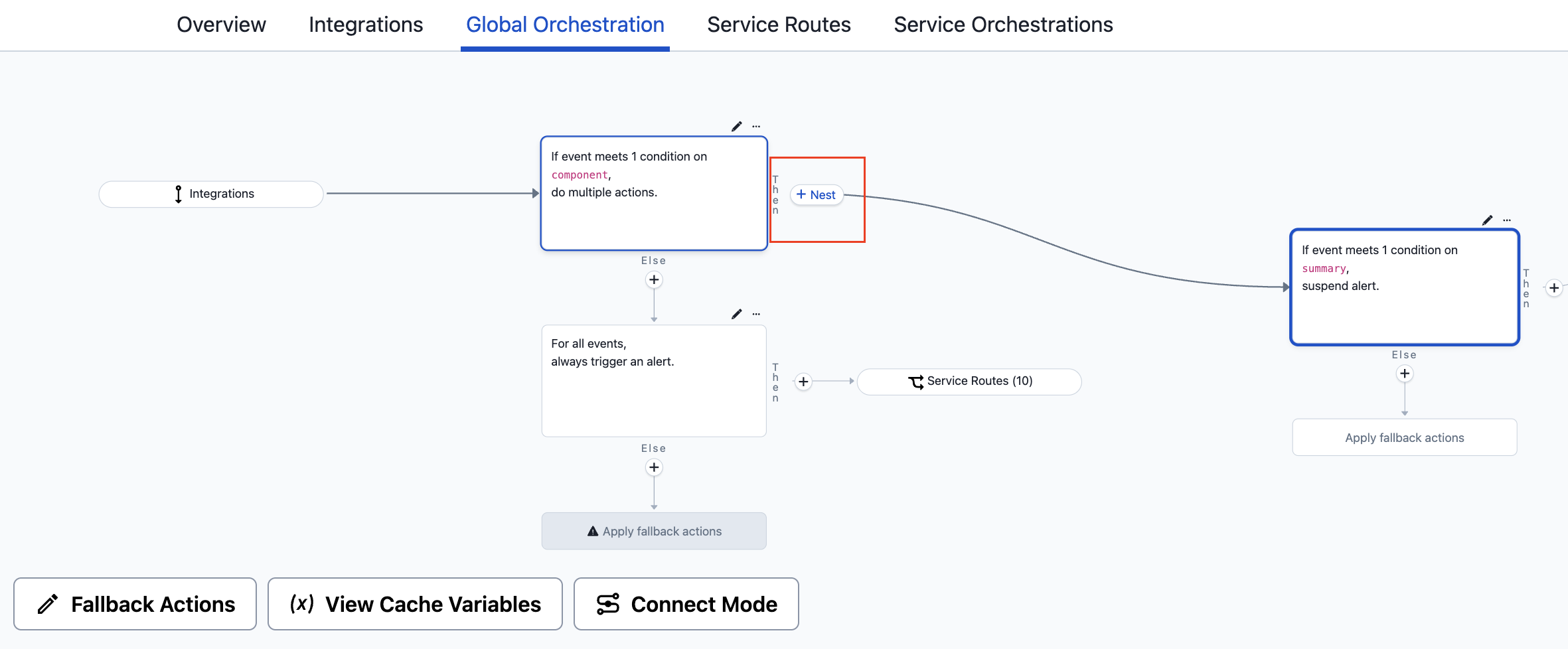
A nested rule in an Orchestration
To modify rule connections, enter Connect Mode by following the steps below:
- Navigate to your desired Orchestration:
- For Service Orchestrations: Navigate to Services Service Directory and select your service. Select the Settings tab and scroll down to Event Management and select View Event Orchestration Rules.
- For Global Orchestrations: Navigate to AIOps Event Orchestration and select your Orchestration. Select the Global Orchestration tab.
- Click Connect Mode at the bottom of the Orchestration.
In Connect Mode, sets can be dragged around using the cursor to help with arranging rules. After you click Save, the rules are automatically moved to a structured grid.
Save ConflictsIf you try to save changes made in Connect Mode after another user or automation makes changes to the Orchestration's rules, you see a prompt informing you of the conflict.
You must discard your changes to receive the latest updates.
Create Connections
To create a new rule connection:
- Click the circular node on the right side of the rule. This highlights all valid connections.
- Click the highlighted node of the desired rule you want to connect with. This creates a new connection. You can also click and then drag your cursor to the desired rule's node to create a connection.
- Once you are finished with making connections, click Save.
Delete Connections
To remove an existing rule connection:
- Click the desired connection line.
- Click to delete the connection.
If the deleted connection was the only connection to a set of rules, an Unconnected Set is created. You must connect all Unconnected Sets before saving your updates.
Updated 4 months ago