
Mobile Widgets
The PagerDuty on-call widget allows PagerDuty Mobile App users to quickly view their on-call status and any upcoming shifts from their device's home screen without needing to open the app.
AvailabilityMobile widgets are available to users on all pricing plans.
Add the On-Call Widget
The on-call widget will prioritize Always On-Call shifts. Larger widgets will show on-call shifts with a defined end time lower in the list of shifts.
Device InformationInstructions and screenshots below are for the following devices. Depending on your device and operating system, information may vary slightly:
- iOS: iPhone 16 Pro, iOS 18.1
- Android: Pixel 9 Pro, Android 15.0
iOS Home Screen
- Long-press your device's home screen, tap Edit in the top left, and select Add Widget.
- Search and select PagerDuty from the list of widgets.
- Tap Add Widget.
- Optionally resize and/or drag the widget to a new location. For users with multiple escalation policies, we recommend using the larger widget, since it offers more display space.
- Tap Done.
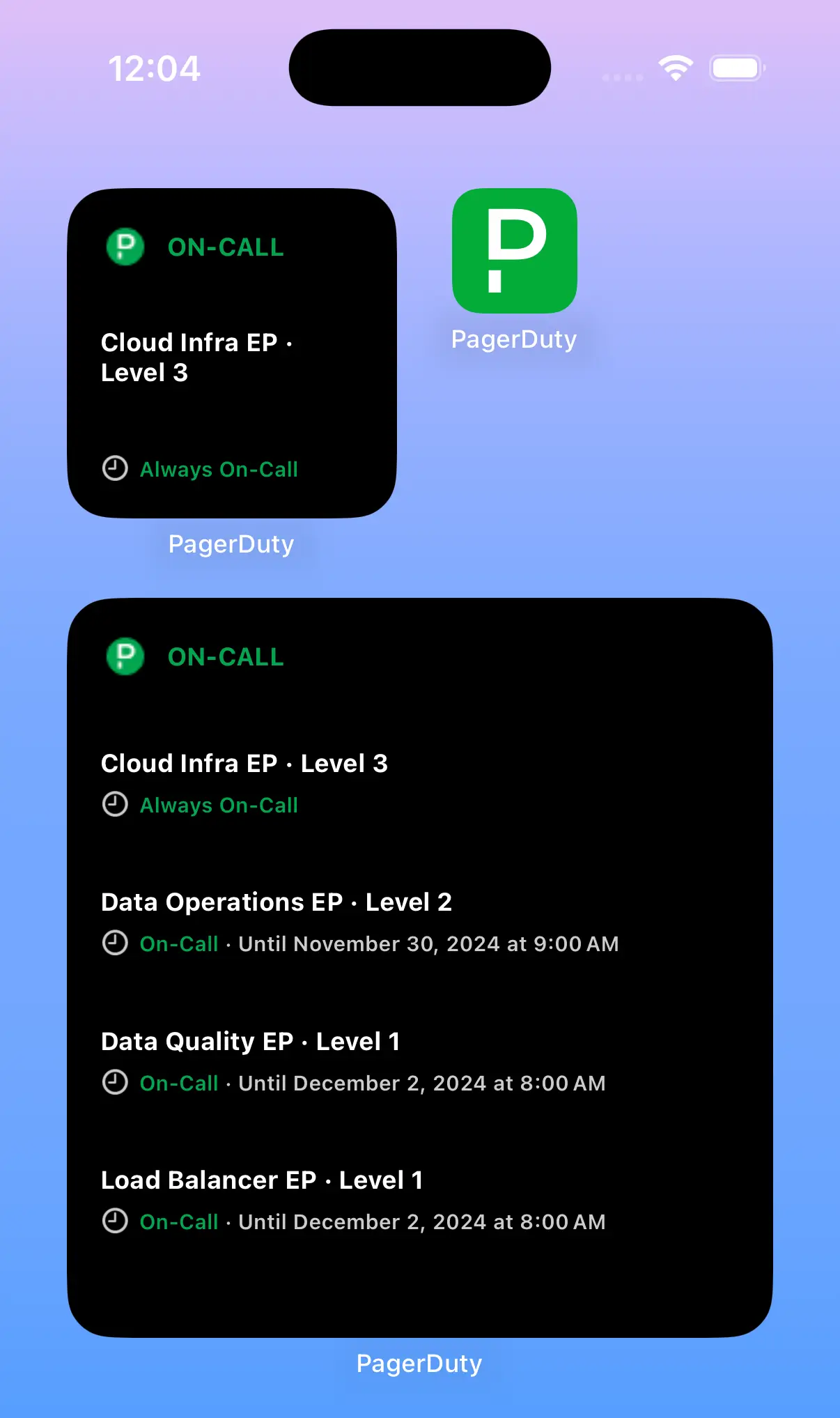
Add the iOS on-call widget
iOS Lock Screen
An on-call widget is also available for your lock screen.
- Touch and hold the Lock Screen until the Customize button appears.
- Tap Customize.
- Tap Lock Screen, then tap Add Widgets.
- Tap PagerDuty from the list of widgets, and tap or drag the PagerDuty widget onto your Lock Screen.
- Tap Done.
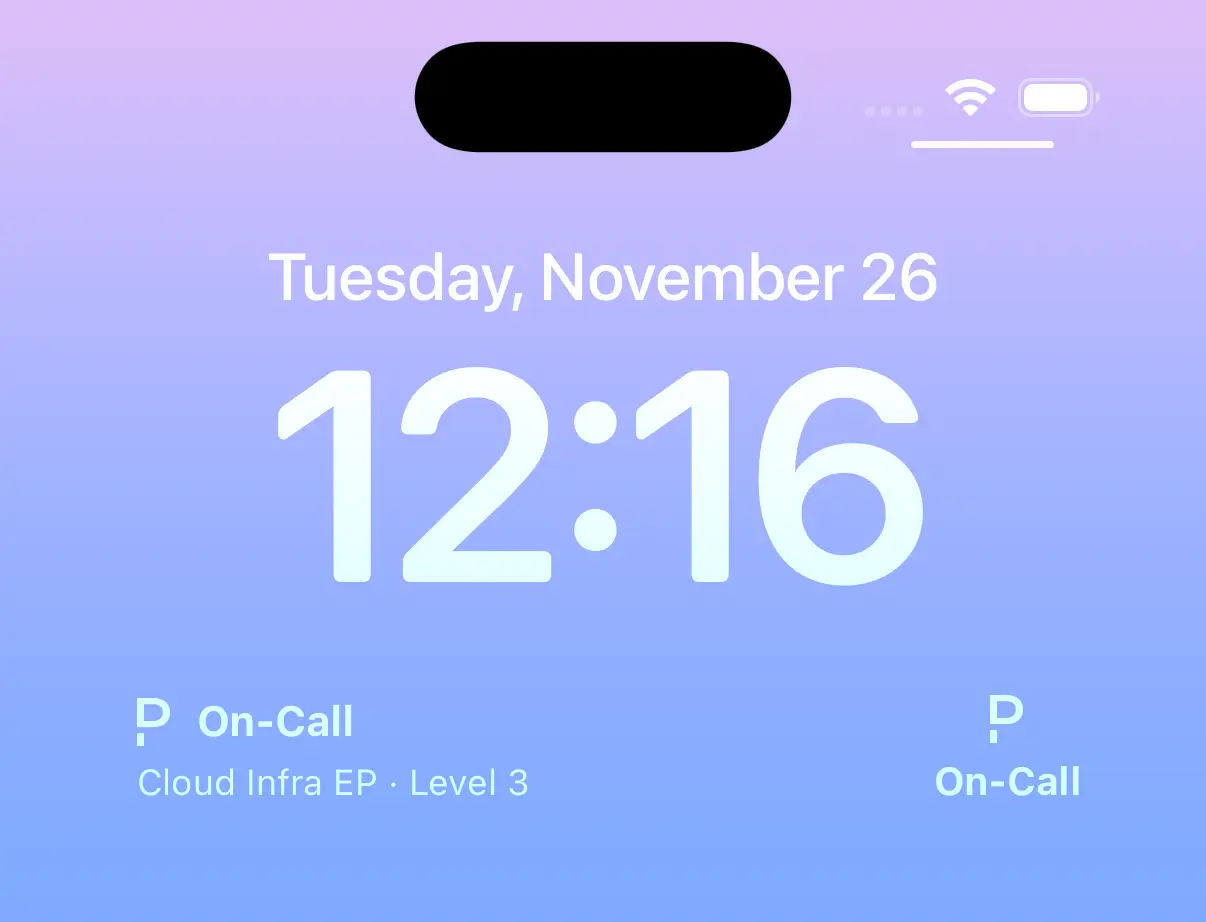
On-call widget on the iOS lock screen
Android Home Screen
- Long-press your device's home screen and select Widgets.
- Search and select PagerDuty from the list of widgets, and tap Add.
- Note: If you do not see PagerDuty in the list of widgets, please make sure you are logged in to the mobile app.
- Optionally resize the widget vertically and horizontally to view more or fewer escalation policies.
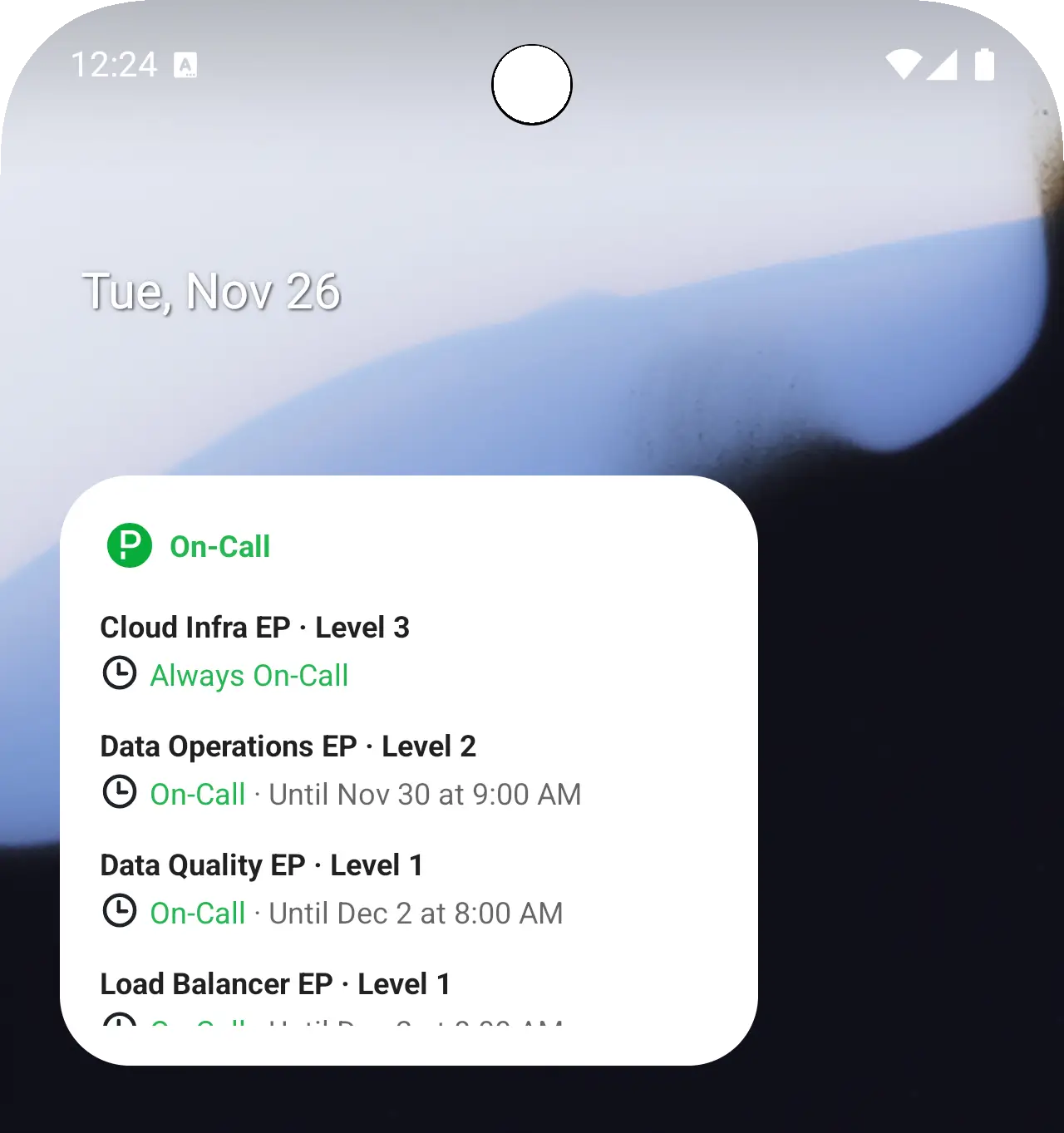
Add the Android on-call widget to the home screen
Interact with the On-Call Widget
Tap the widget to navigate to the mobile app's My On-Call Shifts screen.
Switch SubdomainsTo see on-call shifts from a different subdomain, you will need to switch accounts in your PagerDuty Mobile App. Please read Switch PagerDuty Accounts in the Mobile App for more information.
Reposition the On-Call Widget
To reposition the widget, long-press it and drag-and-drop it to a new location on your device's home screen. You may also see an option to resize the widget.
Delete the On-Call Widget
To remove the widget, long-press the widget and select the option to remove it.
Updated 6 months ago