
Post-Incident Review Templates
Standardize your Post-Incident Reviews | Jeli Part of PagerDuty
Post-Incident Review templates are helpful for organizations with specific requirements and unique needs for Post-Incident Review documentation. Templates give users a starting point for structuring an Post-Incident Review's Summary and Key Takeaways sections.
Creating templates can help you:
- Keep all of your Post-Incident Review data in one place instead of across multiple docs.
- Create consistency in reporting across multiple teams.
- Streamline your processes and eliminate time spent writing boilerplate text.
AvailabilityCustomers on the Enterprise for Incident Management pricing plan can create unlimited Post-Incident Review Templates.
Customers on Professional and Business pricing plans can create up to five Post-Incident Review Templates.
Please contact our Sales Team if you would like to upgrade to a plan featuring Post-Incident Review Templates.
Required User PermissionsJeli Admins can create, edit, and delete templates. Reach out to an Admin to make any changes to existing templates in your Jeli instance.
Create a New Template
- Navigate to your desired Post-Incident Review.
- In the Summary or Takeaways section, click and then click Choose a template below the text field.
- Select Create template.
- Perform the following:
| Field | Description |
|---|---|
| Name | Enter the name of your template (e.g., AwesomeCo Incident Report Template). |
| Template | Enter the content of your template. Jeli supports GitHub flavored Markdown. |
| Type | From the dropdown, select whether this template can apply to the Summary, Takeaways, or both. |
| Set as default for Summary | Toggle on to populate the Summary field with this template for new Post-Incident Reviews by default. |
| Set as default for Takeaways | Toggle on to populate the Takeaways field with this template for new Post-Incident Reviews by default. |
Click OK to save the new template.
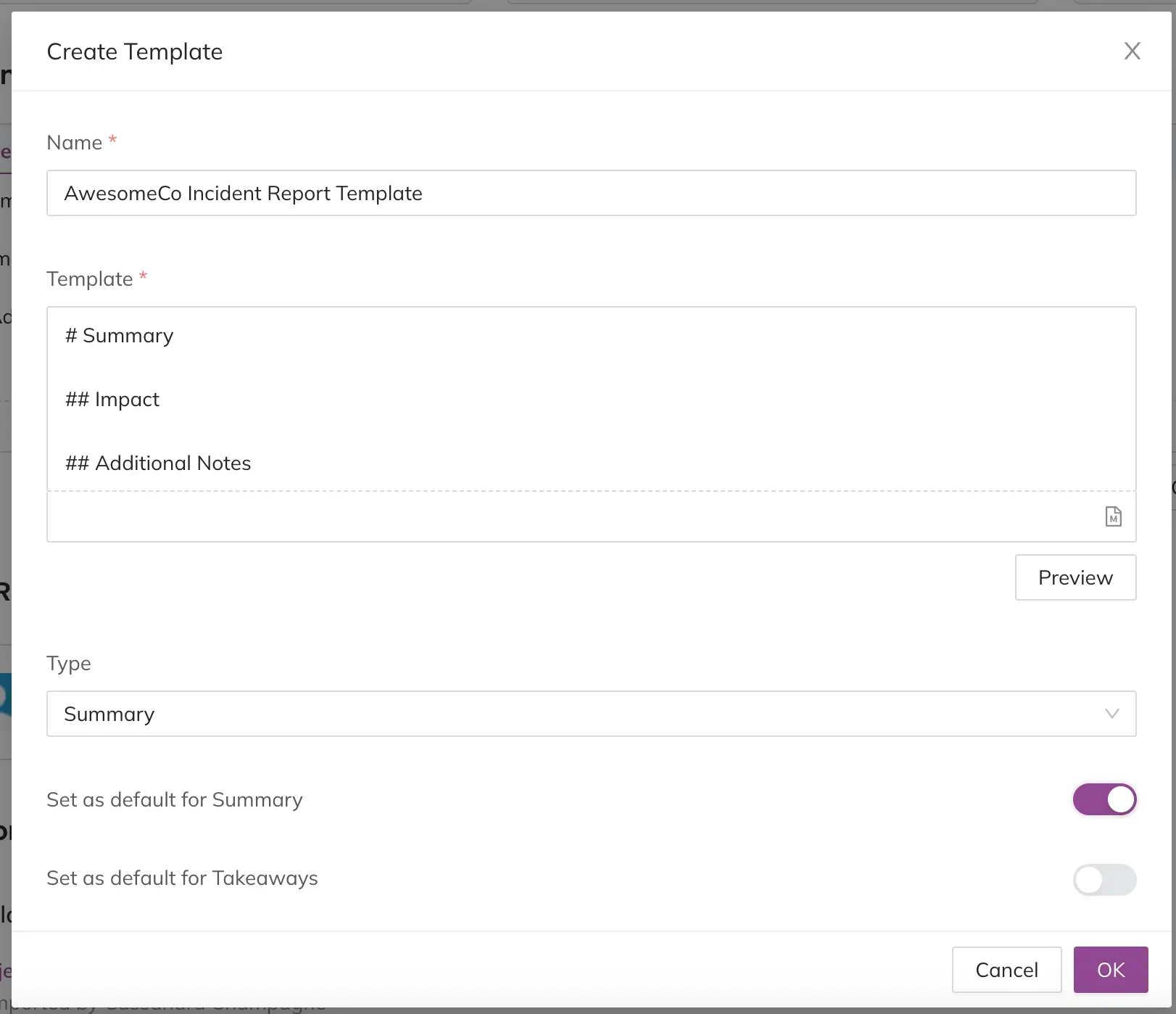
Enter template details
Use an Existing Template
-
Navigate to your desired Post-Incident Review.
-
In the Summary or Takeaways section, click and then click Choose a template below the text field.
-
Select your desired template. You will see a modal appear, informing you that applying a template will overwrite the current field content.
-
Click Ok to confirm you wish to overwrite the existing content with the template. Your template will populate the appropriate field.
Edit a Template
- Navigate to your desired Post-Incident Review.
- In the Summary or Takeaways section, click and then click Choose a template below the text field.
- Hover over next to the template you would like to edit, then select Edit.
- Make your desired changes to the template.
- Click OK to save.
Delete a Template
- Navigate to your desired Post-Incident Review.
- In the Summary or Takeaways field, click and then click Choose a template below the text field.
- Hover over next to the template you would like to delete, then select Delete.
- In the modal, click Remove to confirm.
Updated 3 months ago