
PagerDuty AI
Use agentic and generative AI capabilities to move more efficiently and cut costs
PagerDuty AI
PagerDuty AI is a set of generative and agentic AI capabilities embedded across the PD Reliability Platform that allows organizations to scale teams and build operational resilience. From AI agents handling well-understood tasks to generative AI for summarizing key information about an incident, PagerDuty AI augments, guides, and resolves operational work.
Also known as PagerDuty AdvanceThis capability is part of the PD Reliability Platform plan. If your organization is not on the PD Reliability Platform plan, you'll see it labeled PagerDuty Advance in your product and account.
PagerDuty AI includes:
- PagerDuty AI Assistant
- PagerDuty AI Agents
- PagerDuty AI Integration for Amazon Q
- PagerDuty AI for Post-Incident Reviews
- PagerDuty AI for Status Updates
- PagerDuty AI for Automation Digest
- AI Generated Runbooks (Early Access)
AvailabilityPagerDuty AI is included with PD Reliability Platform plans. It's also available as PagerDuty Advance as an add-on with the following pricing plans: Professional, Business, and Enterprise. Contact our Sales Team to upgrade to a plan featuring PagerDuty AI.
PagerDuty Advance AI Disclosure
To learn more about how we designed, built, and assessed PagerDuty AI with mission-critical work in mind, access the PagerDuty Advance AI Disclosure by following these instructions:
- Navigate to PagerDuty's Assurance Profile.
- In the top search bar, enter PagerDuty Advance AI Disclosure and select the most recent version of the document.
- Click on the document's row to download the document.

PagerDuty Advance AI Disclosure
PagerDuty Guidelines for the Safe and Secure Use of Generative AIGenerative AI is a predictive technology, and sometimes the information it creates is misleading or false. You must fact-check the output of generative AI before you use it. Read the PagerDuty Guidelines for the Safe and Secure Use of Generative AI for more information.
Changes to PagerDuty AIWe continuously improve our generative AI capabilities. If there are material changes to PagerDuty AI generative AI features, we document those in the PagerDuty Advance AI Disclosure.
While PagerDuty AI is General Access, certain features of PagerDuty AI are currently in Early Access, as noted in the AI disclosure, and are subject to change.
PagerDuty AI Benefits
- PagerDuty AI Assistant: Reduce mean time to resolution (MTTR) for critical, unplanned work with the PagerDuty AI Assistant, a generative AI chatbot that provides responders with helpful insight from event to resolution. During an incident, you can interact with the PagerDuty AI Assistant in Slack and Microsoft Teams using simple prompts to get a summary of the key information about the incident. It also anticipates common diagnostic questions and suggests troubleshooting steps.
- PagerDuty AI for Post-Incident Reviews: Generate a post-incident review with data from the Scribe Agent, Slack messages in the incident's dedicated channel, and Incident Lifecycle Events. PagerDuty AI writes the review's narrative sections, creates narrative markers with supporting evidence, and drafts follow-up actions — all editable afterward.
- PagerDuty AI Slack Side Panel: You can send direct messages (DMs) and interact with the PagerDuty AI Assistant without these messages being visible to other team members. This messaging interface provides a private, one-on-one conversation channel where you can ask questions, request assistance, and collaborate on tasks directly with the PagerDuty AI Assistant.
- PagerDuty AI Agents: AI agents guide and assist responders by taking on tedious or repetitive tasks within your connected ecosystem of tools, freeing up human capacity for high-impact work and innovation.
- PagerDuty AI Integration for Amazon Q: The integration with Amazon Q enhances incident responses by incorporating data from your Amazon Q Business apps. This connection provides comprehensive operational information from your organization's tools, helping teams resolve incidents more quickly and effectively.
- PagerDuty AI for Status Updates: Generative AI leverages Slack and Microsoft Teams and PagerDuty log entries to create and send internal status updates. When unplanned, interrupting work strikes, communication and coordination are essential. With push-button means of crafting a draft, responders regain the time and resources needed to reduce downtime and team stress levels. With PagerDuty AI for Status Updates, responders easily keep stakeholders informed throughout an incident while remaining focused on resolution.
Requirements
In PagerDuty:
- You must have the Admin, Global Admin, or Account Owner base role.
In Slack:
- You must be a workspace admin or owner.
In Microsoft Teams:
- A Microsoft Teams Admin must enable third-party apps for your organization to download the PagerDuty app.
- A Microsoft Admin must authorize the Microsoft Graph API permissions required by the PagerDuty app.
How It Works
Once the PagerDuty AI Assistant connects to the chat app:
- You can interact with the PagerDuty AI Assistant in a channel to receive wider context, potential root causes, and on-call information.
- The PagerDuty AI Assistant allows PagerDuty to read the history of channels directly associated with the incident or service. This information combines with PagerDuty incident log entries, allowing you to generate a Post-Incident Review draft from any resolved incident.
- You can generate status updates from an incident, which leverages the associated Slack channel and PagerDuty log entries.
Enable the PagerDuty AI Assistant and AI Agents
1. Connect a Chat Integration
Connect PagerDuty AI to Slack
- In the PagerDuty web app, navigate to AI AI Settings.
- Select the Assistant and AI Agents Configuration tab.
- Under Chat Integrations, check your Slack connection status:
- If Slack shows Not Connected: Install the Slack | PagerDuty integration.
- If Slack shows Update required: Enable the PagerDuty Slack app's Optional Scopes to make PagerDuty AI's incident summaries and updates more helpful. This includes "catch me up" and "wrap me up" summaries, status updates, and proactive incident messages. With optional scopes enabled, these features leverage data from relevant Slack conversations. Note that threaded replies are not included. Without these scopes, PagerDuty AI functions using other data sources like incident notes and Scribe Agent transcripts.
- Confirm that Slack shows Connected or Update required.
- Toggle Slack to the on position.
- Optional: Click Configure and enable proactive incident messages.
- Proactive Incident Insights: Toggle on to automatically send incident context, symptoms, impact, and investigation suggestions to incident channels when incidents trigger.
- Proactive Incident Summarization: Toggle on to automatically send private incident summaries to new incident channel members and Post-Incident Reviews to incident channels after resolution.
Enable the PagerDuty AI Slack Side Panel
Required ScopesThe PagerDuty AI Slack side panel requires additional scopes. A PagerDuty Admin might need to reauthorize the Slack integration to grant these scopes.
- In your Slack workspace, navigate to Preferences Navigation.
- Scroll down to App agents & assistants and select the PagerDuty checkbox.
Slack Admins can also enable the PagerDuty AI Slack side panel for everyone in your Slack workspace. Read the Display AI apps in Slack article for more information.
Edit the Bot User Name
If you want to edit the bot's user name after you configure the integration:
- Navigate to the Slack Marketplace using one of the following methods:
- Via URL: Go to
https://[your-pagerduty-subdomain].slack.com/marketplaceand click Manage in the upper right. Select PagerDuty and click the App Details tab to redirect to the Slack Marketplace. Select the Configuration tab. - Via Slack: Select PagerDuty from the Apps section in the left menu. Click Configuration to redirect to the Slack Marketplace.
- Via URL: Go to
- Scroll to the Bot User section and click Edit.
- Enter a new bot name and click Save Changes.
Connect PagerDuty AI to Microsoft Teams
- In the PagerDuty web app, navigate to AI AI Settings.
- Select the Assistant and AI Agents Configuration tab.
- Under Chat Integrations, if Microsoft Teams shows Not Connected:
- Install the Microsoft Teams | PagerDuty integration.
- In Microsoft Teams, add the Optional Permissions for PagerDuty AI to allow communication with PagerDuty AI.
- Confirm that Microsoft Teams shows Connected.
- Toggle Microsoft Teams to the Enabled position.
- Optional: Click Configure and enable proactive incident messages.
- Toggle Proactive Incident Insights to the on position. When an incident triggers, automatically send a message to the incident channel with the incident's context, symptoms, overall impact on services and customers, and suggested investigation paths.
- Toggle Proactive Incident Summarization to the on position. When new individuals join an incident channel, automatically send them a private incident summary. After an incident resolves, send a Post-Incident Review to the incident channel.
2. Enable or Disable AI Agents
Required User PermissionsAccount Owners and Global Admins have the ability to enable or disable AI agents.
If you do not have these permissions, click Request to Admin next to the AI agent you want to use. This sends an email request to your admins to enable that agent for you.
- In the PagerDuty web app, navigate to AI AI Settings.
- Select the Assistant and AI Agents Configuration tab.
- Under AI Agents, toggle the switch of an AI Agent to the Enabled position.
- Visit the AI agents' guides for additional setup instructions:
3. Add Data Sources
Add a GitHub Personal Access Token
Grant access to your GitHub repositories so PagerDuty AI automatically uses incident and chat data to identify and surface important change events that potentially caused the incident.
- Install the GitHub Changes | PagerDuty integration.
- In the PagerDuty web app, navigate to AI AI Settings.
- Select the Assistant and AI Agents Configuration tab.
- Under Data Sources, toggle Allow PagerDuty AI to access GitHub Repositories to the on position.
- Copy your GitHub token and paste it into the GitHub Personal Access Token field.
- Click Save Token.
Connect PagerDuty AI with Amazon Q
PagerDuty AI's integration as a data accessor for Amazon Q enables teams to use chat apps to quickly search and retrieve intelligent insights from multiple external sources connected to your organization's Amazon Q Business apps. For instance, when investigating similar past incidents, you can quickly access relevant runbook documentation from Confluence or pull historical data from ServiceNow, streamlining the troubleshooting and resolution process.
For more information on Amazon Q data accessors, read the Amazon Q Business User Guide.
In the AWS Management Console
- In the Services search bar, search for and select Amazon Q Business.
- Under the Applications section, click Create application.
- On the Create application page, configure the following information:
| Field | Value |
|---|---|
| Application name | Enter the new application's name. |
| User access | Select Authenticated access. |
| Access management method | Select AWS IAM Identity Center (recommended). |
- Click Create.
- In the left menu, under the Enhancements section, select Data accessors.
- Click Add data accessor and select the PagerDuty Advance data accessor.
- Update the PagerDuty Advance data accessor's name, data sources, and access permissions.
- Click Add data accessor.
- Leave the Data accessor configuration details prompt open to use when configuring this connection in PagerDuty.
In PagerDuty
- In the PagerDuty web app, navigate to AI AI Settings.
- Select the Assistant and AI Agents Configuration tab.
- Under Data Sources, toggle Enable Amazon Q Business to the on position.
- On the Amazon Q Business Configuration Values modal, enter your PagerDuty Advance data accessor details from AWS:
| In PagerDuty | In AWS | Description |
|---|---|---|
| IdC application region | IdC application region | The AWS region for the IAM Identity Center instance (for example, us-west-2). |
| Application ID | Application ID | The Amazon Q Business application ID (for example, 1a1a1a1-2b2b-3c3c-4d4d-5e5e5e5e5e). |
| Application region | Application region | The AWS region for the Amazon Q Business application (for example, us-west-2). |
| Retriever ID | Retriever ID | The Amazon Q Business retriever ID for PagerDuty Advance (for example, 1a1a1a1-2b2b-3c3c-4d4d-5e5e5e5e5e). |
| IdC application ARN | IdC application ARN | Also called the Data Accessor Application ARN, the client ID for IAM Identity Center (for example, arn:aws:sso::...). |
- Click Save configuration values.
- To change these values, click Edit configuration values, enter the new values, and click Save configuration values.
Granular Access to PagerDuty AI
With PagerDuty AI, Admins can either enable/disable for all PagerDuty users or choose to implement a gradual rollout approach per team.
- In the PagerDuty web app, navigate to AI AI Settings.
- Select the Access tab.
- Scroll through the list of teams and toggle the ones that you want to grant access to PagerDuty AI
Note: By default, all teams are enabled to use PagerDuty AI.
How team access is enforcedTeam-level access is enforced per user, based on PagerDuty team membership. Users on a team with access can invoke PagerDuty AI actions; users who are not cannot. This applies to every access method: the web app, chat integrations (Slack and Microsoft Teams), and the API.
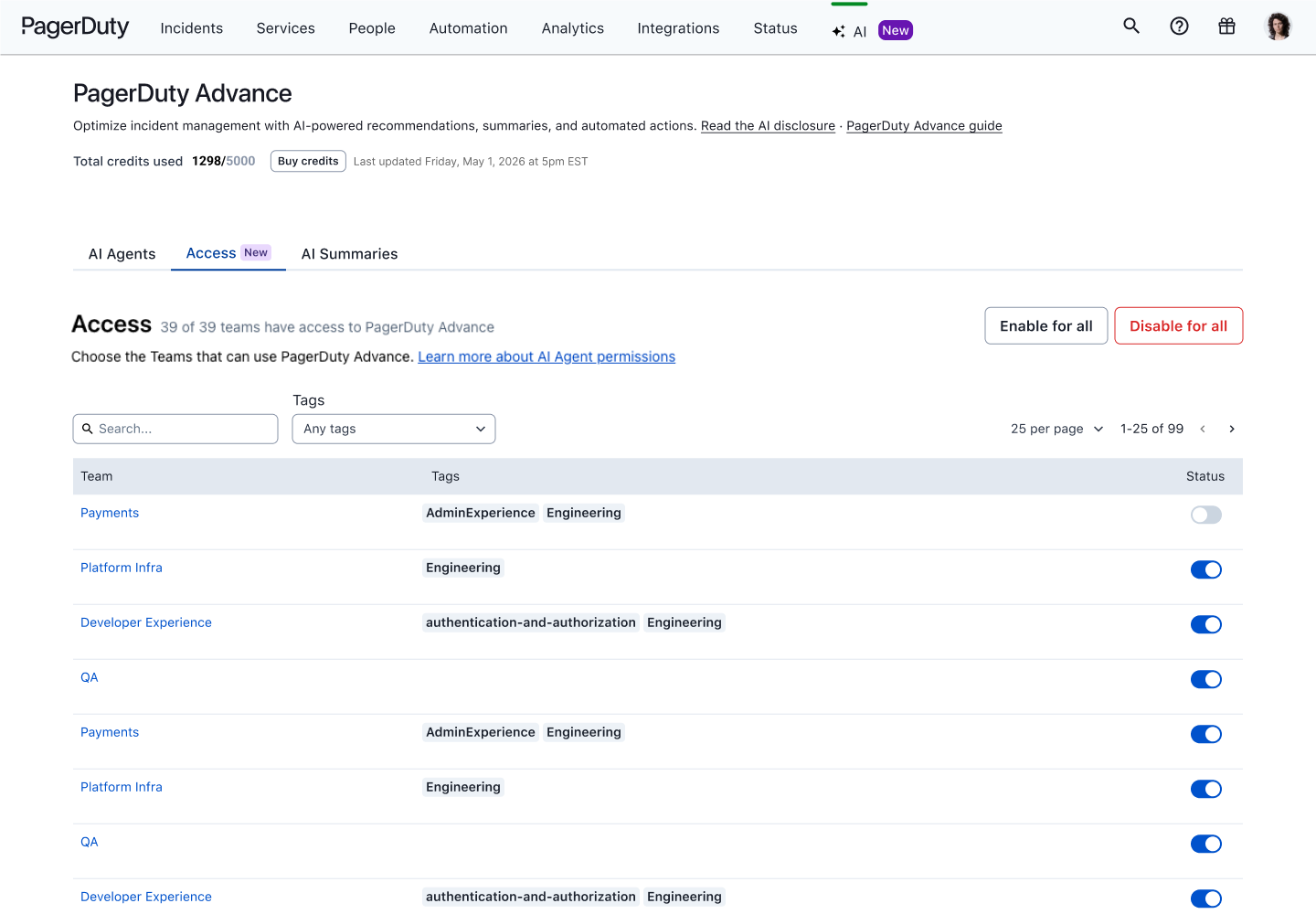
PagerDuty AI team-level access control
Enable AI Summaries
Enable AI Summaries features to generate AI-powered incident summaries on the PagerDuty web app.
- In the PagerDuty web app, navigate to AI AI Settings.
- Select the AI Summaries tab.
- Toggle PagerDuty AI for Status Updates to the on position. Use the latest incident and Slack and Microsoft Teams data to automatically generate internal Status Updates.
- Toggle PagerDuty AI for Automation Digest to the on position. Use Automation Actions Log data to automatically generate log digest summaries.
Note: To access these features with the PagerDuty AI Assistant, you must enable at least one chat integration.
Manage PagerDuty AI Account Settings
To exercise granular control over which PagerDuty AI features are available within your account, manage these features in your PagerDuty AI settings.
Required User PermissionsAccount Owners and Global Admins can manage PagerDuty AI settings.
Other roles can only view these settings. For AI Agents, click Request to Admin next to the AI agent you want to use to send an email request to your admins to enable that agent.
To configure PagerDuty AI settings, navigate to AI AI Settings and select from the tabs below:
Assistant and AI Agents Configuration
Chat Integrations
Toggle the switch of a chat integration to enable or disable the PagerDuty AI Assistant and AI agents for your chat app.
- Slack
- Microsoft Teams
Note: When disabled, the PagerDuty AI Assistant features including Post-Incident Reviews and Slack Side Panel are disabled for your chat app.
Click Configure on your enabled chat integration to turn proactive messages on or off:
- Proactive Incident Insights: When an incident triggers, automatically send a message to the incident channel with the incident's context, symptoms, overall impact on services and customers, and suggested investigation paths.
- Proactive Incident Summarization: When new individuals join an incident channel, automatically send them a private incident summary. After an incident resolves, send a Post-Incident Review to the incident channel.
AI Agents
Toggle the switch of an AI agent to turn it on or off.
Data Sources
Toggle the switch of a data source to control the information that the PagerDuty AI Assistant can access.
- Allow PagerDuty AI to access GitHub Repositories: Automatically use incident and chat data to identify recent code changes that potentially caused the incident.
- Enable Amazon Q Business: Use Amazon Q Business to retrieve information from its connectors within PagerDuty AI.
AI Summaries
Toggle the switch of an AI Summary feature to turn it on or off.
- PagerDuty AI for Status Updates: Use the latest incident and Slack and Microsoft Teams data to automatically generate internal status updates.
- PagerDuty AI for Post-Incident Reviews (Beta): Use the latest incident and Slack data to automatically generate post-incident review reports.
- PagerDuty AI for Automation Digest: Use Automation Actions Log data to automatically generate log digest summaries.
Disable PagerDuty AI
- In the PagerDuty web app, navigate to AI AI Settings.
- Click ... in the top right corner.
- Select Disable PagerDuty Advance.
- Click Disable.
Note: To re-enable PagerDuty AI, navigate to AI AI Settings and click Enable Advance.
Warning: Disabling PagerDuty AI here does not affect the AI Generated Runbooks (Early Access) feature. If you want to disable that feature, contact our Sales Team.
PagerDuty AI User Guide
Read our PagerDuty AI User Guide to learn more about using PagerDuty AI's features after configuration.
PagerDuty AI Trial for Legacy Pricing Plans
Accounts on some legacy pricing plans (such as Digital Operations) can trial PagerDuty AI. As the Account Owner:
- In the PagerDuty web app, navigate to User Icon Account Settings.
- In the Product Trials section, click Activate PagerDuty Advance Trial.
Your PagerDuty AI trial begins immediately. You can view your remaining AI Actions and the trial end date. Click Configure PagerDuty Advance to manage PagerDuty AI settings.
FAQ
How do AI Actions work?
Read our Product-Specific Terms for information on AI Actions.
What is the difference between PagerDuty Advance credits and AI Actions?
There is no difference. PagerDuty Advance credits are now called AI Actions.
How many AI Actions does each action type cost?
The current number of AI Actions that each action type consumes is as follows:
| Action Type | Description | AI Actions* |
|---|---|---|
| Automation Digest | One request to summarize the most important results from one Automation Action job using PagerDuty AI for Automation Digest | 1 |
| Incident Summarization | One request to summarize an incident using PagerDuty AI Assistant (for example, catch me up or bring me up to speed) | 2 |
| Status Update | One request to generate a status update that includes incident status and notes using PagerDuty AI for Status Updates | 3 |
| Planned Work | One question that is non-incident related. This includes general questions about the product | 2 |
| Scribe Agent | One request that summarizes real-time audio transcripts from videoconferencing tools and generates a post-meeting summary | 6 actions per 30 minutes of bridge time. Plus a one-time charge of 2 actions when a meeting summary is generated at the end of the meeting. |
| Shift Agent | Shift Agent is included at no additional cost and does not consume AI Actions. | 0 |
| Insights Agent | Insights Agent is included at no additional cost and does not consume AI Actions. | 0 |
| Key Moments | Automatically identifies key details from a resolved incident to be included in post-incident reviews. | 0 |
| Paige (SRE Agent) | One of the following:
| 4 |
| Premium Workflow Actions** | Workflow Actions marked as premium | 2 |
AI Actions were previously known as PagerDuty Advance credits.
*The number of AI Actions consumed by action type may change at PagerDuty's sole discretion.
**Only available on PD Reliability Platform plans. If there are insufficient AI Actions for Premium Workflow Actions, users may not be able to add or edit workflows with Premium Workflow Actions.
How do I view how many AI Actions I have used?
You can see how many AI Actions have been used by navigating to Analytics PagerDuty AI Analytics or AI Usage Analytics. If you are the Account Owner, you can also review the remaining AI Actions for your subdomain by selecting the Your Subscription tab in Account Settings.
What Large Language Models (LLMs) does PagerDuty use?
PagerDuty AI generates outputs with assistance from certain LLM providers. Read the PagerDuty Advance AI Disclosure to learn more about how we designed, built, and assessed PagerDuty AI with mission-critical work in mind, including any third-party models used.
Does PagerDuty AI train models using my data?
PagerDuty does not use your data to train models used for PagerDuty AI.
How do I get more compliance, legal, privacy or security information about PagerDuty AI?
- You can read the PagerDuty Advance AI Disclosure to learn more about how we designed, built, and assessed PagerDuty AI with mission-critical work in mind.
- Stay informed about the compliance status of PagerDuty AI by reviewing our Services in Scope page.
Are there any requirements for PagerDuty AI actions to work?
For minimum requirements, read the PagerDuty Advance AI Disclosure for details. Additionally, certain action types work only if certain products are provisioned in your account. For example, the Automation Digest action type requires the Automation Actions product. The following PagerDuty AI Assistant prompts require the following products to work:
| Prompt | Required Product |
|---|---|
| Where are the alerts coming from? | Incident Management |
| Are there any related services affected? | Incident Management |
| Are there any open incidents for {service name}? | Incident Management |
| Who do I go to for help (who is on call)? | Incident Management |
| What happened? | Incident Management |
| Catch me up on this incident | Incident Management |
| Generate a post-incident review | Incident Management |
| Write me a status update message | Incident Management |
| How do I set up {PagerDuty feature}? | Incident Management |
| What are the best practices for {PagerDuty feature}? | Incident Management |
| Why can I not add notes to a PagerDuty incident? | Incident Management |
| What questions can I ask PagerDuty AI? | Incident Management |
| What data is used to generate a status report? | Incident Management |
| Why are my Android notifications not showing up? | Incident Management |
| How can I set up an integration with Jira? | Incident Management |
| What is the customer impact? | CSOps |
| What changed? | AIOps |
| What is the probable cause? | AIOps |
| Are any of the changes likely to be the cause of the incident? | AIOps |
| Has this incident happened before? | AIOps |
What incident actions can I perform with the PagerDuty AI Assistant?
The PagerDuty AI Assistant now uses intelligent AI routing to connect you with specialized AI agents for different tasks. However, it no longer supports direct incident actions such as acknowledging incidents, adding responders, running workflows, or resolving incidents.
You can still perform these incident actions using the PagerDuty app commands and incident card buttons in your chat application.
How can I use the PagerDuty Advance plugin with Amazon Q?
The Amazon Q Business PagerDuty Advance plugin allows you to interact with the PagerDuty AI Assistant. Visit the Configuring a PagerDuty Advance plugin for Amazon Q Business article for more information on configuring this plugin.
What PagerDuty AI Assistant questions are supported In Japanese?
The PagerDuty AI Assistant supports both inputs and outputs in Japanese for these action types:
- Any Incident Insight question except:
- Change Events / Probable Cause
- Who is on call
- Service context (other services)
- Any Incident Summarization
How do I migrate from the PagerDuty Advance Slack app to the PagerDuty Slack app?
The PagerDuty Advance Slack app is no longer available. To enable PagerDuty AI in the PagerDuty Slack app, follow the setup guide.
Updated 29 days ago