
Jeli Settings and Integrations (Legacy)
Jeli Part of PagerDuty Legacy
As a Jeli administrator, you can manage Jeli settings, integrations, and user permissions within the platform. This ensures your team has the necessary tools and access to manage incidents effectively and maintain a streamlined, secure operational environment.
AvailabilityJeli is available if you have a standalone Jeli plan or the Enterprise plan for Incident Management.
Contact our Sales Team to upgrade to an account plan with Jeli.
Required User PermissionsYou must have admin permissions to manage Jeli settings. To add a user as an admin, visit User Access Management Settings in the Jeli web app.
View Jeli Settings
To access Jeli settings, navigate to Settings in the left navigation menu.
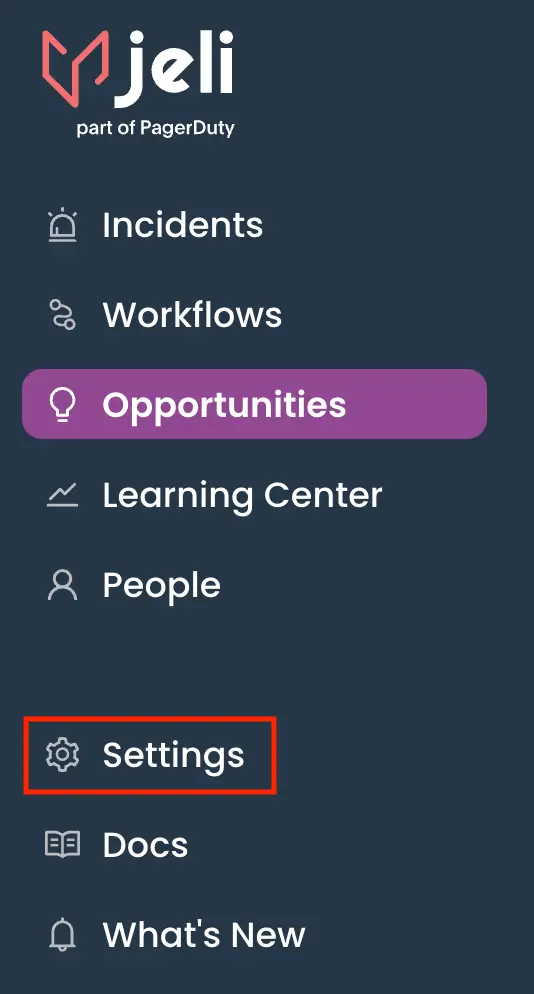
Jeli Settings
The following settings are available:
Integrations
You can manage and connect integrations in the Integrations menu. For more information, visit our integration articles:
- Slack Integration | Jeli
- PagerDuty Integration | Jeli
- Opsgenie Integration | Jeli
- Zoom Integration | Jeli
- Jira Integration | Jeli
- Import HR Data
- Google Meet Integration | Jeli
- Statuspage Integration | Jeli
- Okta Integration | Jeli
- Vanta Integration | Jeli
- ServiceNow Integration | Jeli
- Nobl9 Integration | Jeli
Incident Response
In the Incident Response menu, you can configure settings related to your Jeli Slackbot. You can configure the following settings:
Incident Roles
Select the Incident Roles tab to define which roles you can assign in the Jeli Slackbot. You can assign these roles when you start an incident using /jeli open or update an incident during an active incident using /jeli set-<role_name>.
The default incident roles in Jeli are Incident Commander and Communications Lead. You can edit these roles to customize the name or Slack command alias, but you cannot delete them.
Add Roles
- Click Add Role in the upper right of the configuration page.
- Enter the information for the new role into the fields:
| Field | Value |
|---|---|
| Incident role name | Enter the name displayed in the list of role options. |
| Slack command alias | Enter the alias responders use in the incident channel to assign the role. |
| Role help message | Enter the help message sent to the user when you assign them to the role. |
- Click Add. The new role displays in your list of incident roles.
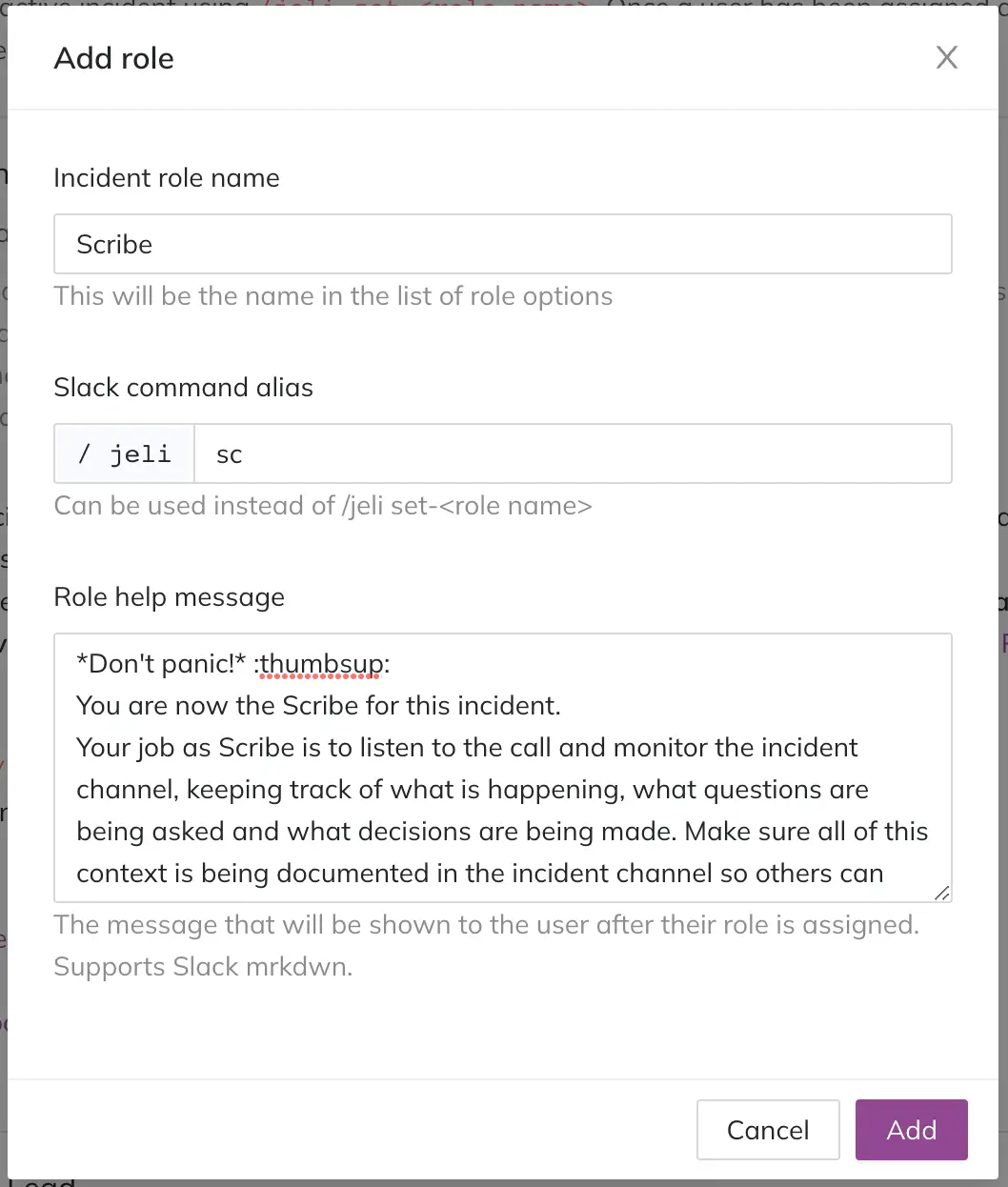
Add Role Example: Scribe Role
The new role shows up in the Jeli Slackbot when an incident opens, and the new role commands are available during the incident. Based on the example in the previous section, the commands are /jeli sc and /jeli set-scribe.
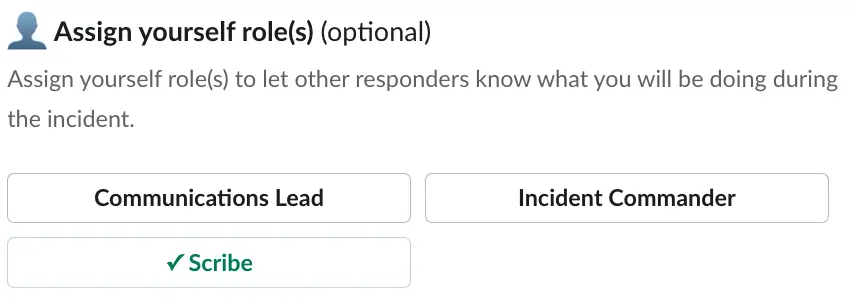
Assign Role Example: Assign a Scribe Role in Slack
Edit Roles
- Select Edit to the right of the role you want to edit.
- Update the fields using the following guidelines:
| Field | Value |
|---|---|
| Incident role name | Edit the name displayed in the list of role options. |
| Slack command alias | Edit the alias responders use in the incident channel to assign the role. |
| Role help message | Edit the help message sent to the user when you assign them to the role. |
- Click Update to save your changes.
Delete Roles
- Select Delete to the right of the role you want to delete.
- In the confirmation dialog, click OK to confirm the deletion.
Deletion WarningThis action is not reversible.
Broadcast Channels
Select the Broadcast Channels tab to configure how stakeholders stay informed during incident response. Each broadcast channel receives a persistent message and subsequent updates as the incident state changes.
Add Broadcast Channels
- Under Default broadcast channels, search and select your preferred channels to add default broadcast channels for your incidents.
Remove Broadcast Channels
- Click to the right of the channel name to remove broadcast channels for your incidents.
Severity
Select the Severity tab to define the severities that you can assign in the Jeli Slackbot. You can assign these severities when you start an incident using /jeli open or update an incident during an active incident using /jeli sev.
Add Severity
- Click Add Severity in the upper right of the configuration page.
- Enter the following details:
| Field | Value |
|---|---|
| Severity name | Enter the name displayed in the list of severity level options. |
| Slack command | Enter the Slack command shortcut that comes after /jeli sev. For example: /jeli sev critical. |
| Description | Enter the description that appears in the severity dropdown. |
- Click OK to save the severity level.
In the following example, Severity 3 is added. You can set this in the channel using the severity modal /jeli sev or the shortcut /jeli sev minor.
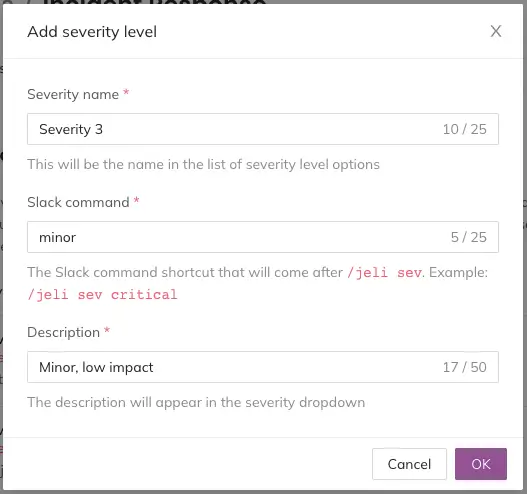
Add Severity Level Example: Severity 3 or Minor Level
Edit Severity
- Select Edit to the right of the severity you want to edit.
- Update the fields using the following guidelines:
| Field | Value |
|---|---|
| Severity name | Edit the name displayed in the list of severity level options. |
| Slack command | Edit the Slack command shortcut that comes after /jeli sev. For example: /jeli sev critical. |
| Description | Edit the description that appears in the severity dropdown. |
- Click Update to save your changes.
- To change the order of your severity levels, drag and drop a severity level to a new position in the list.
Status Reminders
Select the Status Reminders tab to configure the frequency and methods used to remind the Incident Commander, lead, or facilitator to update the incident status.
- Select the Status Reminders tab.
- Under Status reminders, configure the following options:
| Field | Value |
|---|---|
| Remind me every | Select the time frequency from the dropdown. |
| How would you like the Incident Commander to be reminded? | Select the contact method from the dropdown. |
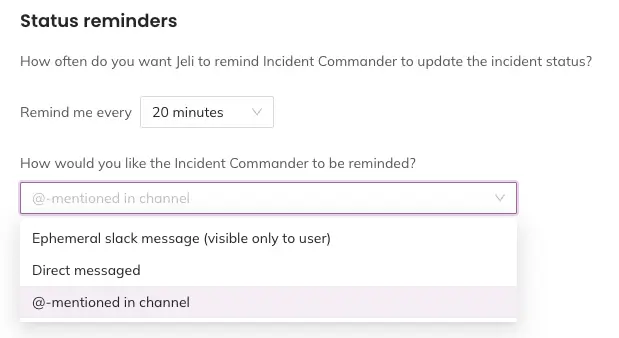
Configure Status Reminder Frequency and Methods
Types
Select the Types tab to configure incident types. Incident types allow you to activate specific actions using workflows during your response. Incident types also assist with sorting and filtering incidents, and trend analysis for specific incidents.
Add Incident Types
- Click Add type.
- Enter the following information:
| Field | Value |
|---|---|
| Name | Enter a name for the incident type. |
| Description | Enter a short description of the incident type to help identify when it applies. |
- Click OK to add the incident type.
Default Incident TypeThe default incident type is called
Default. You can modify this type, but you cannot delete it.
Edit Incident Types
- Select Edit on the context menu for the type you want to edit.
- Update the fields using the following guidelines:
| Field | Value |
|---|---|
| Name | Edit the name of the incident type. |
| Description | Edit the description of the incident type. |
- Click OK.
Delete Incident Types
Deletion Warning
- Deleting incident types does not remove the type from existing incidents. Because of this, you cannot reuse incident type names.
- You cannot delete types that a workflow is actively using.
- Select Delete on the context menu for the type you want to delete.
- In the confirmation modal, click Delete.
Primary Jira Issue
Select the Primary Jira Issue tab to configure the Jira issue that Jeli creates when you open an incident using /jeli open. The incident name becomes the issue title, and the issue key becomes part of the incident channel name.
Read Jira Integration | Jeli for more information about setting up the initial integration.
All Primary Jira Issues
In the All Primary Jira Issues section, select the checkbox if you want to create a Jira comment for every Jeli Slackbot status update.

All Primary Jira Issues
Set a Default Configuration
- Click Configure Primary Jira Issue.
- In the modal, select values for the following fields:
| Field | Value |
|---|---|
| Default Jira project | Select your default Jira project from the dropdown. |
| Default Jira issue type | Select your default Jira issue type from the dropdown. |
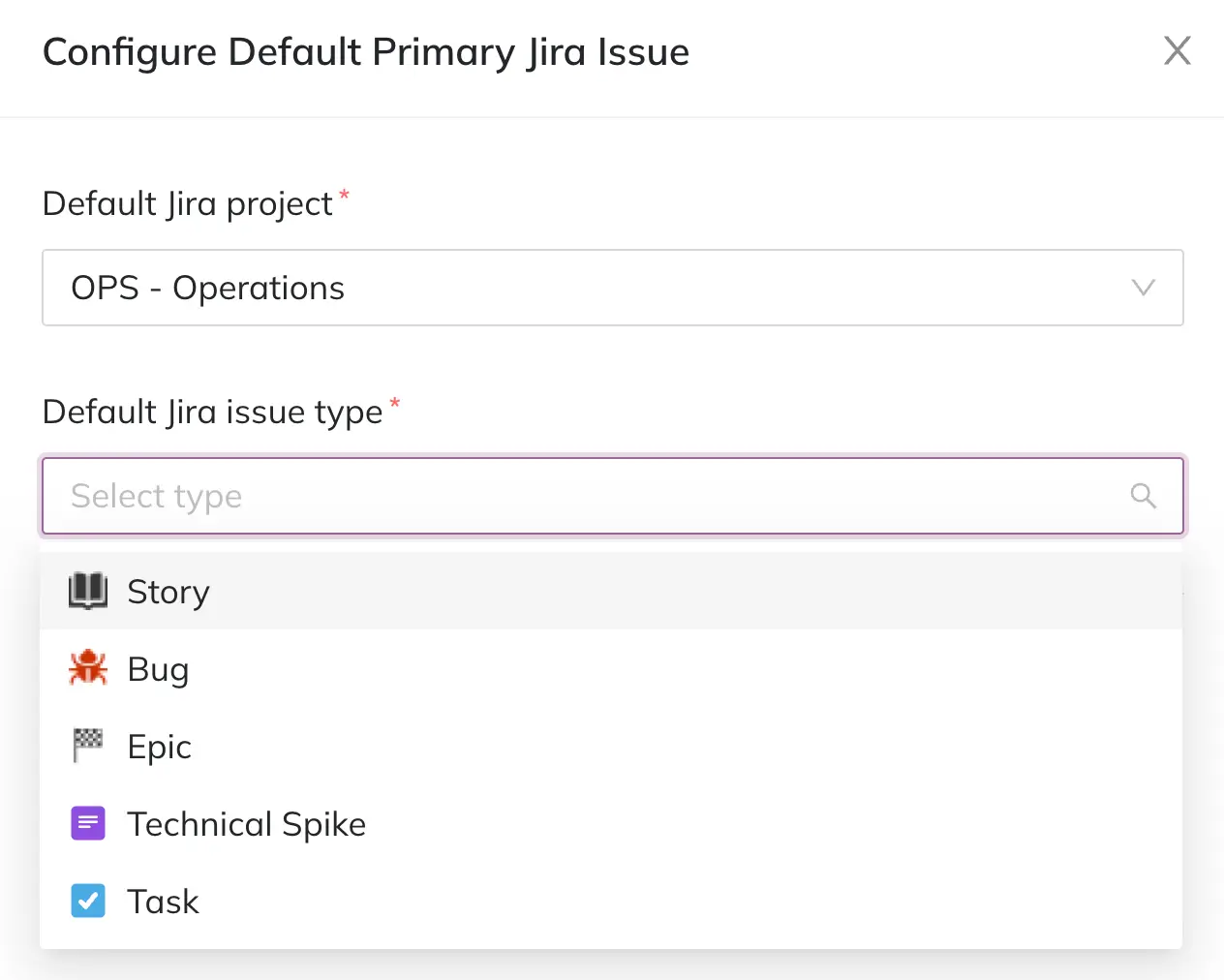
Select Default Jira Project and Issue Type
- Optional: Map Jeli incident stages to Jira issue statuses by selecting corresponding statuses in the dropdowns to associate Jeli incident stages with Jira issue statuses.
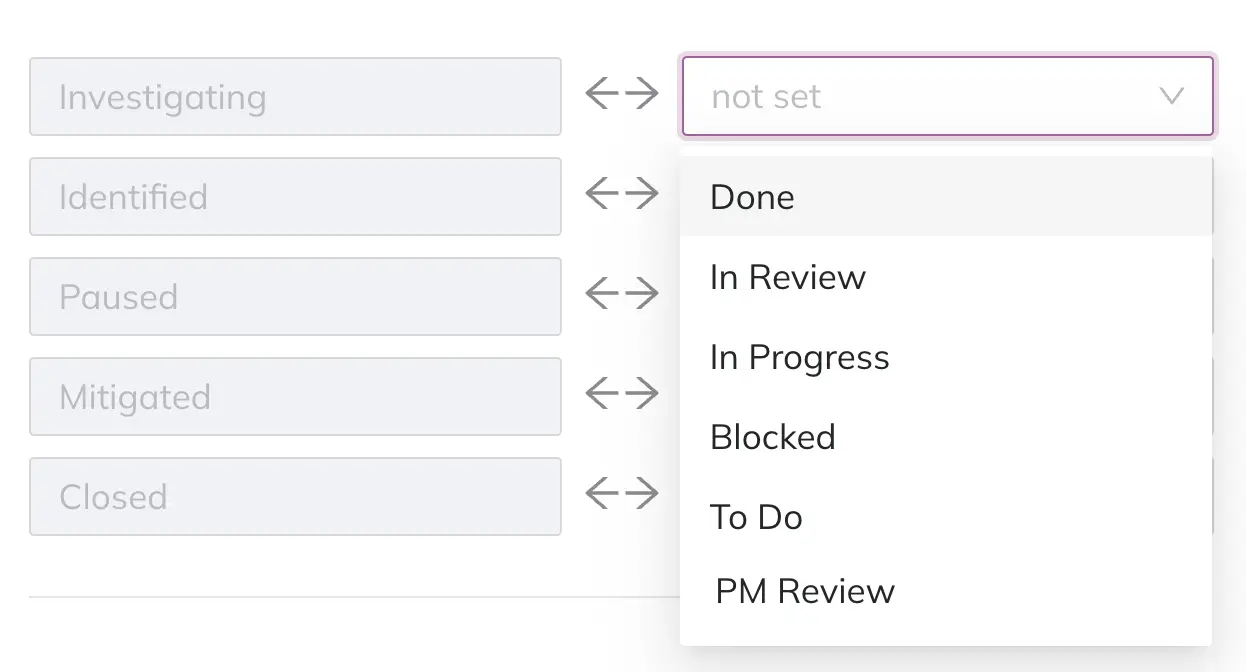
Map Jeli Incident Stages to Jira Issue Statuses
- Click Save configuration.
Remove Default Configuration
- To disable the automatic creation of Jira tickets for incident response, select Remove on this page.
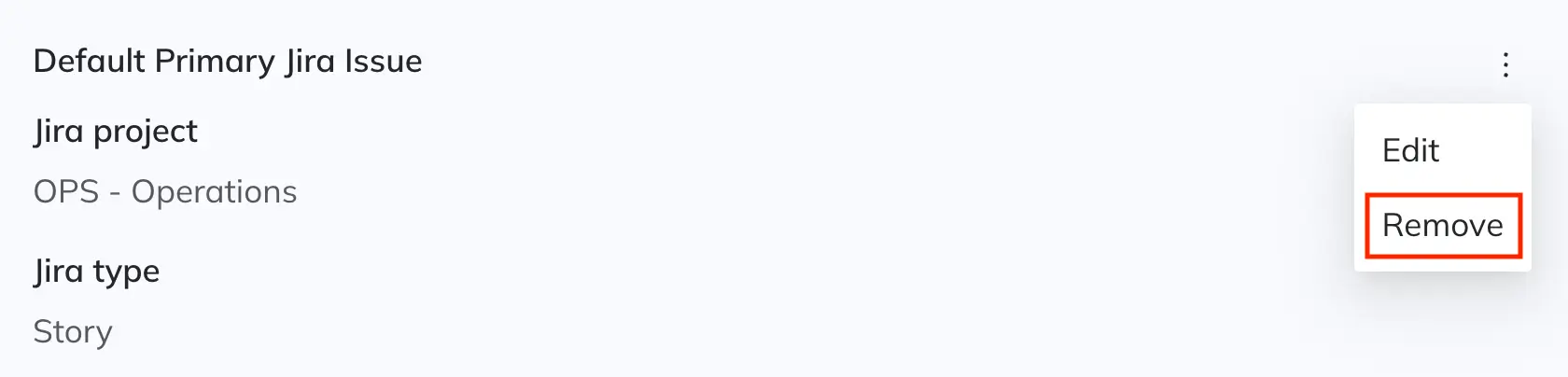
Remove Configuration
Opportunities
In the Opportunities menu, you can configure Tag Types and Templates.
Tag Types
Select the Tag Type tab to view an overview of Opportunity Tags in your account. From this tab, you can create a new tag type and configure auto-tagging.
Templates
Select the Templates tab to manage templates in your Jeli account. You can view all templates currently used in your Jeli instance, who created each template, and whether a template is set as a default template.
Use Jeli TemplatesTo learn more, see Use Templates for Incident Reviews in Jeli.
Create a Template
- Click Create Template.
- Enter the following details:
| Field | Value |
|---|---|
| Name | Enter a name for the template. |
| Template | Enter the template content. GitHub-flavored Markdown is supported. |
| Type | Select Summary, Takeaways, or Both Summary and Takeaways (default). |
| Set as default for Summary | Toggle on or off to set this template as the default summary. |
| Set as default for Takeaways | Toggle on or off to set this template as the default takeaways. |
- Click OK.
Edit a Template
- Select Edit to the right of the template you want to edit.
- Update the fields and click OK.
Delete a Template
- Select Delete to the right of the template you want to delete.
- In the confirmation modal, click Remove.
User Management
Required User PermissionsJeli admins cannot update their own roles. Contact another admin user to update your role.
The User Management menu is where you can edit the roles of Jeli users within your organization.
- To update a user's role, scroll the users table or search for their name in the search bar.
- Click the Access level dropdown to the right of the user's name and select the role you want to assign.
To narrow results by role, click the icon in the Access level table heading.
API Tokens
Navigate to Settings API Tokens in the Jeli web app to manage API access keys. You can see when each token was generated and by whom.
Use tokens as Bearer tokens in the header of your API requests. To generate and run authenticated API requests, visit our API documentation.
AvailabilityNot all Jeli pricing plans offer API access. See our Pricing Page for details.
Generate an API Access Token
- On the API Tokens page, click Generate token in the top right.
- Enter a Name for the token.
- Optional: Click to copy the access token to your clipboard to store it in a safe place. The token value is only visible once.
- Click Copy and close. This action copies the access token to your clipboard if you did not copy it in the previous step.
Edit an API Access Token
You can edit the name of an API access token after creation. You cannot edit the token value.
- Click Edit to the right of the token.
- Edit the token Name.
- Click Save.
Revoke an API Access Token
You can revoke a token at any time. Once revoked, API requests using this token fail.
- Click Revoke to the right of the token.
- In the confirmation dialog, click Revoke token.
Irreversible ActionThis action is not reversible, and you cannot recover a deleted API access token.
Webhooks
Webhooks allow you to receive notifications with event-specific data when actions occur in Jeli. For example, if you want updates when a new opportunity is created or when an incident updates, you can use webhooks to send notifications.
Create a Webhook
- In the Jeli web app, navigate to Settings Webhooks and click Add webhook.
- In the modal window, fill out the following fields:
| Field | Value |
|---|---|
| Webhook URL | Enter the URL of the destination where Jeli sends events. |
| Description | Enter a short summary describing the webhook. |
| Enabled upon creation? | Select or clear this checkbox to toggle the webhook on or off. |
| Event Type Filtering | Select the events you want to receive from Jeli. If you do not select any event types, the webhook receives every event. |
- Click Add to create the webhook.
Once created, your webhook displays in a paginated list that shows the endpoint URL, the description, the enabled status, and an autoincrementing version number.
Unable to Roll BackYou cannot roll back to previous versions.
Test a Webhook
- Click the menu to the right of your preferred webhook and select Test.
NoteIf the Test option is grayed out, ensure that the webhook is enabled.
- Select an event type and click Test.
The following example shows a test incident.created webhook event:
{
  "incidentId": 1780,
  "name": "sparkling-base",
  "severity": "sev3",
  "slackChannelId": "C123ABC",
  "slackTeamId": "T123ABC",
  "stage": "Investigating",
  "status": "We're looking into the errors",
  "summary": "No summary set"
}
Edit a Webhook
- Select Edit next to your preferred webhook.
- Make your required changes and click Update.
After you save, the webhook version increments by one.
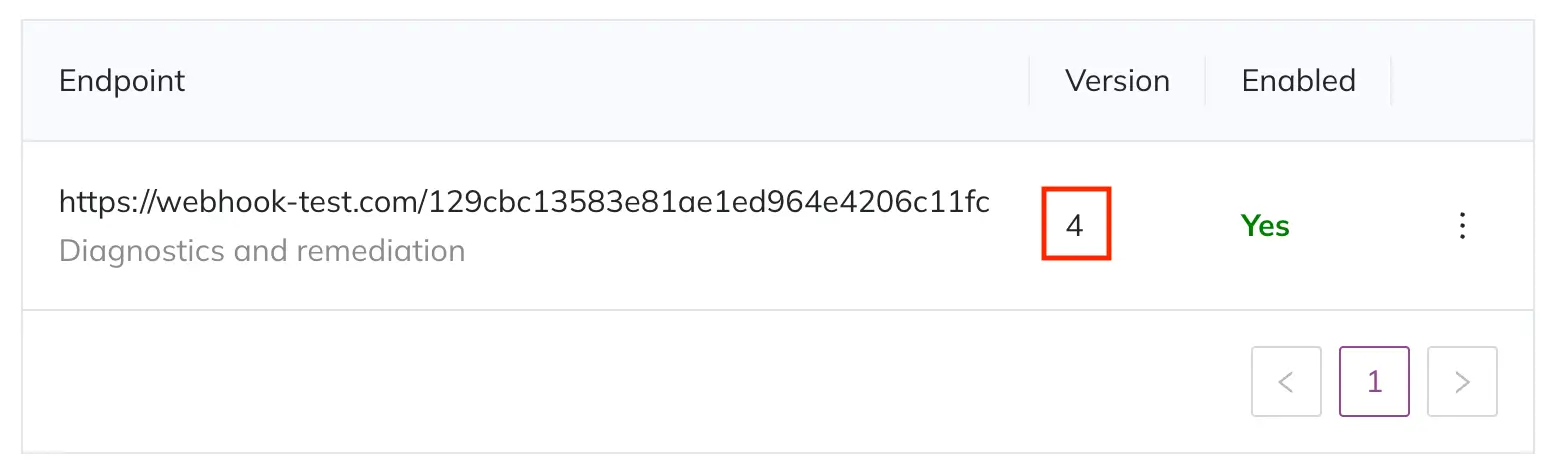
Webhook Version
Delete a Webhook
- Select Delete to the right of your desired webhook.
- In the confirmation dialog, click Delete endpoint.
Deletion WarningThis action is not reversible, and you cannot recover deleted webhooks.
Import Log
The Import Log provides an audit log of Slack and other integration data imports.
AvailabilityImport logs are available with the Professional, Business, and Enterprise for Incident Management pricing plans.
Contact our Sales Team to upgrade to a plan featuring Jeli.
The information provided includes:
| Column | Definition |
|---|---|
| Imported By | The user who initiated the import |
| Source | The source of the import |
| Import Range | The time frame of the import data |
| Opportunity | The opportunity the data was imported into |
To download a CSV of the import log data, click Download CSV in the upper right.
Import Log
Updated 3 months ago