
Reassign Incidents
Reassign incidents to escalation levels, escalation policies, or specific users.
If the assigned responder cannot respond to a PagerDuty incident, you may choose to reassign the incident to the next user on the current escalation level, to a different escalation policy, or to a specific user.
Reassign an Incident
There are three methods of reassigning an incident:
- Reassign to an Escalation Level (Recommended): Reassigning an incident to an escalation level means escalating the incident to the next user in its current escalation policy. This method is preferred because the escalation policy continues to cycle through escalation rules until a user acknowledges the incident.
- Reassign to an Escalation Policy (Recommended): Reassigning the incident to a different escalation policy than the one currently being used is also ideal. The escalation policy continues to cycle through escalation rules until a user acknowledges the incident.
- Reassign to a User: Reassigning the incident to an individual user only notifies that user. The incident’s escalation policy will no longer be used, and other users will not be notified if the selected user does not acknowledge the incident.
Low-Urgency Incidents
You cannot reassign low-urgency PagerDuty incidents to a specific escalation level. You can, however, reassign them to an escalation policy or a user.
You can reassign an incident in multiple ways:
Reassign an Incident in the Web App
- Click an incident’s title to go to its detail page and click Reassign.
- Select the desired Escalation Policy, User, or Escalation Level from their respective tabs in the dropdown.
- Click Reassign.
Reassign Multiple Incidents
- Navigate to the Incidents page.
- Select the checkbox to the left of each incident and click Reassign.
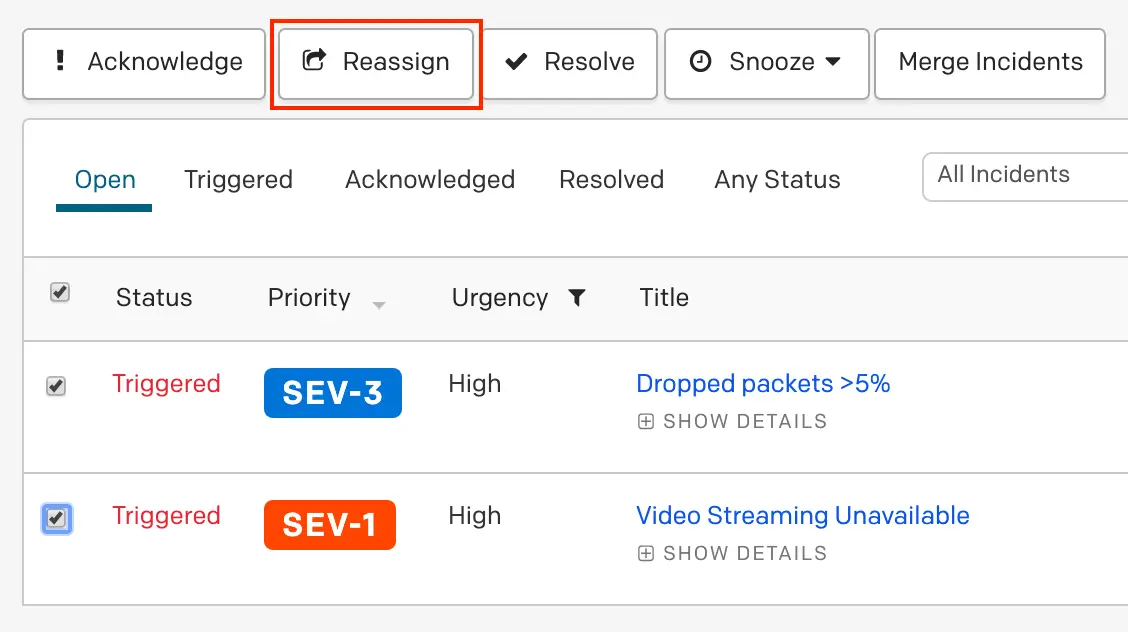
Reassign multiple incidents
- Select the desired Escalation Policy, User, or Escalation Level from their respective tabs in the dropdown.
- Click Reassign.
Reassign an Incident in the Mobile App
- Tap the incident that you want to reassign.
- Tap More in the bottom right and tap Reassign, or scroll through the incident actions in the Triage tab and tap Reassign.
- Select one of the following based on your preferences:
- To reassign to a different escalation policy: In the Escalation Policies tab, select your preferred escalation policy.
- To reassign to the next user on the escalation level: In the Users tab, select a user under This Policy.
- To reassign to a different user: In the Users tab, select a user under All Users.
- Tap Reassign to confirm.
Reassign Multiple Incidents
- On the Open Incidents screen, tap in the top right and select Select Incidents.
- Select the radio buttons to the left of each incident you want to reassign, tap again, and select Reassign.
- Select one of the following based on your preferences:
- To reassign to a different escalation policy: In the Escalation Policies tab, select your preferred escalation policy.
- To reassign to the next user on the escalation level: In the Users tab, select a user under This Policy.
- To reassign to a different user: In the Users tab, select a user under All Users.
- Tap Reassign to confirm.
Reassign an Incident Via API
To learn more about reassigning incidents via API, refer to the Manage Incidents API Documentation.
Escalate an Incident
Escalation assigns the incident to another user on the incident's current escalation policy. You may select the next user from the escalation level you are on, or from a different escalation level. Escalating is the same as reassigning to an escalation level, but this action is also available for quick and easy use under the Escalate button on PagerDuty incidents.
Low-Urgency Incidents
You cannot escalate low-urgency PagerDuty incidents.
You can escalate an incident in multiple ways:
Escalate an Incident in the Web App
- Click an incident’s Title to go to its detail page.
- Click Escalate.
- Select the desired user from the dropdown. The incident automatically escalates to that user.
Escalate an Incident in the Mobile App
- Tap the incident that you want to escalate.
- Tap More in the bottom right and tap Escalate, or scroll through the incident actions in the Triage tab and tap Escalate.
- Select the desired user from the list and tap Escalate in the confirmation dialog that appears.
Escalate an Incident via SMS
To escalate an incident via SMS, use the code in your SMS notification (see example below).
Escalating via SMS assigns an incident to the next user on call in the escalation policy. You can only escalate to the next on-call user in the escalation policy. To escalate to another user, you must reassign the incident in the PagerDuty mobile or web app.
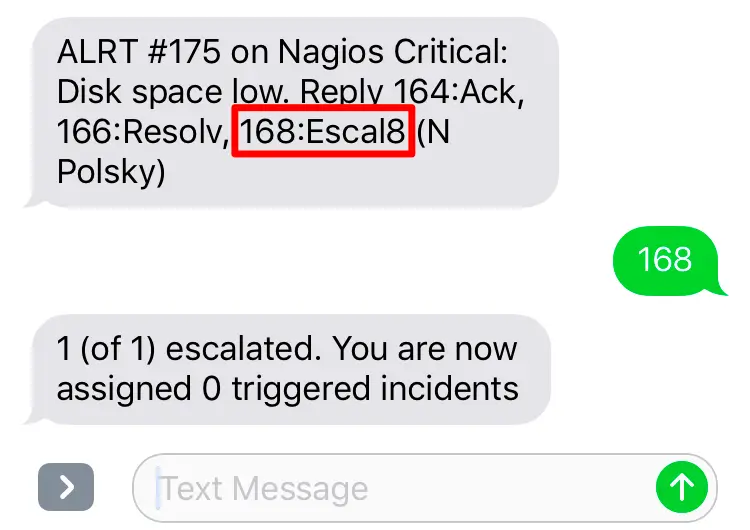
Escalate an incident via SMS
Response Numbers
The response numbers to acknowledge, resolve, and escalate incidents via SMS may change depending on the number of incidents in your account and any notifications you have already received. Check the SMS carefully for the correct response numbers for your incidents, as the response number shown in the example screenshot may not be valid for your incidents.
Escalate an Incident via API
To learn more about escalating incidents via API, refer to the Manage Incidents API Documentation.
Updated about 2 months ago