
User Settings
In the User Settings tab of your user profile (User Icon My Profile User Settings), you can manage login information, view your user role, manage linked accounts and applications, and configure other helpful settings.
Login Email
This is the email address you use to sign in to your PagerDuty account. It may be different from the email addresses you have added as contact methods.
Edit Your Login Email
- Navigate to User Icon My Profile User Settings tab.
- Click to the right of your Login Email.
- Update your login email address and enter your password.
- Click Save.

Edit login email
Edit Another User's Login Email
Users with an Account Owner or Admin user role can change another user's login email:
- Navigate to People Users.
- Click the user name whose email you want to change.
- Select the User Settings tab.
- Click to the right of the user's login email.
- Enter a new login email for the user.
- Enter your password.
- Click Save.
Password
This is the password you use to sign in to your PagerDuty account.
Change Your Password
If you know your password and can log in, you can change your password on your user profile.
- Navigate to User Icon My Profile User Settings tab.
- In the Password section, click Change Password…
- Enter your current password, a new password, and then confirm the new password.
- Click Save.
Reset Your Password
If you forgot your password, you can reset it by sending yourself a password reset email. You must be logged out to reset your password.
- Ensure you are logged out of your PagerDuty account.
- Navigate to
https://app.pagerduty.com. - Click Next.
- Click Forgot your password?
- Enter your email address and click Reset Password. You receive an email containing a link to reset your password.
- Follow the on-screen instructions to reset your password.
SSO LoginIf you use SSO to log in, contact your Account Owner to reset your password with your identity provider.
Change Another User's Password
Users with an Account Owner or Admin user role can change another user's password:
- Navigate to People Users.
- Select the user whose password you want to change.
- Click the User Settings tab.
- Select Change Password….
- Enter your password.
- Enter a new password for the user and confirm it.
- Click Save.
OAuth TokensIn addition to changing the user's password, this action also revokes their OAuth tokens. This means that if they have any open PagerDuty sessions, they will be prompted to sign in to PagerDuty again with the new password.
Role
This is the user role associated with your user account. Only the Account Owner or an Admin user can change another user's role. Refer to user roles for more information.
Schedule Color
Each user has a color associated with their profile. This color is used in the on-call schedule to quickly identify which periods they are responsible for.
Edit Your Schedule Color
- Navigate to User Icon My Profile User Settings tab.
- Click on the right of your schedule color.
- Select a color from the dropdown.
- Click Save.
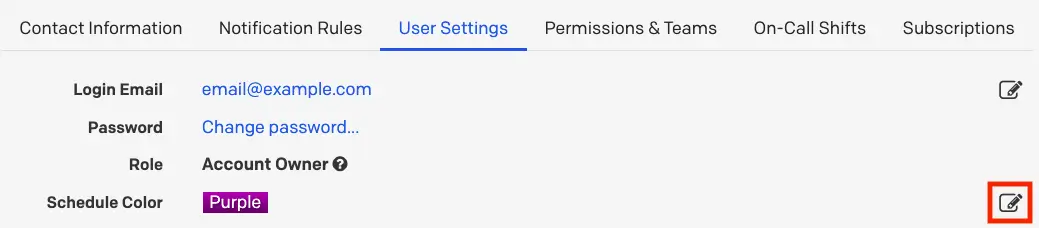
Edit schedule color
Calendar
Sync your on-call schedules to third-party calendar applications like Google Calendar and Apple Calendar. You can export your schedule in either the WebCal or iCalendar format.
Read instructions on exporting your on-call schedules to your calendar application.
Photo
Your profile photo is displayed as your initials on a colored circular background. This is generated automatically, so no external service is used and no action or configuration is required on your part.
Linked Accounts
Third-party applications that you have integrated with PagerDuty, such as Slack, may appear here.
Unlink Accounts
To remove the connection between PagerDuty and a linked third-party account:
- Navigate to User Icon My Profile User Settings tab.
- Click Unlink to the right of the account you want to unlink.
- Click Unlink again in the modal to confirm your decision.

Unlink Slack account
API Access
The API Access section is the starting point for building your own OAuth-connected PagerDuty application.
To create a user-specific REST API key that matches your user permissions:
- Navigate to User Icon My Profile User Settings tab.
- In the API Access section, click Create API User Token.
- In the modal, enter a Description.
- Click Create Token.
- Record the API key in a secure place, since the key will not be visible again.
Delete a User API Key
- In the web app, navigate to User Icon My Profile User Settings tab.
- In the API Access section, click Remove next to the key you want to delete.
- In the modal window that appears, confirm your decision.
Updated 3 months ago