
Incident Tasks
Pre-define incident tasks or swiftly create new ones.
Incident Tasks let you assign and track tasks directly from Slack and Microsoft Teams. Teams can create tasks ad hoc as an incident evolves, or predefine tasks through Incident Workflows.
AvailabilityIncident Tasks are included with the Enterprise Incident Management package. Contact the Sales Team to upgrade.
Required User PermissionsIncident Tasks permissions match the permissions of the associated incident. You can assign tasks to users added as a Responder or assigned to the incident.
Users with a Responder role or higher can create and update Incident Tasks.
Create Incident Tasks
There are two ways to create Incident Tasks:
Create an Ad-Hoc Task in Slack or Microsoft Teams
Ad-hoc tasks allow responders to capture and assign work while responding to an incident.
Create Tasks in Slack
As a prerequisite, ensure you have configured the Slack integration.
- On an incident's card, click the More actions dropdown and select Add Task.
- Enter the following information:
| Field | Description |
|---|---|
| Task Name | Enter a name for the task. |
| Task Description (Optional) | Enter a description. |
| Status | Select an option from the dropdown. |
| Assign to | Leave Unassigned or select a user associated with the incident. Eligible assignees include users currently assigned to the incident and any Responders added to the incident. |
Slack IntegrationRefer to the Slack Integration Guide for more information about configuring the Slack integration.
Create Tasks in Microsoft Teams
As a prerequisite, ensure you have configured the Microsoft Teams integration.
- On an incident's card, click and select Add Task.
- Enter the following information:
| Field | Description |
|---|---|
| Task Name | Enter a name for the task. |
| Task Description (Optional) | Enter a description. |
| Status | Select an option from the dropdown. |
| Assign to | Leave Unassigned or search for any PagerDuty user to assign the task to. |
Create a Task in Incident Workflows
Predefined tasks in Incident Workflows add structure to response processes and capture the steps required for specific incident types. For example, you can add a task to ensure an incident's priority is set.
- Navigate to Automation Incident Workflows.
- Select an existing workflow, or click New Workflow, enter the required information, and click Create.
- In the Actions section, click Add Action.
- Type Create a Task and select the action.
- Enter a Task name and optionally update the Status, Assignee, and Details.
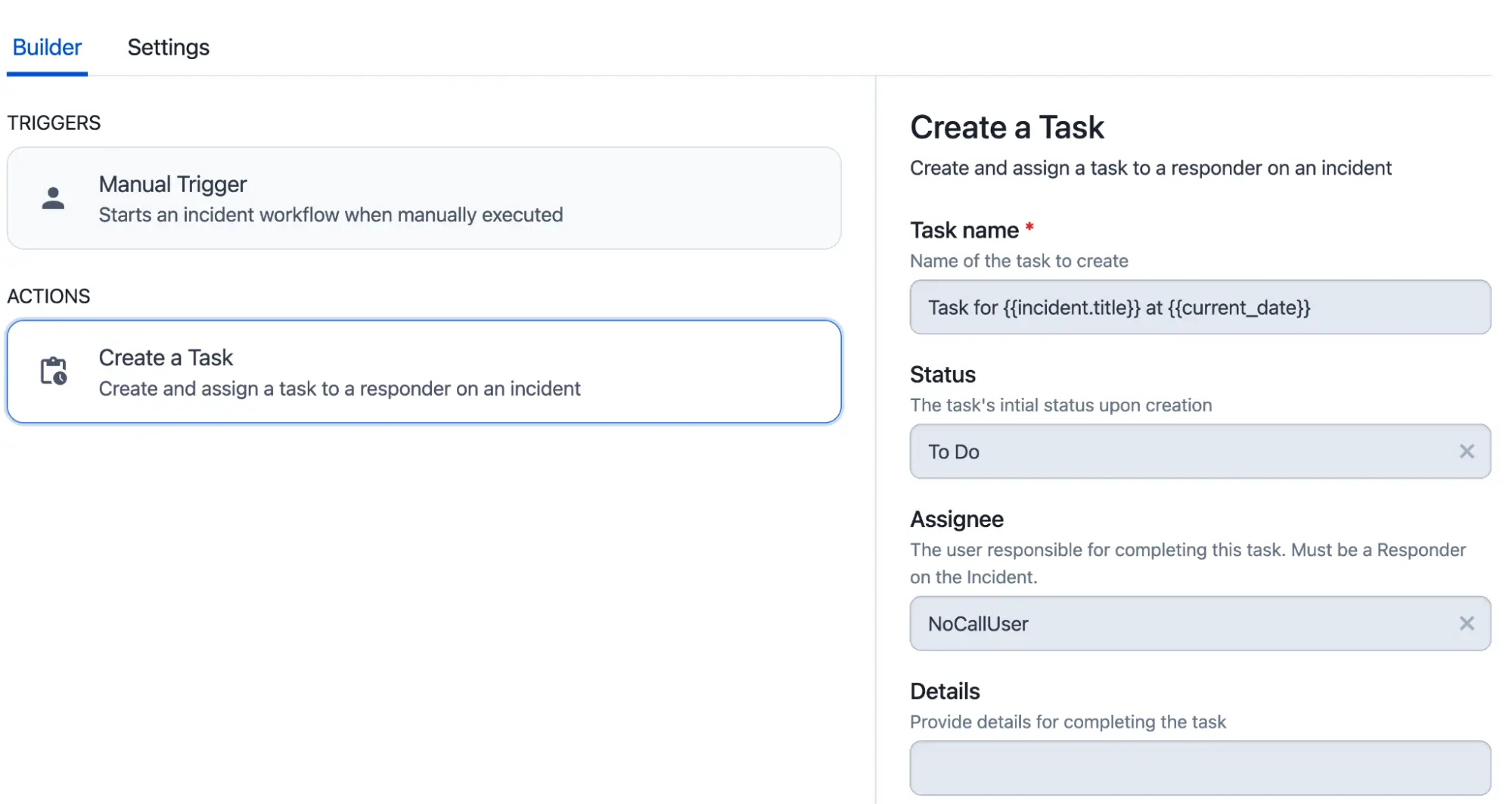
Create an Incident Task in Incident Workflows
- Click Add Action.
- Click Save.
- Click Publish Changes to commit the changes.
Additional Incident Task Actions
In addition to creating tasks, Incident Workflows can automate other task properties. The following actions are available when configuring an Incident Workflow:
- Update Task Assignee
- Update Task Details
- Update Task Name
- Update Task Status
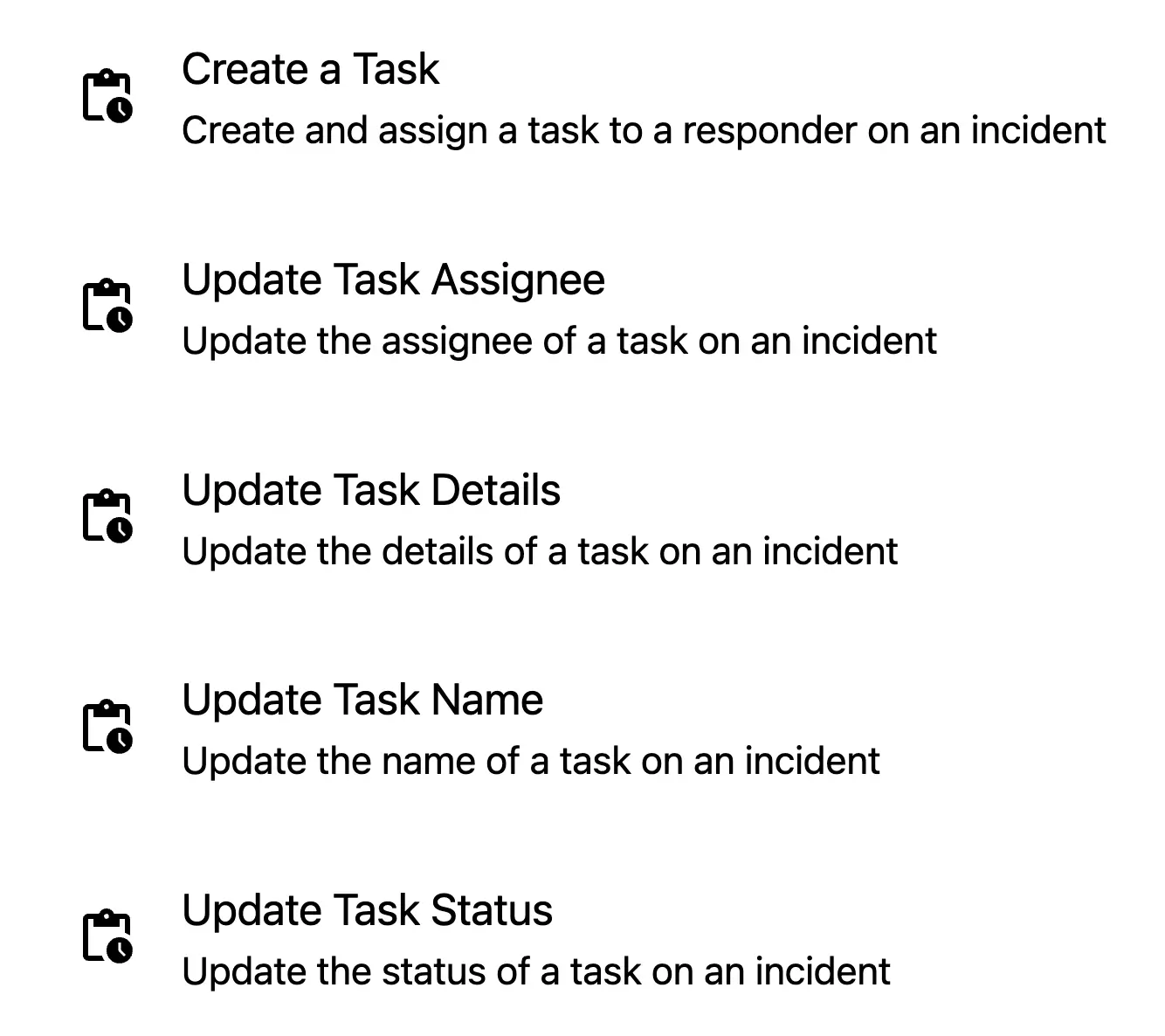
Incident Task actions in Incident Workflows
To update an Incident Task, enter its Task ID. Refer to Action-Specific Field References for more information about retrieving a value from an Incident Workflow action.
Using Incident Tasks
After creating an Incident Task, you can view, edit, and update tasks in Slack:
- On the incident card, click the More actions dropdown and select View Tasks.
- Use the Filter by dropdown to display the tasks you want.
- Make your required changes to the assignee and/or task status.
- Click Close.
FAQ
Are task assignees notified when a task is created, assigned, or updated?
Task assignments appear in the associated Slack channel. Users do not receive individual notifications.
Updated 4 months ago