For AI agents: visit https://support.pagerduty.com/main/llms.txt for an index of all pages formatted in Markdown and endpoints in OpenAPI. Append .md to any documentation page URL to get its markdown version.
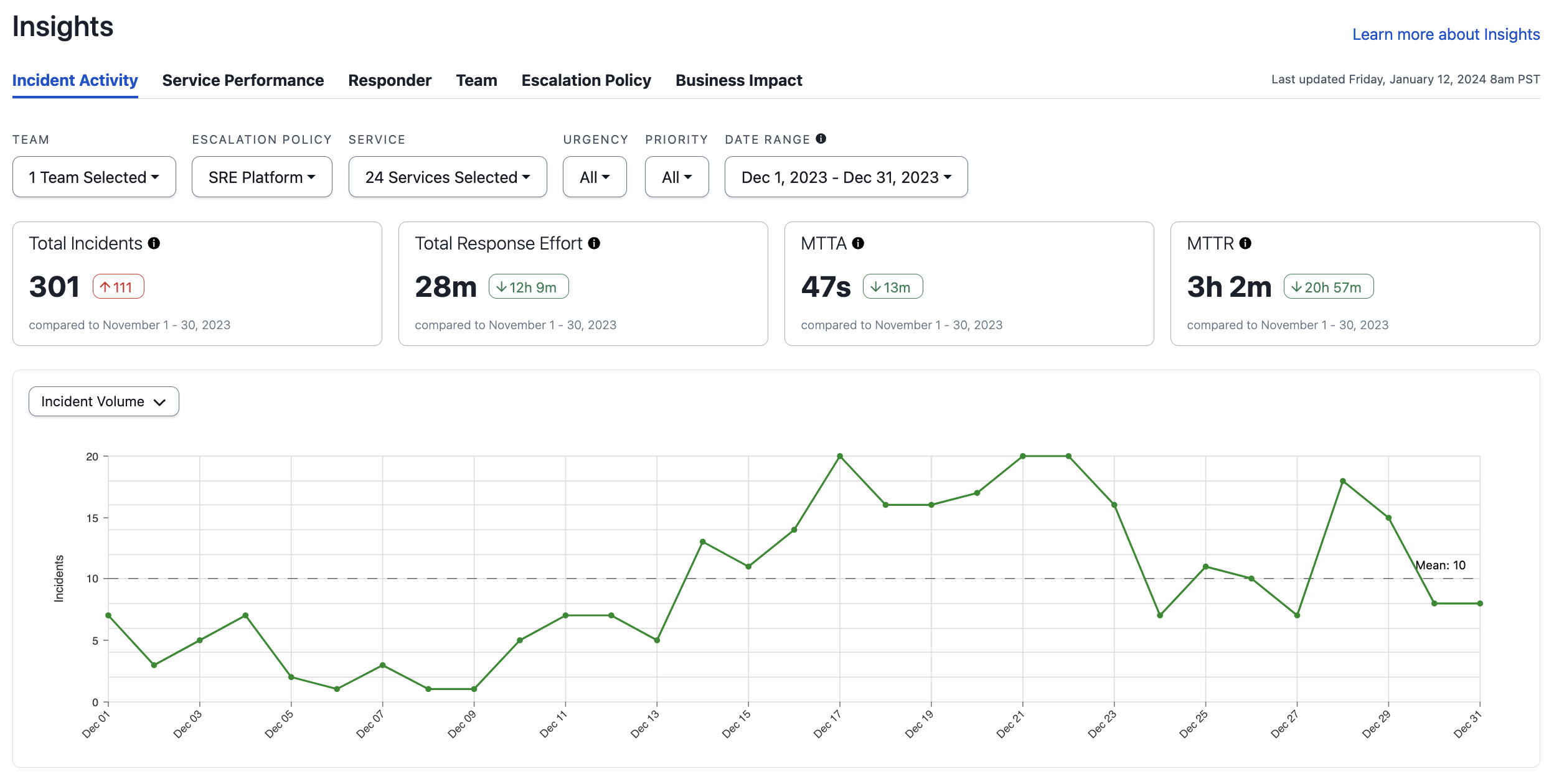
The Incident Activity insights report offers a visualization of response effort over time. It also includes an Incidents List with metrics including TTA, responder count, TTE, response effort, TTR, and escalation count.
⚠️
Deleted Services
Incidents that belong to a deleted service will not appear in the Incident Activity insights report.
View Incident Activity Insights
To view the Incident Activity insights report, navigate to AnalyticsInsights and select the Incident Activity tab.
Incident Activity report
Filter Insights
You can apply filters to each insights report by clicking at the top of the page next to the date range dropdown. This will open an editor where you can add, edit and remove filters.
🚧
Note
At this time, Insights filters do not support Unicode characters.
Add Filters
📘
Filtering Teams
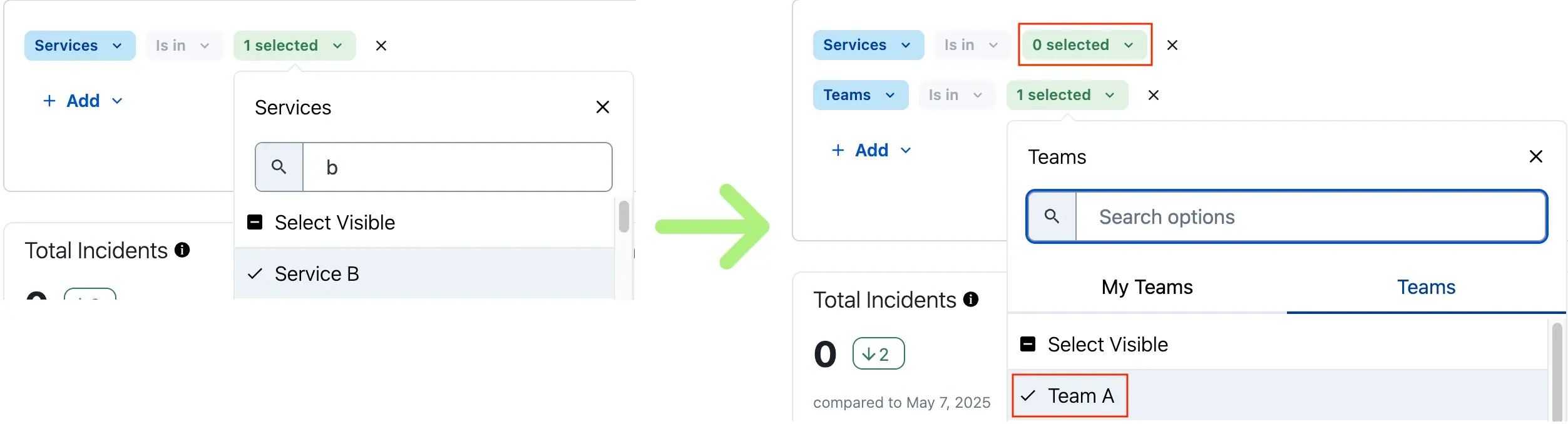
When you apply a Teams filter, results for subsequently added filter values will change to reflect objects associated with the selected Team(s). Example: If you add a Teams filter to return results for Team A, and then add a Services filter, you will only be able to select services associated with Team A.
If you apply a Teams filter after applying another filter that has a value not associated with that Team, the Teams filter will remove the value for the previous filter. Example: If you add a Services filter for Service B, and then you apply a Teams filter for Team A (not associated with Service B), then Service B will be removed from the Services filter value.
Example of service filter removed by team selection
Select a Date Range from the dropdown at the top of the page.
Click the icon to the right of the date range dropdown.
Click Add. The following filters are available to help you find the most relevant results:
🚧
Team Filtering Behavior
Team filter results may vary between the Incidents list and Insights reports because each view evaluates Team associations differently. The Incidents list tracks every Team an incident has been associated with throughout its entire lifecycle, whereas Insights and Analytics filter strictly by the Team currently associated with the incident's service at the time the report is generated.
Consequently, if a service has been reassigned to a different Team after an incident has been triggered, that incident may appear under its original Team in the Incidents list but under the new Team in Insights. This is expected behavior and typically occurs following service reassignments or changes to an escalation policy’s Team association.
Filter Condition Type
Operators
Value Instructions
Escalation Policies
is in
Select escalation policy(ies)
Incident ID
is in - is not in
Enter an incident ID
Priority
is in
Select the priority level(s)
Services
is in
Select service(s)
Status
is in - is not in
Select the incident status(es)
Teams
is in
Select the My Teams tab to only see your Teams, or the Teams tab to see all Teams. Then select Team(s). See the note about Teams Filter Behavior above for more information.
Checkbox: Select a True or False value for the checkbox.
Date Time: Select date and time values.
Decimal: Enter a decimal value.
Integer: Enter an integer value.
Click Apply Filters in the bottom right of the editor.
Edit or Remove Filters
To edit or remove a filter:
Click under the date range dropdown at the top of the page.
Edit the available filters, or click to the right of a filter to remove it.
Click Apply Filters in the bottom right of the editor.
Summary Metric Cards
Each card includes a comparison time period. For example, if your selected time period is the last week, the cards show you the change in each metric compared to the week prior.
Metric
Description
Total Incidents
Total count of incidents matching the active filters.
Total Response Effort
Total time responders spent engaged in resolving incidents. Measured from the time a responder acknowledges or accepts a responder request until the incident is resolved. The user-defined incident duration, if it exists, is used for this calculation. Read Edit Incident Duration for more information.
MTTA
MTTA is the average amount of time from when an incident is created until the time the first responder acknowledges an incident. Excludes incidents that were not acknowledged.
MTTR
MTTR is the average amount of time from when an incident was created until it was resolved. Excludes incidents that have not been resolved.
📘
Percentiles
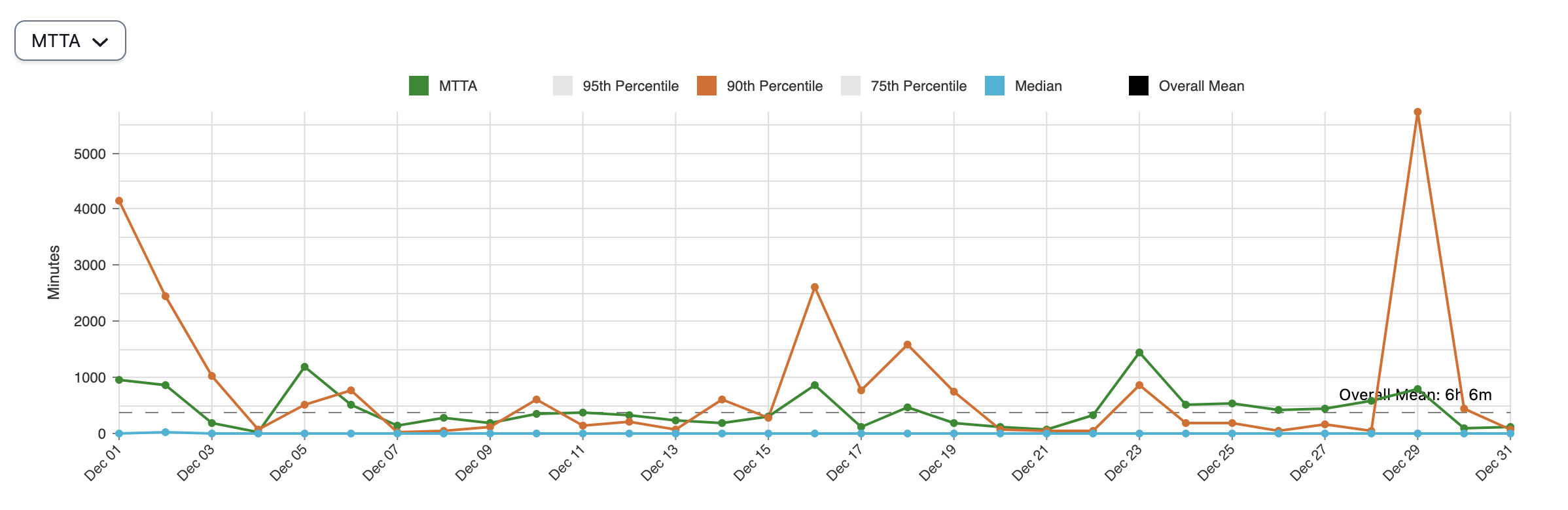
By default, the MTTA and MTTR graphs display the Overall Mean value. For a more granular look at your incident data, you can select 95th Percentile, 90th Percentile, 75th Percentile, and Median.
Percentiles in the MTTA graph
Data Visualizations
You can change the dropdown at the top left to select one of following visualizations:
Visualization
Description
Incident Volume
Number of incidents.
Response Effort
Number of hours. The user-defined incident duration, if it exists, is used for this calculation. Read Edit Incident Duration for more information.
MTTA
Mean time to acknowledge in seconds.
MTTR
Mean time to resolve in hours.
Incidents List
Below the data visualization you see the Incidents List data specific to the filters you have selected. You may perform the following actions with this table:
Search: Use the search field to search for specific data.
Sort: Click on a column header to sort results. You can also sort with multiple columns by holding down the shift key while clicking on both of the columns. The graph above does not change if you sort the data.
Drill Down: Click to the left of an incident number to drill down into responder details such as responder status, type of assignment, request and response timestamps, and time to respond. Click an incident number or service name in the Number and Service columns to view more information about those incidents or services.
To customize the columns you would like to view, click the Columns icon and select your preferred data. The available Incidents List columns are:
The date and timestamp when the incident was triggered.
Resolved by
The responder who resolved the incident.
Auto Resolved
Whether or not the incident resolved automatically, either via an integration or in PagerDuty.
Responders
The total number of responders who engaged with the incident.
TTA
The amount of time between incident creation and when the first responder acknowledged the incident.
TTR
The time from incident creation to when it was resolved.
Response Effort
The total engaged time across all responders, measured from the time a responder acknowledges or accepts a responder request until the incident is resolved. Response Effort of resolved incidents can be edited on an incident's details page. Edited values are marked with an asterisk (*).
Escalations
The total count of escalations.
Incident ID
Incident ID (e.g., PXXXXXX).
Status
The incident's status: Triggered, Acknowledged, or Resolved.
Service ID
The service's ID (e.g., PXXXXXX).
Team
The name of the Team associated with an incident. This may differ from the team shown in the main Incidents list if the incident's service or escalation policy has been reassigned to a different team since the incident was triggered.
Team ID
The Team's ID (e.g., PXXXXXX).
Escalation Policy
The escalation policy's name.
Escalation Policy ID
The escalation policy's ID (e.g., PXXXXXX).
Assigned User IDs
The User IDs of the users assigned to the incident.
Assigned Users
The users who were assigned to the incident, including through reassignment or escalation. This list is not in the order of assignments.
Acknowledged User IDs
The User IDs of the users who acknowledged the incident.
Acknowledged Users
Users who acknowledged the incident. This list is not in the order of assignments.
Joined User IDs
The User IDs of the users who joined the incident.
Joined Users
Users who joined the incident, either by acknowledging it or accepting a responder request.
Resolved at
The date and timestamp when the incident was resolved.
Resolved by User ID
The User ID of the user who resolved the incident.
Active Responders
The total number of users who either acknowledged the incident or accepted a responder request in it.
TTE
The time from first responder engagement to last responder engagement.
TTM
The time between the start of an incident and the time the last additional responder acknowledges. For incidents with one or no engaged users, this value is null.
User Defined Response Effort
The total engaged time across all responders, as edited by the user in the incident details page.
Assignments
The number of times the incident was assigned.
Reassignments
The number of times the incident was reassigned to another user.
Acknowledgements
The total number of acknowledgements in the incident.
Timeout Escalations
Count of escalations as a result of no acknowledgement from the primary on-call responder.
Manual Escalations
Count of manual triggered escalations.
Notifications
The total count of incident notifications sent via push, phone call, email, and SMS.
Interruptions
Interruptions are when an on-call responder receives a mobile push, phone call, or SMS (text) notification. Notifications sent from various channels (push, phone, SMS) to the same destination are counted as one interruption. Notifications that arrive within 60 seconds of each other are counted as a single interruption. Email notifications are excluded from this metric.
Business Hour Interruptions
Interruptions that happened on weekdays between 8 a.m. and 6 p.m.*
Off Hour Interruptions
Interruptions that happened on weekdays between 6 p.m. and 10 p.m., or on a weekend between 8 a.m. and 10 p.m.*
Sleep Hour Interruptions
Interruptions that happened any day of the week between 9 p.m. and 8 a.m.*
By default, the Incidents List displays 10 results at a time. Use the dropdown below the table to select from 10, 20, 30, 40, or 50 results per page. If there are more results than the selected dropdown value, you can use the arrows (i.e., , , , ) to navigate through results.
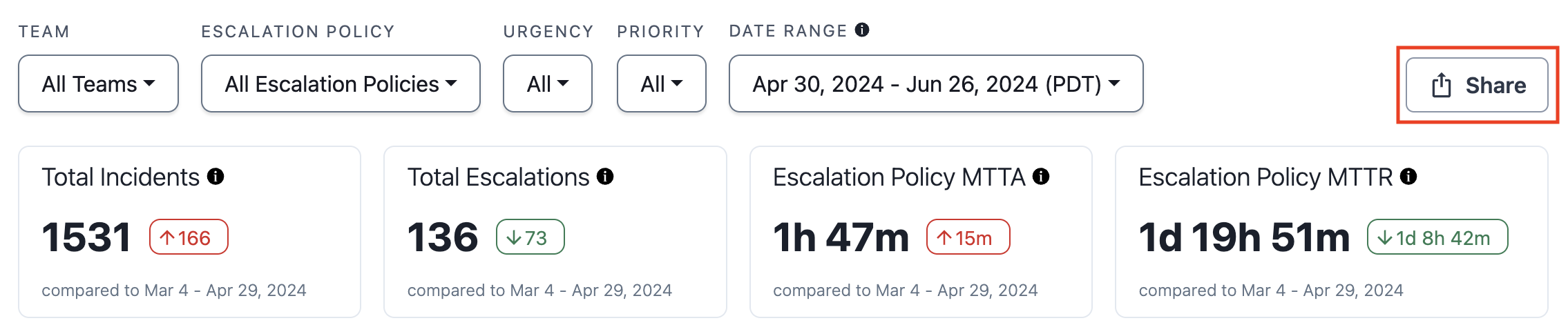
To share a report, or save a filter set, click ShareCopy Link. You can then send the URL to other users, or add it as a bookmark for your own reference later. The link is unique, and signed in users who visit it will see the same report and filters applied.
Share a report
Export CSV
📘
Export Size Limit
Depending on your pricing plan, there is a limit to the number of rows you can export.
If your exported report exactly matches the limit, it is likely that your data has been truncated. You can reference your report in the PagerDuty web app to see the total count (e.g., Total Incidents). We recommend adding filters, or adjusting the date range, to reduce results, and exporting in batches as needed.
Pricing Plan
Export Limit
Professional, Business
100,000 rows
Enterprise Incident Management, Digital Operations(legacy)
250,000 rows
To export a report as a .csv file, click Export CSV to generate a file, which will keep the view and results based on your search and filter selections.
Export CSV
Large reports, such as the Incident Activity Report, which can often contain more than 10,000 rows, will be fetched in the background and sent to the requesting user via email.
Generating report
If you wait on the Insights page until the report is delivered, you will see a success banner.
Report generated
You can safely navigate away from the page while you're waiting, however you will not see a success banner in the PagerDuty UI when delivery is complete; please check your email to confirm receipt. Click the link in the success banner or email to view your report in .csv format.
Analytics Email Settings
Please see our Account Settings article for more information on how Admins can configure who receives weekly Analytics emails.