
Paige (SRE Agent)
A continuously learning agent to help rapidly diagnose, troubleshoot, and remediate issues
AvailabilityTo access Paige, PagerDuty's SRE Agent, within the PD Reliability Console or the Operations Console, you must have AIOps and PagerDuty AI. To access Paige in Slack or the incident details page, you must have PagerDuty AI.
PagerDuty AI is included with PD Reliability Platform plans. It's also available through one-time AI Actions or as an add-on with the following pricing plans:
- Enterprise
- Business
- Professional
Contact our Sales Team to upgrade to a pricing plan that includes this feature.
PagerDuty Advance DisclosureRead our PagerDuty Advance AI Disclosure for more information about how PagerDuty designed, built, and assessed PagerDuty AI with mission-critical work in mind.
Overview
When an incident fires, responders often spend the first critical minutes doing the same repetitive work: hunting down the right runbook, pulling logs from multiple tools, piecing together whether this has happened before. Paige, PagerDuty's SRE Agent, works alongside you to handle that toil automatically — ingesting event data, runbooks, and logs to build an understanding of the incident's scope and likely cause, then recommending remediation actions so your team can focus on resolution.
Every incident Paige participates in contributes to its memory, so investigations get faster and more accurate over time.
Key Features
- Ingest and analyze your runbooks, SOPs, and diagnostics (for example, error logs)
- Generate and save playbooks for recurring issues
- Prioritize actions by urgency and impact
- Surface likely root causes from available data
- Recommend diagnostic and remediation steps
- Detect patterns; recall similar incidents and past resolutions
- Provide structured troubleshooting for incidents, services, and infrastructure
- Organize context into actionable views with interactive nudges and buttons
- Summarize conversations and inputs, mark resolved, and save learnings
PagerDuty AI ActionsAccounts with PagerDuty AI have an allotment of AI Actions at their disposal. Paige uses four AI Actions whenever you:
- Submit a request to Paige via Slack or the Operations Console (for example, "what are my past incidents," "what is the likely root cause").
- Click a nudge button (for example, Update a Runbook, Analyze Past Incidents).
Refer to How many AI Actions does each action cost for more information.
Use Paige
After configuring PagerDuty AI, you can access Paige through either:
- The Operations Console or the PD Reliability Console (Depending on your plan)
- The Incident Details Page
- Slack
- MS Teams (Currently in Early Access)
Paige Virtual ResponderCurrently in Early Access, you can deploy Paige as a virtual responder so it begins investigating the moment an incident triggers. Configure it in one of two ways:
- Trigger via Incident Workflow — deploy Paige as a virtual responder in either Slack or the PagerDuty web app.
- Trigger via Escalation Policy — add Paige to an escalation level so it investigates in parallel with your on-call responders.
In the Operations Console
- In the PagerDuty web app, navigate to AIOps Operations Console.
- Optional: To add the Paige column to the Operations Console as a default column for faster incident triage:
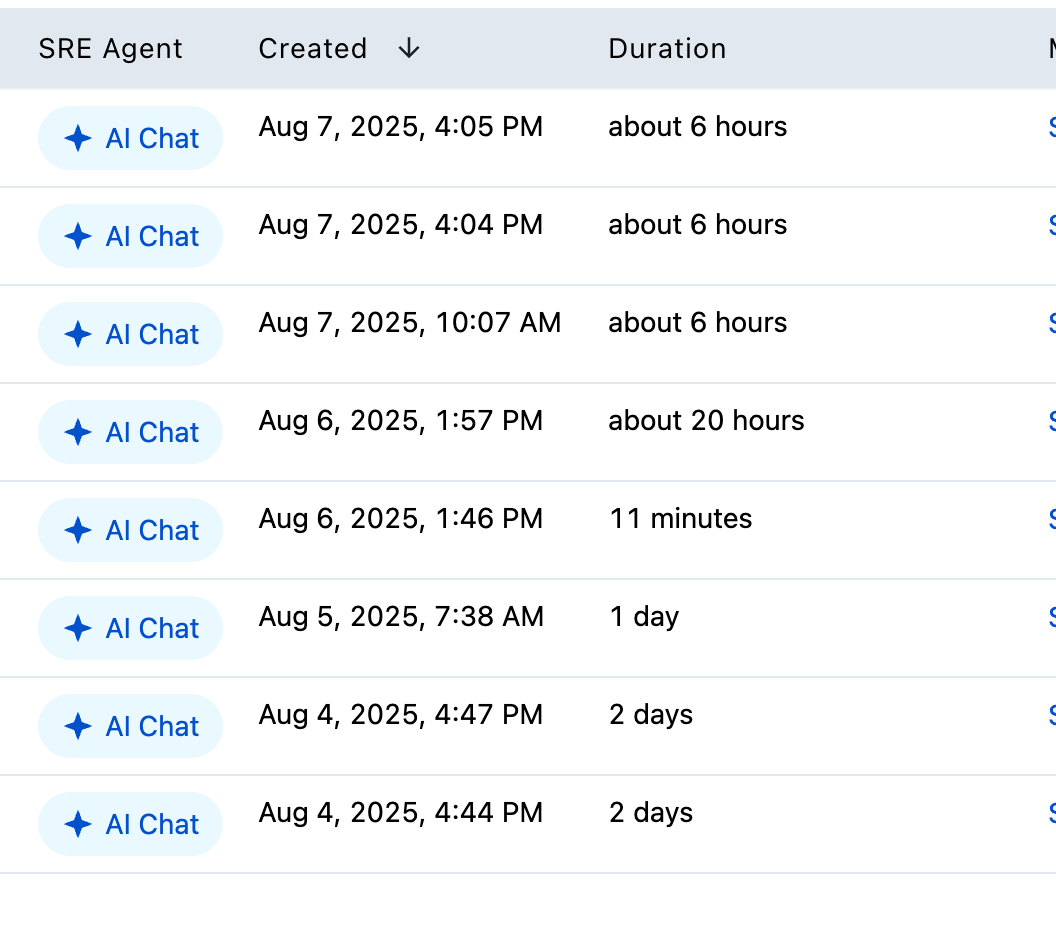
Paige Column in the Operations Console
- Click the incident Title.
- Select the Paige tab and wait for the agent to load the incident summary and suggest next steps.
- Ask questions and provide information to begin troubleshooting the incident with the agent. Refer to Example Questions for examples.
- Click Paige's nudges or buttons to take prescribed actions during the conversation (for example, Upload a service runbook).
- Add an attachment to upload additional files.
In Incident Details
- In the PagerDuty web app, navigate to an open incident.
- On the right side of the incident details page, select the Paige tab and wait for the agent to load the incident summary and suggest next steps.
- Ask questions and provide information to begin troubleshooting the incident with the agent. Refer to Example Questions for examples.
- Click Paige's nudges or buttons to take prescribed actions during the conversation (for example, Upload a service runbook).
- Add an attachment to upload additional files.
In Slack
Before You BeginYou must configure Slack with Paige. Refer to our instructions to Configure the Slack Integration and Connect PagerDuty AI to Slack if you have not already done so.
NoteIf you do not have PagerDuty AIOps, you can still access certain PagerDuty AIOps information, such as related incidents, past incidents, change events, and outlier incidents, but only within the Slack chat interface. This information is not available outside of the agent chat interface in Slack (for example, in the incident management web app).
Required ScopesPaige requires additional scopes to work with Slack. A PagerDuty admin may need to reauthorize the Slack integration to grant these scopes.
- Access Paige in one of the following channel types:
- Dedicated incident channels
- Team-based or service-based Slack channels
- To start Paige, perform one of the following actions:
- Click the Paige Triage button.
- Ask questions in the chat using
@pagerdutyfollowed by a question related to the incident. Refer to Example Questions for examples.
- To upload a file to Paige in Slack:
- Click the Upload Runbook or Update Runbook button.
- Follow the prompts and select the runbook to upload.
- Click Submit.
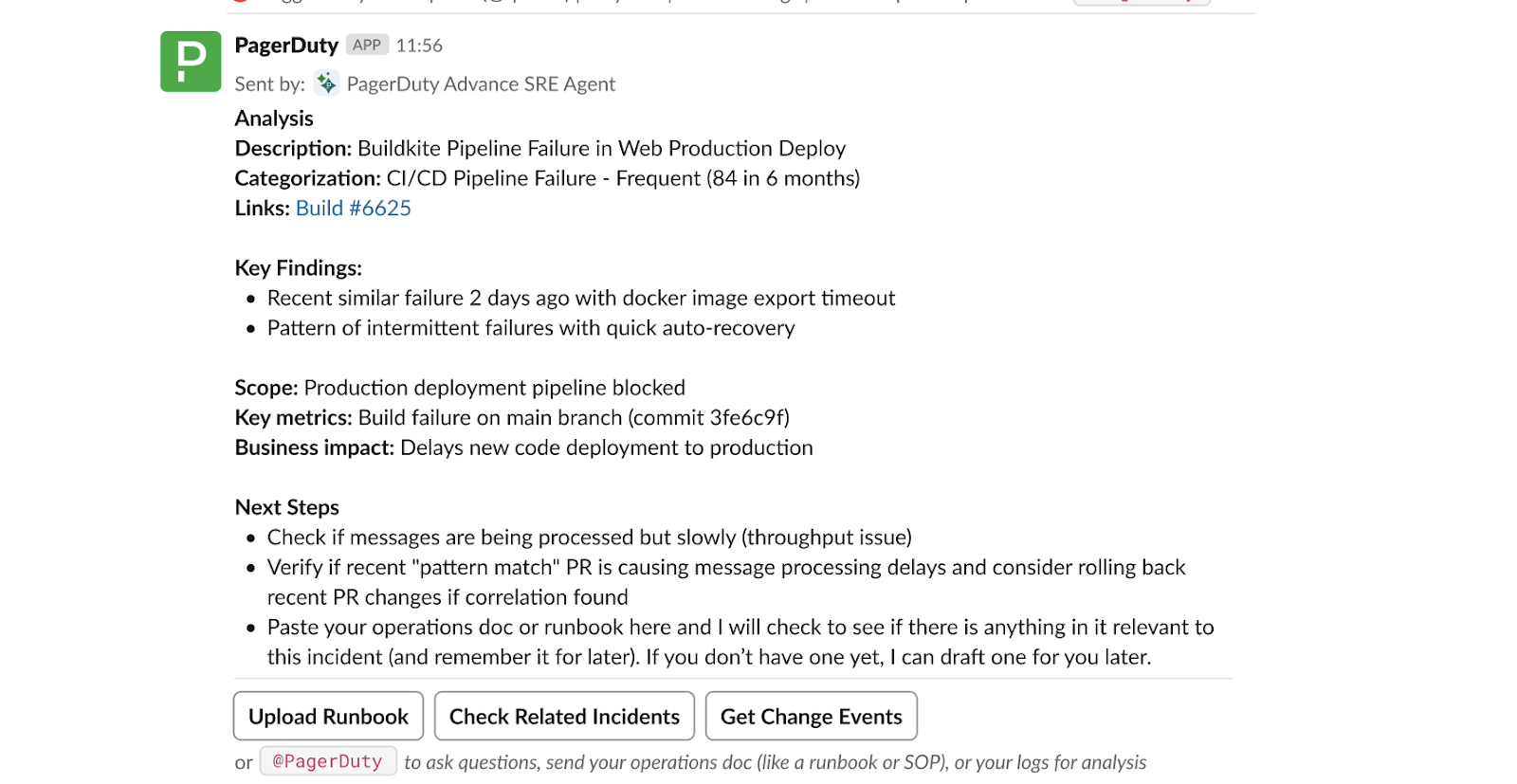
Slack Interface with Paige
In MS Teams
Before You BeginPaige in MS Teams is currently in Early Access. You must configure MS Teams with PagerDuty AI and have Paige enabled. Refer to our instructions on how to Connect PagerDuty AI to MS Teams if you have not already done so.
Once configured, you can interact with Paige by typing @pagerduty followed by your question in the chat. Refer to Example Questions to get started.
Integrations
Paige can retrieve log data from observability platforms such as Grafana, Datadog, New Relic, and AWS CloudWatch, and runbooks from sources such as Confluence and GitHub. By analyzing these logs and runbooks, Paige guides responders through investigation, triage, and resolution. When setting up one of these workflow integrations, select Allow Paige access to use this connection.

Allow Paige Access
Setting Up an IntegrationFor more information on setting up Paige integrations, view Paige: Connectors and Skills.
Supported Actions
Paige uses nudges to recommend supported actions such as:
- Upload Runbook: For first-time setup on a service.
- Update Runbook: When a runbook already exists.
- Analyze Past Incidents: Review history and patterns.
- Analyze Related Incidents: Identify correlations and impact.
- Generate a Playbook: Create repeatable response steps.
- Check Change Events: Verify recent changes for possible cause.
- Search Logs: Check logs based on tooling setup.
- Update Memory: After incident resolution, save new information to Paige's memory.
Incident Notes
Paige analyzes new notes posted during active incidents, where you can see them in:
- Slack: Posts analysis of new incident notes.
- Operations Console: Posts each new note in chat with interpretation.
You can disable proactive note messages on the AI Settings page. You can ask questions in the chat about recent notes.
Example Questions
The following questions are representative of the types of questions Paige can answer. Paige leverages large language models where questions do not have to be provided in the exact text format shown below.
| Example Question to Paige | Description |
|---|---|
| Can you analyze past incidents to see how this was resolved before? | Ability to see what similar incidents occurred previously for that service. |
| Can you provide a list of related incidents? | Ability to see what active incidents might be related on services that are not your service. |
| How do I check [insert service, infrastructure information] for this specific error? | Ability to ask questions related to the type of incident you are troubleshooting. |
| What information should I gather for this incident to help troubleshoot? | Ability to understand what type of information is needed to troubleshoot the incident. |
| Should I do step X or step Y first to troubleshoot this incident? | From the list of suggested next steps, the agent recommends which step to take first, with additional context on its reasoning. |
| How urgent is this incident based on the data? | Ability to understand incident urgency. |
| What steps should I take to troubleshoot this issue? | Suggested remediation steps. |
| Can you generate a playbook for resolving this error? | Paige develops a playbook based on its understanding of the incident. |
| How do I check the logs for this specific error? | Instructions for checking logs, which may include a sample query. |
| How can I prevent this error from recurring? | Suggestions on how to improve the incident for the future, such as service or infrastructure improvements. |
| Is there a pattern to when these errors occur? | Analysis of incident patterns. |
| What is the impact of this error on our systems? | Potential impact on other related services or infrastructure based on the incident context. |
| What are some likely root causes for this incident? | Suggested root-cause for the incident. |
Paige's Capabilities
Here is a look at the specific capabilities Paige uses to investigate and manage incidents:
get_incident_details- Look up incidents by ID or number (includes recent notes, changes, status updates).list_incidents- Query incidents by service, team, user, or filters.add_incident_note- Add a note to the current incident.get_service_details- Retrieve service info by ID or name.get_related_services- Get upstream and downstream service dependencies.
Paige Memory Definitions
Paige maintains several types of memory to provide increasingly relevant and personalized assistance over time. All of Paige's memory artifacts are scoped to a given PagerDuty service. Understanding these memory types in the following sections helps you leverage the full capabilities of the agent.
Memory API
To update or redact information, see the Paige Memory API documentation. The Paige Memory API provides visibility and control over the memory artifacts maintained by Paige for each PagerDuty service. Paige uses multiple types of memory to deliver increasingly personalized and context-aware assistance over time, helping teams resolve incidents faster and with greater accuracy.
With the Memory API, you can:
- View all of Paige's memory artifacts associated with a given service or incident.
- Update or redact sensitive or outdated information to improve the accuracy and compliance of Paige's insights.
- Leverage the API to make edits or redactions at human speed, not machine speed, ensuring timely, manual oversight where needed.
- Enhance transparency into how Paige builds memories from operational data to deliver more relevant recommendations.
SRE Incident Playbook ("Scratchpad")
- Continuously learns from your organization's historical incident data.
- Automatically generates prioritized resolution steps tailored to your environment by analyzing patterns from past incidents.
- Provides AI-powered baseline recommendations, even for novel incidents.
- Delivers context-aware troubleshooting guidance that improves with each resolved incident.
Customer Service Runbook
- Stores and references your runbooks, SOPs, and documentation (for example, Confluence or GitHub pages).
- Remembers manually provided documentation for future conversations.
- Recommends steps that align with your organization's established procedures and standards.
Incident Summarization
- Automatically creates comprehensive summaries when incidents are marked complete.
- Captures key learnings, resolution details, and troubleshooting paths without manual documentation effort.
- Builds an ever-growing repository of institutional knowledge that benefits future incident response.
Service Profile
- Metadata Paige has observed about a given service via customer runbook, event payload data, and user interactions.
- Examples include cloud providers, region, service type, and relevant log search queries for a given service.
Recommended Workflows
Paige helps streamline incident response by analyzing configured incident workflows and recommending the most relevant options based on the real-time context of each incident. Click here for more information on recommended workflows.
Best Practices
Use these quick tips to get the most from Paige — share context fast, collaborate in triage, and improve outcomes over time.
Provide Relevant Documentation and Context
Upload any runbooks, SOPs, or knowledge base articles related to the affected service or architecture so everyone has the right context.
Resolve Incidents
Paige recalls key information observed during an incident including event payload information, key user interactions, log search queries, and other data that is useful for future similar incidents. Incidents must be resolved to prompt Paige to save information into memory. If you interact with Paige post incident resolution, click the Update Memory button to prompt Paige to save additional information for future incidents.
Interact with Paige
Treat Paige like a triage partner and ask questions when you encounter difficulties. Share any critical findings or remediation steps you have taken during the incident so Paige stays informed and learns over time.
Provide Performance Feedback
Report whether each suggested troubleshooting step was a success or a failure. If a step fails, inform Paige so it can suggest alternative actions and keep the triage moving forward.
Generate Incident Playbooks
At the end of each incident, request a summary playbook. Review it for accuracy and completeness, then copy the approved version to your knowledge base for future use.
Add Runbooks
Structure runbooks one per service with SOPs based on incident types or scenarios. Optionally include log queries to help Paige build better searches.
Know Product Limits
Paige analyzes custom_details and notes, but only up to the first 2,000 characters of each. Content beyond that limit is not included.
Rate AI Responses
Click the Rate AI Response button next to each suggestion or recommendation in the conversation. Provide feedback to help improve the product and future recommendations. Your input helps the system learn and deliver better assistance over time.

Rate AI Response Button
FAQ
What incident data can Paige analyze?
Paige analyzes:
- Event and alert payload information
- Historical and related incidents
- Change events
- User-provided data (runbooks, logs, documentation)
Current limitations: Paige has limited access to incident timeline details, incident workflows, and alert grouping data. These features will be added in future releases to enhance Paige's capabilities.
What happens if a recommendation or incident summary is not correct?
Interact with the agent and state that the suggestion provided was not helpful, why it was not helpful, and ask for an alternative recommendation. You should also rate the response for the recommendation, which is analyzed to improve future recommendations.
What file types and limits exist for file upload?
- PagerDuty currently supports .txt, .pdf, and .md files.
- PagerDuty currently supports
.jpgand.pngfor image analysis. - One conversation can contain up to a total of 25 files, with each file being 100 Kb maximum.
What ways can Paige fetch links?
Paige automatically fetches runbook URLs from the event payload. You can also ask it to:
- Fetch specific runbook links from Knowledge Base tools (including embedded links within pages)
- Conduct log searches via nudge (button) or chat command
How does Paige save time?
Paige transforms incident response by replacing manual, time-consuming investigation steps with automated, intelligent actions. Here is a comparison of your workflow before and after using Paige:
| Manual Workflow (Before) | Paige Workflow (After) |
|---|---|
| Hunting for Documentation: You search across multiple systems for the correct SOPs and runbooks. | Runbook Integration: The agent ingests your existing SOPs, integrates with tools that link to runbooks, and automatically generates new runbooks. |
| Manual Log Retrieval: You log into multiple third-party tools to manually search, view, and retrieve error logs and diagnostics. | Automated Analysis: The agent integrates with third-party tools to automatically retrieve, ingest, and analyze diagnostics and error logs. |
| Guessing Next Steps: You manually prioritize tasks and determine the necessary troubleshooting steps. | Guided Remediation: The agent prioritizes actions by urgency and impact, recommends diagnostic and remediation steps, and provides structured troubleshooting for incidents, services, and infrastructure. |
| Fragmented Context: You spend critical minutes piecing together context and searching for the root cause. | Instant Context: The agent surfaces likely root causes from available data and organizes context into actionable views with interactive buttons and nudges. |
| Relying on Human Memory: You try to remember if a similar incident happened in the past and how your team resolved it. | Pattern Detection: The agent detects patterns and automatically recalls similar past incidents and their resolutions. |
| Manual Wrap-Up: You spend time writing summaries, documenting recurring issues, and manually resolving the incident. | Automated Wrap-Up: The agent summarizes conversations and inputs, marks the incident resolved, saves learnings, and generates and saves playbooks for recurring issues. |
Updated 8 days ago