
Alert Grouping
Alert Grouping is designed for incident responders and operations teams who want to streamline their workflow by reducing noise from multiple alerts and focusing on meaningful incidents. By consolidating related alerts into a single incident, this feature minimizes alert fatigue and accelerates response times, allowing teams to manage incidents more effectively across multiple services.
AIOps / Signal Intelligence FeatureThis feature is included with the PagerDuty AIOps add-on, or included as Signal Intelligence in PD Reliability Platform plans.
If you would like to sign up for a trial of PagerDuty AIOps features, please read PagerDuty AIOps Trials.
Required User PermissionsUsers with the following roles can edit a service's Alert Grouping settings:
- Account Owner
- Admin and Global Admin
- User
- Manager base role and team roles. Manager team roles can only manage services associated with their team.
Global Alert GroupingBy default, Alert Grouping groups alerts on a single technical service. To expand scope across more than one service, read Global Alert Grouping, which allows you to configure a multiservice group and group alerts from different services into a single incident.
View Alert Grouping
In the PagerDuty web app, navigate to AIOps Noise Reduction and select the Alert Grouping tab for an overview of the services in your account that have Alert Grouping configured. Enter a term in the search box to filter the list of services displayed.
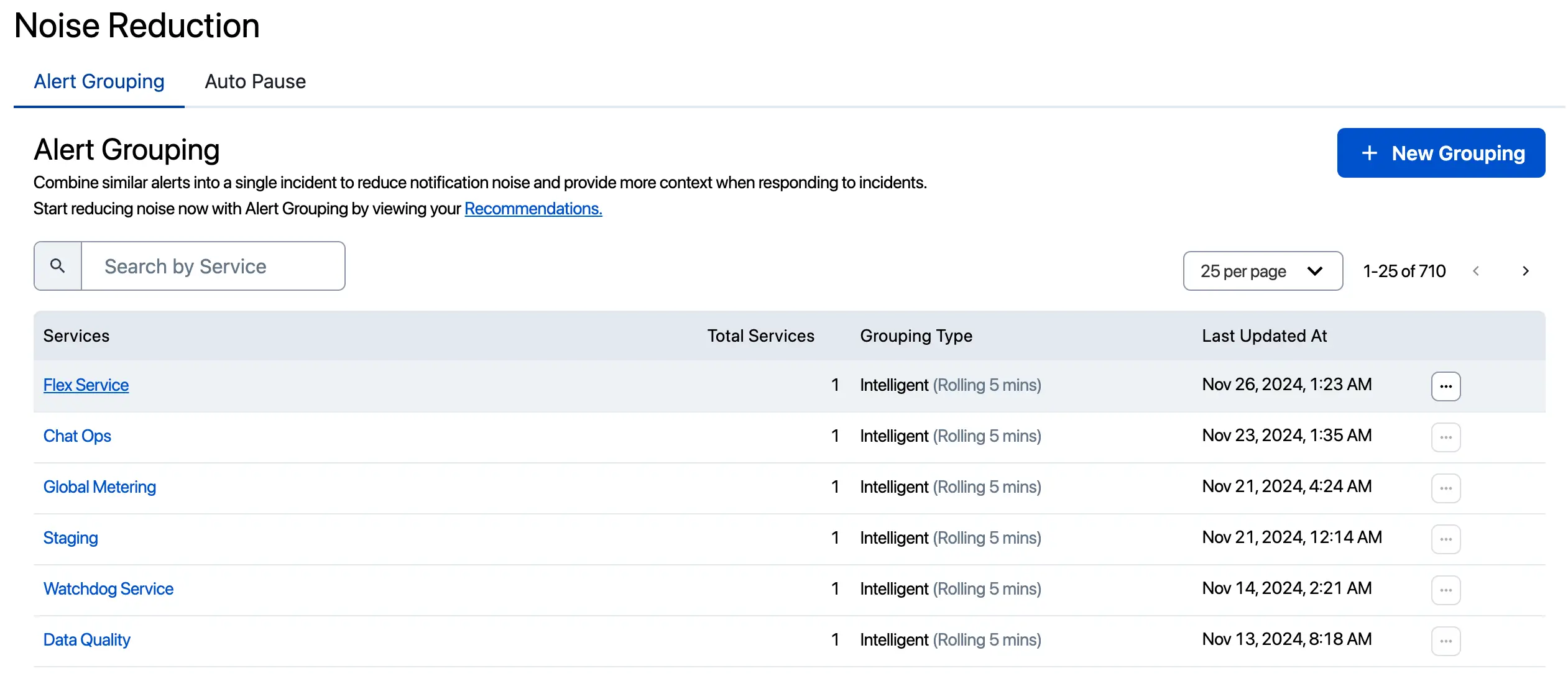
Alert Grouping on the Noise Reduction overview page
Enable Alert Grouping
You can enable Alert Grouping from two locations:
Noise Reduction
- Navigate to AIOps Noise Reduction.
- Click New Grouping.
- In the Select Services to group the alerts dropdown, select one or more services to group alerts across services.
- Read Global Alert Grouping for more information about what to expect when you select more than one service.
- Select an alert grouping method and, if applicable, enter your grouping criteria.
- Inputs will vary depending on the grouping method you select. See Grouping Methods for more information about each.
- Click Save.
Service Settings
- Navigate to Services Service Directory and select your desired service.
- Select the Settings tab and click New Grouping or Edit in the Reduce Noise section.
- In the Select Services to group the alerts dropdown, optionally add more services to group alerts across services.
- Read Global Alert Grouping for more information about what to expect when you select more than one service.
- Select an alert grouping method and, if applicable, enter your grouping criteria.
- Inputs will vary depending on the grouping method you select. See Grouping Methods for more information about each.
- Select a value from the dropdown for the grouping time window.
- Click Save.
Update Alert Grouping
You can update Alert Grouping from two locations:
Noise Reduction
- Navigate to AIOps Noise Reduction and select the name of your desired service, or select Edit to the right of your desired service.
- Make your required configuration changes — for example, add services to the multiservice group, adjust the matching criteria, the grouping time window value, or select a different Grouping Method.
- Click Save.
Service Settings
- Navigate to Services Service Directory and select your desired service.
- Select the Settings tab and click Edit in the Reduce Noise section.
- Make your required configuration changes — for example, add services to the multiservice group, adjust the matching criteria, the grouping time window value, or select a different Grouping Method.
- Click Save.
Delete Alert Grouping
You can delete Alert Grouping from two locations:
Noise Reduction
- Navigate to AIOps Noise Reduction and select Delete to the right of your desired service.
- In the confirmation modal, click Delete.
Service Settings
- Navigate to Services Service Directory and select the name of your desired service.
- Select the Settings tab and click Edit in the Reduce Noise section.
- In the bottom-left, click Delete.
- In the confirmation modal, click Yes, turn off.
View Alert Grouping on an Incident
When enabled, you can see Alert Grouping actively grouping alerts on an incident's detail page under the Alerts tab. The Grouping Now label indicates that an incident is using alert grouping. You can also see how many alerts are grouped into the incident, as well as their status. In the example below, two alerts have been grouped: one is triggered and the other is resolved.
Click Alert grouping details to see which grouping method is in effect (Intelligent, Content-Based, Unified, or Time-Based Alert Grouping), when grouping started, and the conditions under which grouping will stop.
Grouping Methods
PagerDuty offers a variety of grouping methods depending on your organization's needs. Select one of the following grouping methods for more information, including configuration details:
Updated 14 days ago