
Shift Agent
Eliminate manual on-call management and ensure seamless coverage
Shift Agent brings AI-powered automation to on-call schedule management in PagerDuty. Designed for on-call managers, team leads, and incident responders, it monitors calendars, detects potential conflicts, identifies qualified replacements, and coordinates schedule changes without manual intervention. By automating these traditionally manual tasks, Shift Agent helps ensure reliable operational coverage.
By default, Shift Agent activates for all customers who enable PagerDuty Advance with the Slack integration.
AvailabilityShift Agent is available with PagerDuty Advance on Professional, Business, and Enterprise plans.
Contact our Sales Team if you would like to upgrade to a plan featuring PagerDuty Advance.
Required User Permissions
- PagerDuty Advance permissions for configuration are the same across all agents. After the required permissions are accepted, any user can interact with the Shift Agent.
- An Admin or the Account Owner can configure the Google Calendar Extension.
Configure Shift Agent
Shift Agent has two primary functions:
Intelligent Conflict Detection
Shift Agent is an AI-powered scheduling assistant that automatically manages on-call coverage conflicts. It monitors responder calendars, detects scheduling conflicts, and coordinates coverage changes without manual intervention. By automating these traditionally time-consuming tasks, Shift Agent eliminates coverage gaps, reduces scheduling stress, and ensures operational readiness.
- Configure and enable PagerDuty Advance in a chat integration (for example, Slack).
- Ensure users have appropriate permissions to manage on-call schedules and integrations.
- Shift Agent only detects conflicts on schedules configured on Level 1 of an escalation policy in order to reduce noise. Ensure any schedule you want included in conflict detection is on Level 1 of an escalation policy.
Extension for Google Calendar
The Google Calendar Extension automatically syncs your calendar events with PagerDuty, allowing Shift Agent to detect out-of-office conflicts before they impact coverage. This integration reduces the need for manual availability updates and helps maintain operational continuity while respecting responders' scheduled commitments.
Learn more on setting up your Google Calendar Extension.
Disable Shift Agent
You can disable the Shift Agent by toggling its switch to the off position on the AI Settings page.
User Guide
Check Responder Availability
In a PagerDuty Advance chat, enter a message such as, I am on vacation June 13. Do I have a conflict?. Depending on your availability, PagerDuty Advance offers contextual suggestions, such as Create override manually or Find coverage.
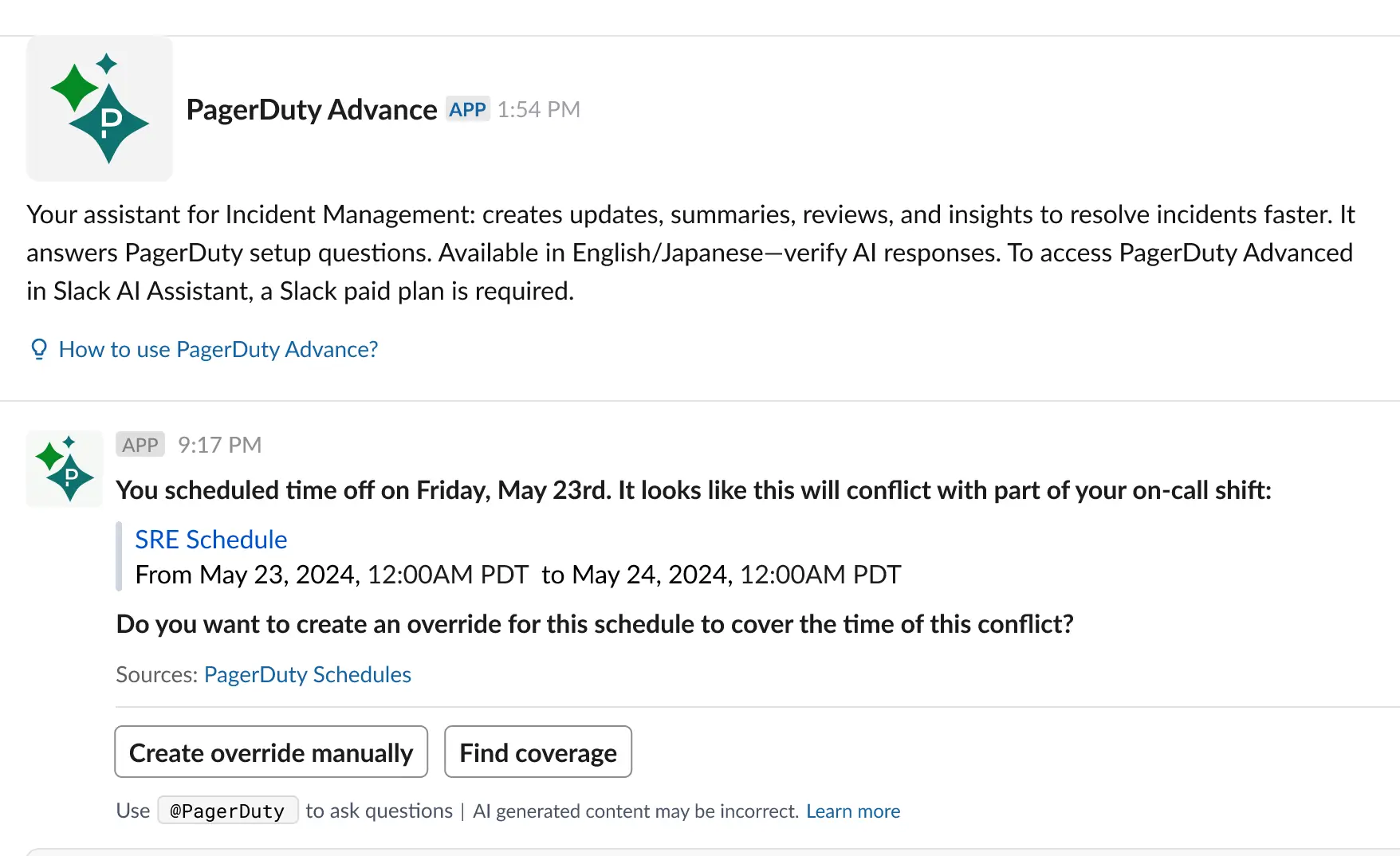
Check responder availability
Request Coverage
Shift Agent can automatically find a replacement for an on-call shift. Click Request coverage to reach out to suggested candidates. They receive a message based on their configured notification rules.
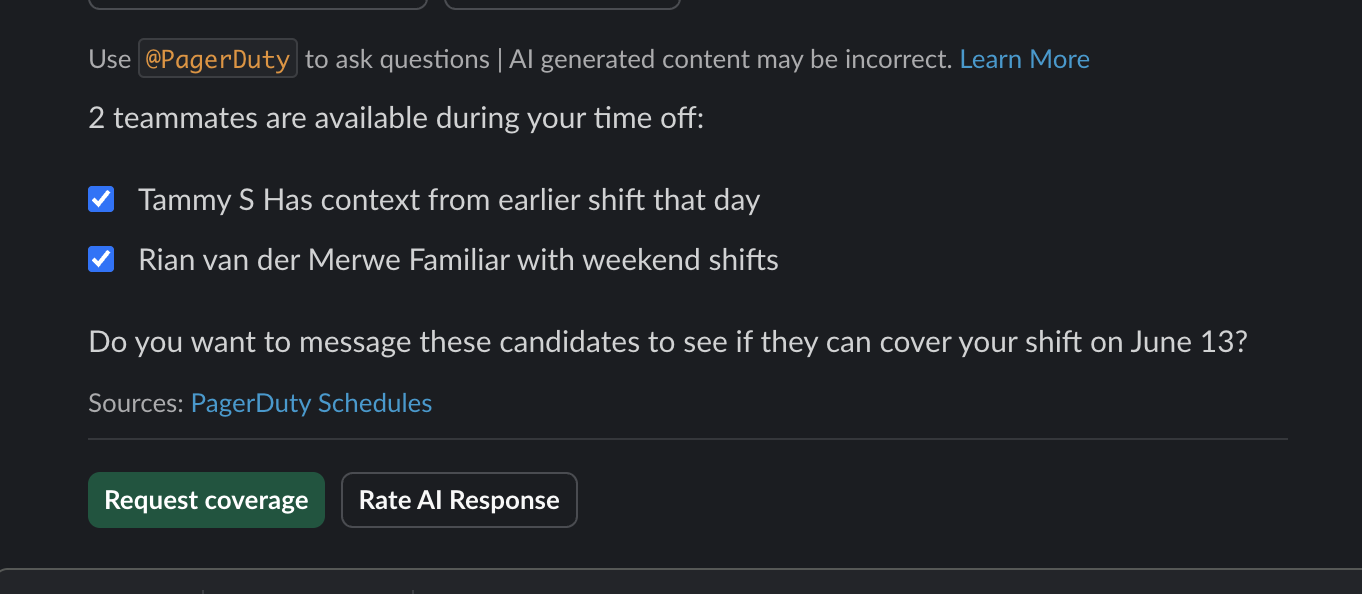
Request coverage
You receive an update once a candidate accepts the shift. Shift Agent automatically updates on-call schedules and maintains a record of all changes.
Shift Agent gives responders 24 hours to respond. This 24-hour period does not include Saturday or Sunday. After the period times out, or after all candidates decline, you will also receive a notification.
Configure Notification Rules
Users can configure their Notification Rules to customize how Shift Agent contacts them.
Slack NotificationsWhen you link your PagerDuty user account with Slack, PagerDuty attempts to automatically create notification rules for shift conflicts and shift coverage requests. If you have connected more than one Slack workspace, PagerDuty uses the most recently-added workspace.
You can review and customize your Notification Rules at any time. If you are not receiving notifications as expected, check your User Profile to make sure the preferred Slack workspace is selected to receive notifications, or add a workspace if none is currently configured.
Shift Conflicts
PagerDuty automatically adds a notification rule to users' profiles when the Google Calendar extension is enabled in the account.
To edit this setting:
- Navigate to User Icon My Profile and select the Notification Rules tab.
- Under When I have an upcoming shift conflict, contact me via, click to edit or to remove the notification rule.
- Make the required changes and click Save.
Shift Coverage Requests
All PagerDuty Advance users have a notification rule for when they receive a shift coverage request. You can edit this notification rule (i.e., change the selected workspace), however you cannot delete it.
- Navigate to User Icon My Profile and select the Notification Rules tab.
- Under When I am sent a shift coverage request, contact me via, click .
- Make the required changes and click Save.
FAQ
How many AI Actions does the Shift Agent use?
Shift Agent is included at no additional cost and does not consume AI Actions.
Demo Video
Watch this demo to see the Shift Agent in action.
Updated 3 months ago