
Single Sign-On (SSO)
Streamline user authentication and access management
PagerDuty can be configured with Single Sign-On (SSO) to external identity providers (IdPs) such as Microsoft Active Directory (using ADFS), Bitium, OneLogin, Okta, Ping Identity, SecureAuth, and others using the SAML 2.0 protocol. Alternatively, you can configure your account to use Google authentication with the OAuth 2.0 protocol (with individual consent). Accessing private status pages is handled via the OpenID Connect (OIDC) protocol.
SSO comes with the following benefits:
- One-Click Corporate Login: This eliminates the need for a separate PagerDuty username and password.
- On-Demand Provisioning: PagerDuty accounts are created on-demand once access is granted via the SSO provider.
- Revoke Access: When an employee leaves your company, administrators can quickly remove PagerDuty access within the SSO provider.
AvailabilitySingle Sign-On is available on the following pricing plans: Professional, Business, Enterprise for Incident Management, and Digital Operations (Legacy). Contact our Sales team to upgrade to a plan with Single Sign-On.
Configure Identity Provider Single Sign-On (SAML)
To configure SAML SSO:
- Navigate to our Integrations Directory and select your identity provider’s integration guide.
- In the PagerDuty web app, navigate to User Icon Account Settings Single Sign-On.
- Select SAML and continue following the steps in the integration guide.
- Note: Not all identity providers require this step. Refer to the integration guide for specific instructions.
- Configure the following settings based on your preferences and your integration guide’s instructions:
| Field | Value |
|---|---|
| Allow username/password login | Select this option to allow standard login. |
| Require EXACT authentication context comparison | Select this option based on your requirements. |
| Require signed authentication requests | Select this option based on your requirements. |
| Auto-provision users on first login | Optional: Select this to provision accounts automatically. |
| Redirect non-provisioned users | Optional: Select this to redirect unauthorized logins. |
- Click Save Changes.
Custom SAML Configuration
For custom SAML configurations, use the following metadata URL:
https://{subdomain}.pagerduty.com/sso/saml/metadata
Required Attributes
For manual SAML configurations, PagerDuty validates and enforces the following attributes in the SAML payload:
- Destination (sometimes labeled SAML Recipient in identity provider configuration forms) must be:
https://{subdomain}.pagerduty.com/sso/saml/consume
- Audiences (sometimes labeled SAML Audience in identity provider configuration forms) must be:
https://{subdomain}.pagerduty.com
Trailing SlashesDo not include a trailing slash at the end of the URL. You receive an
HTTP 400error when trying to log in if there is a/at the end of the URL.
- Name ID must be the email address:
urn:oasis:names:tc:SAML:1.1:nameid-format:emailAddress
Optional Attributes for Auto-Provisioning
If you enable the Auto-provision users on first login option, keep the following in mind:
- Name: Names map to the value of the
Nameornameattribute received in your SAML payload. If there is noNameornameattribute in your SAML payload, the name defaults to the email address. - Role: Roles map to the value of the
Roleorroleattribute received, where the value must match one of our REST API role values:admin,limited_user,user, orread_only_user(known as Stakeholder). Accounts with Advanced Permissions can also use theobserverrole. If there is noRoleorroleattribute in your SAML payload, the role defaults touser. This role links to the User basic role and Manager advanced permission role. - Job title: The job title maps to the
jobresponsibilitiesattribute in the SAML payload, if present.
AttributesThese attributes only apply when an account is initially created. Changing an email address, name, or role in your identity provider does not change these values in PagerDuty. You must update a login email address, name, or role in PagerDuty if you change them in your identity provider after the account is automatically provisioned in PagerDuty.
Configure Google Authentication (OAuth 2.0)
To configure Google Authentication:
- In the PagerDuty web app, navigate to User Icon Account Settings Single Sign-On.
- Select Google.
- Configure the following information:
| Field | Value |
|---|---|
| Google Domain | Enter the domain associated with your Google Apps account. |
| Allow username/password login | Optional: Select this option to allow standard login. |
| Auto-provision users on first login | Optional: Select this option to provision accounts automatically. |
- Click Save Changes.
When you Log In to PagerDuty, you are prompted to log in via Google Authentication.
Revoke AccessRevoking access in your SSO provider prevents you from logging in via SSO, but it does not delete the account in PagerDuty. You must still log in to the PagerDuty web app to remove responders from schedules, escalation policies, and delete their account. Read Offboarding for more information about removing accounts in PagerDuty.
Google Workspace Multiple Domains LimitationThe PagerDuty Google Auth integration supports a single domain and cannot be used for multiple Google Workspaces.
Configure Open ID Connect (OIDC)
You can access private status pages via SSO using the OpenID Connect protocol. Read Private Status Pages for more information.
Log In via SSO
Read Log In to PagerDuty for more information about logging in to PagerDuty via SSO.
Redirect Non-Provisioned Accounts
Auto-provisioning accounts gets responders up and running quickly, but it affects your account’s billing. If you do not want to auto-provision accounts, you can optionally redirect non-provisioned individuals to a destination link, such as an internal wiki, for more information about getting provisioned in your identity provider.
To redirect non-provisioned individuals to a destination link:
- In the PagerDuty web app, navigate to User Icon Account Settings Single Sign-On.
- Under the User Provisioning section, select Redirect non-provisioned users.
- Enter the Destination Link where they should be redirected.
- Click Save Changes.
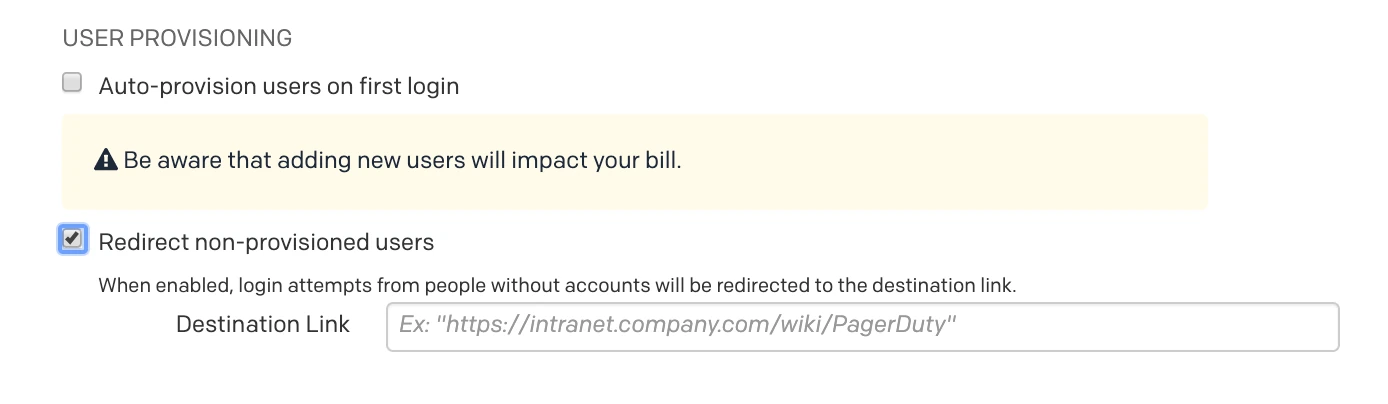
Redirect non-provisioned users
FAQ
Does the application support Service Provider (SP)-initiated or Identity Provider (IdP)-initiated SSO?
Yes. PagerDuty supports both Service Provider (SP) and Identity Provider (IdP) initiated SSO.
How do I know if my identity provider is "pinning" certificates?
PagerDuty rotates its SAML certificate every year, and PagerDuty sends out communications with instructions about how to rotate the certificate.
If your identity provider uses a static copy of PagerDuty's SAML certificate (that is, certificate pinning), you must update your identity provider every time PagerDuty rotates its certificate. If certificates are manually uploaded or configured rather than pulled from PagerDuty's metadata endpoint, you are likely pinning certificates. Check with your identity provider administrator to confirm.
No action is needed if your identity provider uses PagerDuty's SAML metadata endpoint (that is, https://{subdomain}.pagerduty.com/sso/saml/metadata) to configure certificates dynamically. If you can log in via SSO without errors after certificate rotation dates, you are likely using dynamic configuration and no action is needed.
Why do I get an HTTP 400 error with SSO to Entra?
If you encounter an HTTP 400 error when signing in via SSO, contact PagerDuty Support and include the following details in your support request:
Point of failure: Specify exactly when the error occurs — for example, during sign-in, sign-out, or when redirecting from your identity provider portal — and whether it happens on a web browser or the mobile app.
Screenshot: A screenshot of the full screen showing the error message, if possible.
Timestamp: The exact date, time, and timezone of the most recent occurrence.
Getting an AADSTS75011 Error?If your error includes the code AADSTS75011, that is a different issue with a specific fix — see Why do I get authentication errors with Microsoft (Entra) SSO? instead.
Why do I get authentication errors (AADSTS75011) with Microsoft Entra SSO?
You might encounter an authentication error AADSTS75011 when using some authentication methods, such as MFA, passwordless, and certificates. The full error is Authentication method by which the user authenticated with the service doesn't match requested authentication method.
If you receive this error, contact our Support Team, who can enable authentication context bypass for your account. This allows your identity provider to handle authentication requirements directly.
If you contact support:
- The PagerDuty Account Owner must submit or explicitly authorize the request.
- Ask to enable the "SAML authentication context bypass" for your account.
- Let Support know if you need this setting to be enabled immediately, or schedule the change for a certain date and time.
What should I do if role assignment is not working?
If you notice that role assignment is not working as expected, or that accounts are created with a Stakeholder role instead of the intended role defined in the SAML payload, the following issues might be the cause:
- Insufficient licenses available on your account
- Incorrect role attribute values in the SAML payload
- The role attribute was not properly configured in your identity provider
Confirm that your account has licenses available and verify that role attribute values match PagerDuty's expected values exactly. Read our developer documentation article Create a user for more information about valid role names.
Why do I see an error `An unexpected error occurred. Please try again.` after entering my X.509 cert?
If you see an error An unexpected error occurred. Please try again. after entering your X.509 cert, check the following:
- Confirm that the X.509 certificate is valid.
- Confirm that each row in your X.509 certificate is a maximum of 64 characters.
- Confirm that
-----BEGIN CERTIFICATE-----is at the beginning of the certificate and-----END CERTIFICATE-----is at the end.
Example:
-----BEGIN CERTIFICATE-----
MIIDdjCCAl6gAwIBAgIURghXgSldiQTb3HEFXKz/MAoxnWwwDQYJKoZIhvcNAQEL
BQAwZzELMAkGA1UEBhMCVVMxEzARBgNVBAgMCkNhbGlmb3JuaWExFjAUBgNVBAcM
DVNhbiBGcmFuY2lzY28xFTATBgNVBAoMDEV4YW1wbGUgQ29ycDEUMBIGA1UEAwwL
ZXhhbXBsZS5jb20wHhcNMjUwNjIzMTYzNjUyWhcNMjYwNjIzMTYzNjUyWjBnMQsw
CQYDVQQGEwJVUzETMBEGA1UECAwKQ2FsaWZvcm5pYTEWMBQGA1UEBwwNU2FuIEZy
YW5jaXNjbzEVMBMGA1UECgwMRXhhbXBsZSBDb3JwMRQwEgYDVQQDDAtleGFtcGxl
LmNvbTCCASIwDQYJKoZIhvcNAQEBBQADggEPADCCAQoCggEBAInvxB/KIvOpdxeG
yuEP9glNNyjZjj2qnrjimShHmUCgP0FvdZtjIzQcHsV375+K17QJQygiKQrW/L1r
aDvGmRkZsOOuuC7voiQ8sCb9oQ2YuQiRXZIFZhOEPI4N06sh4SHKShyhsXFdegZJ
S6BHYtO9gYEog9ILq2RH7gqcUBSG4aBiVw3EpN5kspnTBi30MX0g78T/ETSvn9j9
0y8kqaDghXNH+3SqArcN5P15K3NVW7A5lSWroMtcWv/7caycTh8JX4Plxy4laTnb
aG2uvrsUKMIf6nGDfeIso7i2XcrXTAB0EF5o4uIKVPB6I1vBtF0c/OEzx/o2T6xU
wepgdVsCAwEAAaMaMBgwFgYDVR0RBA8wDYILZXhhbXBsZS5jb20wDQYJKoZIhvcN
AQELBQADggEBAELrui2b3tVUq+NmK3C7xYEw0Hiqo0B1x8ijcvSHSHpiLOxOtcVl
ZMSScW7Xtqu21erw/LEQOI48CHnIw6JSS8XnsKQUoLT8NLcc2EkxkYWlIwBWmaN+
p8YaE+wy49JfdlaYI+3X9utCGrAoFJ/mMNX/ONKXdxV9SxlRxTnrvymHQb2S23uM
4uophIWmb8Gz1kaGBA/lxjVzKHPaFas7JRHVQG7TF/pyxKNmfsz205a+/6bxQ8QP
w3UsE2bPUXSiAVHygZE1Kgn7vLhkQY7G00NJaFpDgzNESRawWYBoDBSLWNgXHUvv
biTMqQD2QXqngpt4OjA9c7eLuiMd5wDNVT4=
-----END CERTIFICATE-----
Can I use a self-signed certificate for my SAML SSO integration?
Yes. PagerDuty treats signatures from the identity provider as valid as long as:
- The certificate stored in the PagerDuty SAML settings matches the private key that the identity provider uses to sign SAML responses.
- The identity provider is configured to sign assertions.
Once these conditions are met, you can authenticate.
Why does the Account Owner have the ability to log in using email and password after enabling SSO?
Account Owners retain the ability to log in by email address and password in the event that there is an issue with the SSO provider. This cannot be turned off.
What happens if my identity provider has an outage?
If your identity provider has an outage and you cannot log in via SSO, the Account Owner can log in using their email and password and temporarily enable email/password login for everyone.
- In the PagerDuty web app, navigate to User Icon Account Settings.
- Select the Single Sign-On tab.
- In the section Allow username/password login, select this option.
- Click Save Changes.
I am locked out and cannot log in. What do I do?
PagerDuty authenticates through the identity provider (IdP) your organization configured for Single Sign-On. PagerDuty Support cannot restore access directly, because your organization's Account Owner or identity provider administrator controls the SSO configuration and login state for your account.
Contact your organization's Account Owner. The Account Owner can log in with email and password even when SSO is enabled, and can temporarily enable email/password login for all users if needed. If you do not know who your Account Owner is, contact your internal IT team, since IdP configuration is typically managed jointly by IT and the Account Owner.
Can one PagerDuty account have multiple SSO/SAML providers?
Not at this time. Currently only one SSO option is configurable.
When switching from password login to SSO, am I logged out from my account?
Enabling SSO on the account, and then disabling the option to Allow username/password login, does not also log you out of the web app or mobile app. You can use the REST API to end sessions, which requires you to log in again using SSO. Note you must use a different endpoint for the web app and the mobile app:
- Web app: Delete all user sessions
- Mobile app: Delete all OAuth delegations. Requests might take up to 24 hours to process.
Can I use Shibboleth for SSO?
Yes. Shibboleth is an open-source identity management system, which might require a custom metadata file. Its contents should look similar to the following. Be sure to replace subdomain with your own PagerDuty subdomain (for example, https://subdomain.pagerduty.com).
In addition to defining the metadata, you must configure RelyingParty in Shibboleth, as in the example below. Be sure to replace the provider URL with your own.
<rp:RelyingParty
id="https://subdomain.pagerduty.com"
provider="https://domain/idp/shibboleth"
defaultAuthenticationMethod="urn:oasis:names:tc:SAML:2.0:ac:classes:unspecified"
defaultSigningCredentialRef="IdPCredential">
<rp:ProfileConfiguration xsi:type="saml:SAML2SSOProfile"
includeAttributeStatement="true"
assertionLifetime="300000"
assertionProxyCount="0"
signResponses="conditional"
signAssertions="never"
signRequests="conditional"
encryptAssertions="never"
encryptNameIds="never"
/>
</rp:RelyingParty>
Updated about 2 months ago